Chapter 5: Power Tools & Automation
In high-volume file management, basic file manipulation—copying, moving, and deleting individual items—is only the beginning. Professional engineers, system administrators, content creators, and data analysts frequently encounter complex operational challenges: restructuring thousands of inconsistently named digital assets, isolating subtle code regressions between parallel release branches, maintaining synchronized mirrors across network storage arrays, locating deeply buried configuration files, and cryptographically verifying file integrity.
ATBCmder transforms these labor-intensive tasks into swift, deterministic operations. Instead of requiring external command-line scripts, third-party batch utilities, or clunky standalone diff applications, ATBCmder integrates a comprehensive automation suite directly into its orthodox dual-panel core. Whether you need to execute regular expression substitutions across an entire photo archive, perform a two-way directory synchronization with content-level hashing, or feed multi-filter search results into a virtual workspace, ATBCmder provides the tools you need with complete keyboard efficiency.
1. Visual Quickstart: The Automation Engine & Command Matrix
ATBCmder divides power tools and automation into six specialized functional domains that interact seamlessly with the dual-panel interface:
┌────────────────────────────────────────────────────────────────────────────────────────┐
│                                DUAL FILE PANELS                                        │
│     Left Panel (Source / Directory A)        Right Panel (Target / Directory B)        │
├────────────────────────────────────────────────────────────────────────────────────────┤
│                                          │                                             │
│  [1] Batch Multi-Rename (Ctrl+M)         │  [2] Side-by-Side File Diff (Meta+Shift+F12)│
│      Tokens, RegEx, Counters, Preview    │      Line highlights, Hunk sync, In-place   │
│                                          │                                             │
│  [3] Directory Sync (Shift+F12)          │  [4] Advanced Search (Alt+F7)               │
│      Content/Date compare, Asym mirror   │      Spotlight / Deep scan ➔ Feed to Listbox│
│                                          │                                             │
│  [5] Semantic Command Bar (/)            │  [6] File Utilities & Security              │
│      Spotlight queries, AI intent, NLP   │      Split/Link, Checksum, Wipe (Alt+Del)   │
│                                          │                                             │
├────────────────────────────────────────────────────────────────────────────────────────┤
│  [Feed to Listbox] ➔ Populates virtual panel tab for bulk operations across directories│
└────────────────────────────────────────────────────────────────────────────────────────┘
Dual-Matrix Automation Cheat Sheet
| Action | macOS Shortcut | Classic Commander Key | Command ID | Description |
|---|---|---|---|---|
| Batch Multi-Rename | Ctrl+M / ⌃M |
Ctrl+M |
cm_MultiRename |
Opens the Batch Multi-Rename tool dialog. |
| Side-by-Side File Diff | Meta+Shift+F12 / ⌘⇧F12 |
Meta+Shift+F12 |
cm_FileDiff / cm_CompareFiles |
Compares two selected files side by side (Shift+F3 for cm_CompareContents). |
| Directory Synchronize | Shift+F12 / ⇧F12 |
Shift+F12 |
cm_SyncDirs |
Compares and synchronizes dual panel directories. |
| Advanced File Search | Alt+F7 / ⌥F7 |
Alt+F7 |
cm_Search / cm_FileSearch |
Opens the multi-filter search dialog. |
| Spotlight Fast Search | Ctrl+Shift+F / ⌃⇧F |
Ctrl+Shift+F |
(Commands Menu) | Initiates instant Spotlight metadata search. |
| Semantic Command Input | / |
/ |
cm_VisSemanticCommand |
Activates embedded natural language command bar. |
| Split Large File | Alt+F6 / ⌥F6 |
Alt+F6 |
cm_FileSpliter / cm_Split |
Splits large file into numbered chunks. |
| Combine Split Files | Menu: Files ➔ Combine Files | — | cm_FileLinker / cm_Combine |
Reassembles .001, .002 chunks into single file. |
| Calculate Checksum | Ctrl+X / ⌃X |
Ctrl+X |
cm_CheckSumCalc / cm_CalculateChecksum |
Computes MD5, SHA-1, SHA-256, or SHA-512 hashes. |
| Verify Checksum File | Tools Menu | — | cm_CheckSumVerify / cm_VerifyChecksum |
Verifies files against .md5, .sha256, or .sfv. |
| Secure Wipe (Shred) | Alt+Delete / ⌥⌫ |
Alt+Delete |
cm_Wipe |
Securely overwrites and deletes files. |
| Run System Terminal | Ctrl+J / ⌃J |
Ctrl+J |
cm_RunTerm |
Spawns macOS Terminal at current panel path. |
2. Batch Multi-Rename Tool (Ctrl+M / ⌃M / cm_MultiRename)
Renaming dozens or hundreds of files manually is tedious and error-prone. The Batch Multi-Rename Tool (cm_MultiRename, mapped to fmultirename.pas in the classic architecture) allows you to define flexible naming patterns, apply dynamic sequence counters, perform case conversions, and execute powerful Regular Expression (RegEx) find-and-replace rules with real-time visual safety guarantees.
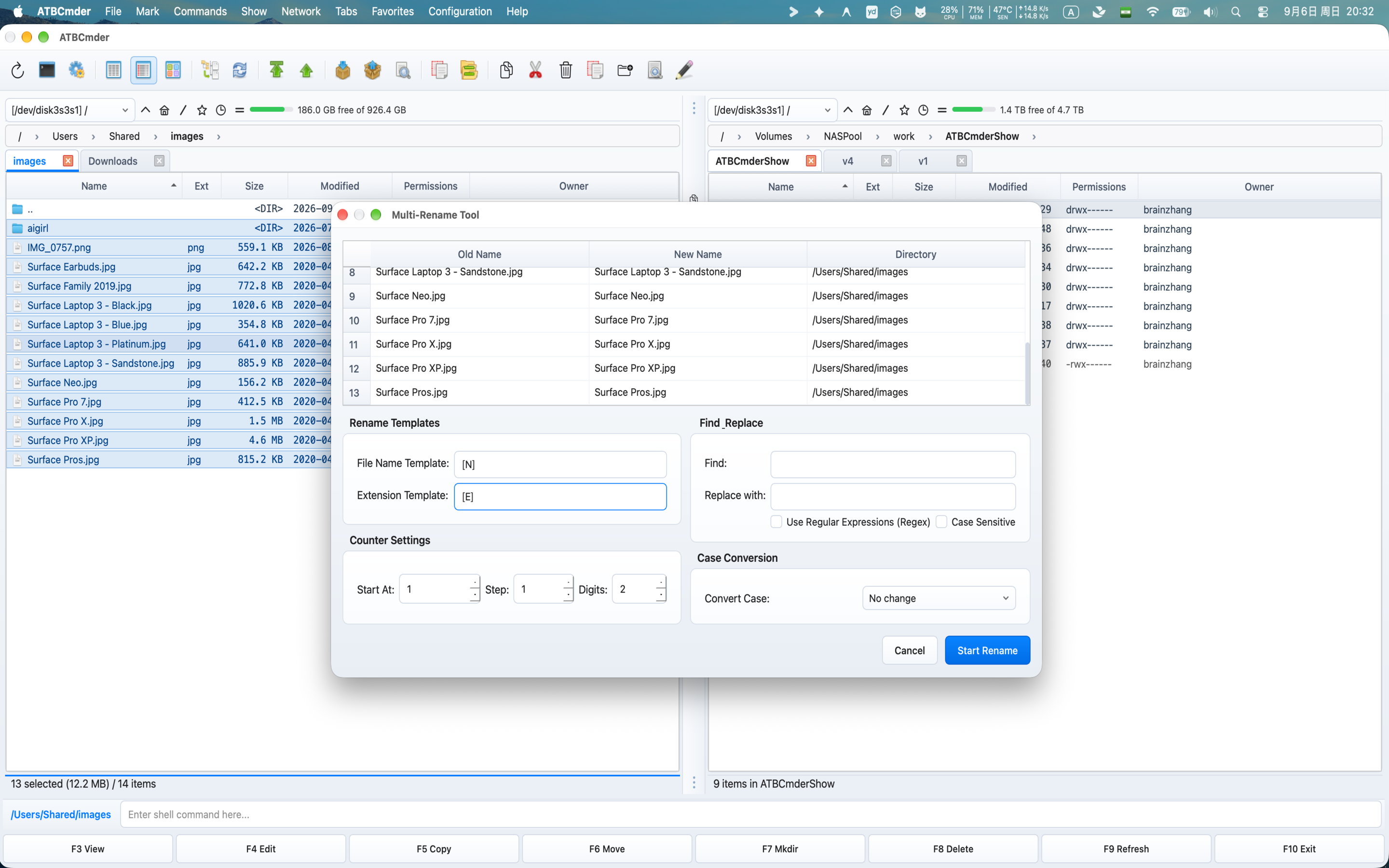
Figure 5.1: The Batch Multi-Rename Tool featuring live preview rows, token masks, numeric counter parameters, and duplicate detection.
2.1 The Multi-Rename Workflow
- Select Files: In the active file panel, select the files or directories you wish to rename using
Space,Insert, or wildcard selection (+). If nothing is selected, the item under the cursor is used. - Launch Tool: Press
Ctrl+M(⌃M) or choose Files ➔ Multi-Rename Tool... from the menu bar. - Configure Templates & Rules: Enter filename/extension masks, set counter options, or define find-and-replace strings.
- Inspect Live Preview: The 3-column table (
Old Name,New Name,Directory) updates instantly on every keystroke. - Execute: Click Start Rename (or press
Enter). ATBCmder performs the renames atomically and refreshes the file panels.
2.2 Template Tokens & Range Slicing
ATBCmder uses intuitive bracketed tokens to reference parts of the original file metadata:
| Token | Description | Example Input | Resulting Value |
|---|---|---|---|
[N] |
Original filename without extension | report_2026.pdf |
report_2026 |
[E] |
Original file extension (without dot) | archive.tar.gz |
gz |
[C] |
Sequential numeric counter | (File 3 in list) | 003 (depends on digits setting) |
[Y] |
4-digit Year of file modification | 2026-09-06 |
2026 |
[M] |
2-digit Month of file modification | September |
09 |
[D] |
2-digit Day of file modification | 6th |
06 |
[h] |
2-digit Hour (24-hour clock) | 14:30:15 |
14 |
[m] |
2-digit Minute | 14:30:15 |
30 |
[s] |
2-digit Second | 14:30:15 |
15 |
Character Range Slicing ([Na-b] / [Ea-b])
You can extract specific character ranges from the original name or extension using 1-based index slicing:
[N1-4]: Extracts the first 4 characters of the name. ForDocument_Final.txt, this yieldsDocu.[N5-]: Extracts from the 5th character to the end of the name. ForDSC_0982.jpg, this yields0982.[N-5]: Extracts up to the 5th character.[E1-2]: Extracts the first 2 characters of the extension. Forarchive.html, this yieldsht.
2.3 Counter Controls & Numeric Sequences
The Counter Settings group allows granular control over numeric indexing:
- Start At: The starting integer for the counter sequence (default:
1). - Step: The increment value added for each subsequent file (default:
1). Setting Step to2generates1, 3, 5, 7.... - Digits: The zero-padding width (range:
1to10). Setting Digits to3formats numbers as001,002,003. Setting Digits to1disables leading zeros (1,2,3).
2.4 Find & Replace and Regular Expressions
The Find & Replace group enables text replacements across all selected items:
- Find: Target substring or regular expression pattern.
- Replace with: Replacement string. When RegEx is enabled, backreferences (
$1,$2or\1,\2) refer to capture groups. - Use Regular Expressions (Regex): Toggles Python standard library regular expression parsing.
- Case Sensitive: When unchecked, matching ignores character casing (e.g., matching both
.JPGand.jpg).
Powerful RegEx Substitution Examples
Example 1: Strip unwanted tracking or release tags from filenames
Input File:      Album_Artist_-_Track_01_[Lossless_24bit_96kHz].flac
Find Pattern:    \s*\[.*?\]
Replace with:    (leave empty)
Output File:     Album_Artist_-_Track_01.flac

Example 2: Reorder dates from YYYY-MM-DD to DD-MM-YYYY
Input File:      Invoice_2026-09-06_Acme.pdf
Find Pattern:    (\d{4})-(\d{2})-(\d{2})
Replace with:    $3-$2-$1
Output File:     Invoice_06-09-2026_Acme.pdf

Example 3: Convert spaces and underscores to standardized hyphens
Input File:      my new blog post_draft.md
Find Pattern:    [ _]+
Replace with:    -
Output File:     my-new-blog-post-draft.md
2.5 Case Conversion Modes
ATBCmder provides instant casing normalization without requiring complex patterns:
- No change: Preserves original capitalization.
- lowercase: Converts the entire filename and extension to lowercase (
PHOTO_001.JPG➔photo_001.jpg). - UPPERCASE: Converts all characters to uppercase (
readme.txt➔README.TXT). - First letter uppercase: Capitalizes the initial character of each word (
war and peace.epub➔War And Peace.epub).
2.6 Live Preview Grid & Collision Protection
Renaming hundreds of files without previewing can result in disastrous data overwrites. ATBCmder implements a Zero-Accident Safety Architecture:
- Instant Debounced Preview: As you type into template inputs or adjust spin boxes, the table immediately calculates the resulting filenames.
- Duplicate Target Detection: ATBCmder scans all computed output filenames within the destination folder. If two or more files would resolve to the exact same name, or if a filename resolves to an empty string:
- The colliding rows are immediately highlighted in prominent red (
#FFEBEB/#D70000in light mode,#4A1515/#FF8080in dark mode). - The Start Rename button is automatically disabled.
- A tooltip warns: "Name collisions detected. Please resolve duplicates before renaming."
- Collision Clearance: Once you adjust your counter, template, or regex to make all target filenames unique, the warning clears and the Start Rename button re-enables.
2.7 Practical Step-by-Step Recipes
Recipe A: Renaming Digital Camera Photos with Timestamps
Transform cryptic camera names (IMG_4092.JPG, IMG_4093.JPG) into chronologically organized assets:
- Select the photo files and press
Ctrl+M. - Set File Name Template to:
Photo_[Y][M][D]_[C]. - Set Extension Template to:
[E]. - Set Digits to
3, Start At to1. - Set Case Conversion to
lowercase. - Preview the result:
photo_20260906_001.jpg,photo_20260906_002.jpg. - Press
Enterto apply.
Recipe B: Adding a Prefix While Preserving Name and Extension
Prefix a batch of documents with a project code:
- Select documents and press
Ctrl+M. - In File Name Template, enter:
PRJ-ALPHA_[N]. - Leave Extension Template as
[E]. - Click Start Rename.
3. Side-by-Side Visual File Diff (Meta+Shift+F12 / ⌘⇧F12 / cm_FileDiff)
Detecting differences between configuration revisions, source code files, or data dumps is a daily task for power users. ATBCmder includes a built-in, side-by-side Visual File Diff Viewer (DiffViewerDialog) that eliminates the need to launch heavyweight external tools.
┌────────────────────────────────────────────────────────────────────────────────────────┐
│  Side-by-side Diff: config.py (Left)  vs.  config.py.new (Right)                       │
├────────────────────────────────────────────────────────────────────────────────────────┤
│ [💾 Save Left] [💾 Save Right] | [Copy to Right →] [← Copy to Left] | [Prev] [Next]    │
│ [🔄 Re-compare] | [✔] Ignore whitespace  [ ] Ignore case  [ ] Ignore blank lines       │
├─────────────────────────────────────────────┬──────────────────────────────────────────┤
│ config.py (Left)                            │ config.py.new (Right)                    │
├─────────────────────────────────────────────┼──────────────────────────────────────────┤
│ 12: DEBUG = False                           │ 12: DEBUG = False                        │
│ 13: LOG_LEVEL = "INFO"                      │ 13: LOG_LEVEL = "DEBUG"      [CHANGED]   │
│ 14: PORT = 8080                             │ 14: PORT = 8080                          │
│ 15: # Deprecated database setting           │ 15:                                      │
│ 16: DB_TIMEOUT = 30              [REMOVED]  │ 16: DB_TIMEOUT = 10          [CHANGED]   │
│ 17:                                         │ 17: SSL_ENABLED = True       [ADDED]     │
├─────────────────────────────────────────────┴──────────────────────────────────────────┤
│  Difference 2 of 4  │  Ln 16, Col 1 (Left)  │  Ln 16, Col 1 (Right)                    │
└────────────────────────────────────────────────────────────────────────────────────────┘
3.1 Launching File Diff
- Compare Two Selected Files: In a single panel, select exactly two files and press
Meta+Shift+F12(⌘⇧F12) or choose Commands ➔ Compare by Content.... - Compare Opposing Files: Highlight a file in the Left Panel, highlight the corresponding file in the Right Panel, and trigger
cm_CompareContents. - Supported Commands:
cm_CompareContents,cm_FileDiff, andcm_CompareByContentall route to the side-by-side comparison engine.
3.2 Visual Difference Highlighting & Color Codes
The diff engine parses text line by line using an optimized Hunt-Szymanski LCS algorithm (TextDiffer), dividing differences into color-coded hunks:
| Diff Type | Light Theme Highlight | Dark Theme Highlight | Description |
|---|---|---|---|
| Added Lines | Soft Emerald (#e6ffed) |
Dark Forest Green (#234b2d) |
Lines present only in the Right file. |
| Removed Lines | Soft Crimson (#ffeef0) |
Dark Crimson Red (#552328) |
Lines present in the Left file but missing in Right. |
| Changed Lines | Soft Amber (#fff5b1) |
Dark Amber Gold (#50461e) |
Lines modified between Left and Right versions. |
| Active Hunk | Vivid Contrast Shade | Vivid Contrast Shade | The difference block currently focused by the cursor. |
Each pane features a dedicated left gutter (LineNumberArea) displaying 1-based line numbers synchronized with diff positions.
3.3 Synchronized Scrolling & Reentrancy Safety
When comparing long source files containing thousands of lines, navigating through code requires lockstep coordination:
- Scrolling the vertical or horizontal scrollbar of either editor instantly adjusts the opposing editor by the identical pixel offset.
- ATBCmder implements an internal reentrancy lock (
_syncing_vscroll,_syncing_hscroll) preventing event feedback loops, stuttering, or cursor drift.
3.4 Hunk Navigation & Bidirectional Merging
You can navigate through differences without using the mouse:
- Next Difference: Press
Alt+Down/⌥↓(orCtrl+Down). - Previous Difference: Press
Alt+Up/⌥↑(orCtrl+Up). - Jump to Hunk: Clicking directly on any highlighted line in either pane automatically sets that hunk as active.
Bidirectional Merging (Vimdiff dp / do Compatibility)
Merge differences between files with single keystrokes:
- Copy Left to Right (
→): PressAlt+Right/⌥→(orCtrl+Alt+Rightor VimdiffdpviaAlt+P). The active hunk in the Left editor replaces the corresponding section in the Right editor. - Copy Right to Left (
←): PressAlt+Left/⌥←(orCtrl+Alt+Leftor VimdiffdoviaAlt+O). The active hunk in the Right editor replaces the corresponding section in the Left editor.
3.5 In-Place Editing & Atomic Saving
Unlike diff viewers that treat text as read-only, both panes in ATBCmder are fully functional code editors:
- Type, paste, or delete text directly within either editor.
- Whenever manual edits alter lines, press
F5(orCtrl+R) to re-run the difference calculation on the updated buffers. - Save Left File: Click 💾 Save Left (or press
Cmd+S/Ctrl+Swhile the Left editor has focus). - Save Right File: Click 💾 Save Right (or press
Cmd+S/Ctrl+Swhile the Right editor has focus).
3.6 Comparison Filtering Options
The diff viewer toolbar allows you to isolate genuine logic changes from formatting noise:
- Ignore Whitespace (
_cb_ws): Ignores changes in tabs, trailing spaces, and spaces-vs-tabs indentation. - Ignore Case (
_cb_case): Performs case-insensitive character comparisons. - Ignore Blank Lines (
_cb_blank): Collapses empty line additions and deletions, focusing strictly on substantive code changes.
3.7 Binary File Diff Detection
If either file selected for comparison contains null bytes or binary MIME signatures (e.g. images, executables, compiled archives), ATBCmder automatically invokes BinaryDiffer:
- Displays file sizes and cryptographic SHA-256 hashes side by side.
- Clearly states whether the binary files are byte-identical or divergent.
4. Directory Synchronization (Shift+F12 / ⇧F12 / cm_SyncDirs)
Keeping directory trees synchronized across local disks, backup drives, and network storage is a cornerstone of reliable systems. ATBCmder’s Directory Synchronizer (SyncDirsDialog, mapped to fsyncdirsdlg.pas) compares entire folder hierarchies, determines exact directional operations, and previews every file copy and deletion before touching your storage.
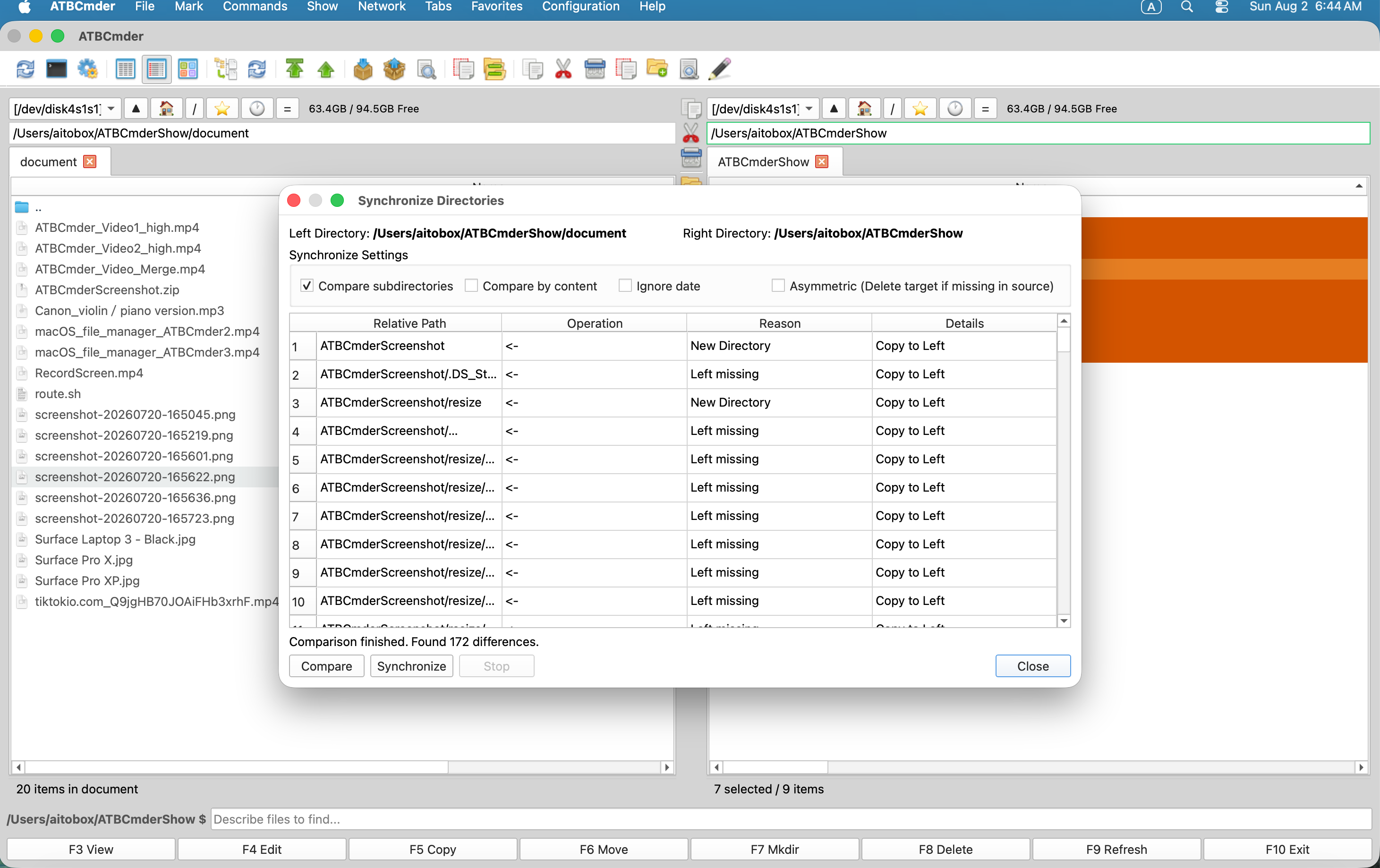
Figure 5.2: Directory Synchronization dialog displaying recursive comparison status, directional sync arrows, and asymmetric mirror controls.
4.1 Launching Directory Sync
- Open the Source directory in the Left Panel and the Destination directory in the Right Panel.
- Press
Shift+F12(⇧F12) or choose Commands ➔ Synchronize Dirs.... - The Synchronize Directories dialog appears with both paths pre-populated in the header cards.
4.2 Comparison Methods & Precision
Before synchronizing, configure your comparison criteria in the Synchronize Settings card:
| Setting | Default | Description |
|---|---|---|
| Compare Subdirectories | Enabled |
Recursively traverses all nested directories. |
| Compare by Content | Disabled |
Reads and verifies file bytes directly using filecmp.cmp. Guarantees 100% accuracy for files with identical timestamps but modified data. |
| Ignore Date | Disabled |
Compares files exclusively by byte size, ignoring filesystem modification timestamps. |
| FAT / SMB Timestamp Tolerance | 2.0 sec |
Automatically accounts for FAT/FAT32/exFAT 2-second timestamp resolutions, preventing false mismatch flags when syncing across macOS and external drives. |
4.3 Directional Analysis & Status Indicators
Click Compare to launch a non-blocking background comparison worker (SyncCompareWorker). The comparison table populates with color-coded directional rows:
┌────────────────────────────────────────────────────────────────────────────────────────┐
│ Relative Path             │ Operation │ Reason            │ Details                    │
├───────────────────────────┼───────────┼───────────────────┼────────────────────────────┤
│ assets/banner.png         │    ->     │ Left is newer     │ 2026-09-06 > 2026-08-15    │
│ docs/manual.pdf           │    ->     │ Right missing     │ File exists only on left   │
│ config/settings.json      │    <-     │ Right is newer    │ 2026-09-06 > 2026-09-01    │
│ vendor/legacy_lib.so      │    <-     │ Left missing      │ File exists only on right  │
│ build/cache.db            │    !=     │ Conflict          │ Timestamp / type mismatch  │
└────────────────────────────────────────────────────────────────────────────────────────┘
->(Left to Right): The file on the Left is newer, or exists only on the Left. Default action: copy to Right.<-(Right to Left): The file on the Right is newer, or exists only on the Right. Default action: copy to Left (in two-way mode).=(Equal): Files match in size and timestamp/content. Filtered out of the active sync list to save time.!=(Conflict): Incompatible directory-vs-file collision or unresolvable timestamp conflict. Skipped during automated bulk sync for data safety.
4.4 Asymmetric Mirroring vs. Two-Way Symmetric Sync
ATBCmder supports two fundamentally different synchronization philosophies:
1. Two-Way Symmetric Synchronization (Default)
- Goal: Bring both directories into alignment so both have the latest versions of every file.
- Action: Files marked
->are copied Left ➔ Right. Files marked<-are copied Right ➔ Left. - Safety: No files are deleted on either side.
2. Asymmetric Mirroring (Asymmetric Checkbox Enabled)
- Goal: Make the Right directory an exact, identical replica of the Left directory.
- Action: Files marked
->are copied Left ➔ Right. Files on the Right that do not exist on the Left (<- Right missing on Left) are permanently removed from the Right directory. - Use Case: Creating pristine backup mirrors on external backup disks or NAS shares.
4.5 Pre-Execution Safety & Audit Logging
- Inspect Before Sync: Review the populated table carefully. You can see exact relative paths and the operational reasons for every transfer.
- Stop Control: If a large comparison or synchronization job needs to be aborted, click Stop. The background thread terminates safely without leaving corrupted partial files.
- Automated Audit Log: Every copy, overwrite, and deletion executed during synchronization is recorded in ATBCmder's internal Operations Log (
LogCategory.COPY_MOVE_LINK,LogCategory.DELETE).
5. Advanced File Search & Feed to Listbox (Alt+F7 / ⌥F7 / cm_Search)
Locating specific files across nested folder structures is a common administrative bottleneck. ATBCmder provides a high-performance Advanced File Search Dialog (SearchDialog, mapped to fFindDlg.pas), combining native macOS Spotlight indexing with a deep filesystem scanning engine and the indispensable Feed to Listbox capability.
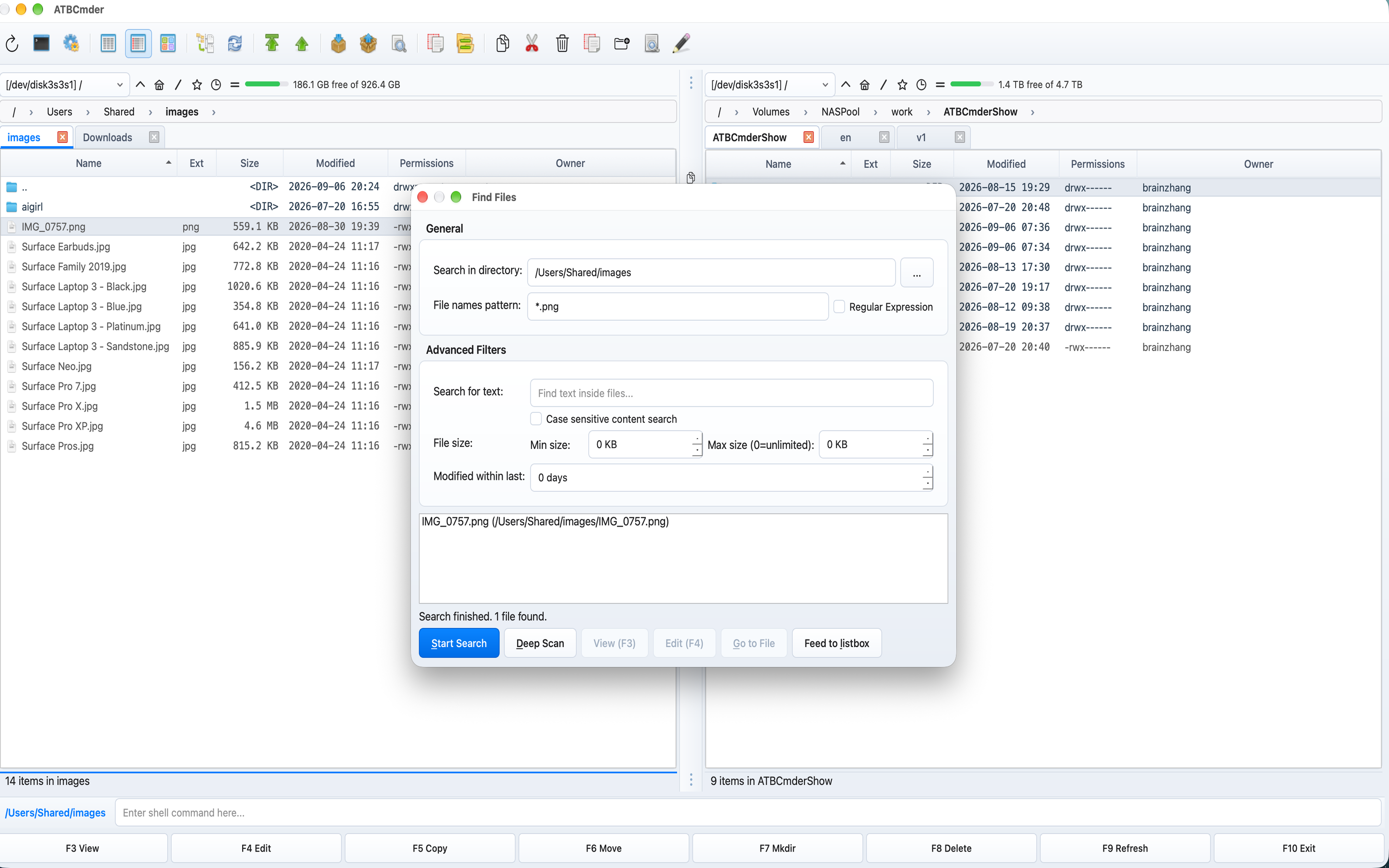
Figure 5.3: Advanced File Search dialog with multi-filter parameters, deep scan controls, and the Feed to Listbox button.
5.1 Launching Search
- Press
Alt+F7(⌥F7) in any panel, or choose Commands ➔ Search Files.... - The search dialog opens with the Search in directory field pre-filled with the active panel’s current path.
5.2 Dual Search Backends: Spotlight vs. Deep Scan
ATBCmder features two specialized search worker engines:
                  ┌───────────────────────────────────────────────┐
                  │          Search Query Triggered               │
                  └───────────────────────┬───────────────────────┘
                                          │
                  ┌───────────────────────┴───────────────────────┐
                  ▼                                               ▼
    ┌───────────────────────────┐                   ┌───────────────────────────┐
    │  Spotlight Engine         │                   │  Deep Scan Engine         │
    │  (SpotlightSearchWorker)  │                   │  (DeepScanWorker)         │
    ├───────────────────────────┤                   ├───────────────────────────┤
    │ • Uses macOS mdfind       │                   │ • Recursive os.scandir    │
    │ • Millisecond results     │                   │ • Scans unindexed drives  │
    │ • APFS metadata indexed   │                   │ • Network shares (SMB/NFS)│
    │ • Standard local storage  │                   │ • Raw text/regex parsing  │
    └───────────────────────────┘                   └───────────────────────────┘
- Spotlight Search Engine (
SpotlightSearchWorker): On macOS, clicking Start Search (or pressingEnter) utilizes the system’s Spotlight metadata index (mdfind). It retrieves thousands of matching paths across gigabytes of storage in a fraction of a second. - Deep Scan Engine (
DeepScanWorker): Clicking Deep Scan bypasses system indexing and performs a direct, recursive filesystem traversal. This is essential when searching: - External USB drives or SD cards that have Spotlight indexing disabled.
- Remote network file shares (SMB, SFTP, FTP, WebDAV).
- Developer build directories excluded via
.metadata_never_index.
5.3 Multi-Filter Search Criteria
Fine-tune search queries using granular parameters across the General and Advanced Filters groups:
- File Names Pattern:
- Wildcards: Standard shell wildcards such as
*.py,invoice_2026_*.pdf, ortest_??.go. - Substrings: Entering
draftfinds any file or folder containing "draft". - Regular Expressions: Check Regular Expression to enable full regex syntax (e.g.
^v\d+\.\d+\.(json|xml)$). - Search for Text (In-File Search):
- Searches for UTF-8 and ASCII string content inside text, source code, and document files.
- Check Case sensitive content search for exact case matches.
- File Size Range:
- Set Min size and Max size in kilobytes (
KB). Setting Max size to0leaves upper bounds unlimited. - Date Range:
- Specify Modified within last N days (e.g.,
7days to find work from the past week).
5.4 Quick Inspection in Search Results
While browsing search results in the results list:
- View File (
F3): Instantly opens the highlighted search result in the Universal Lister. - Edit File (
F4): Opens the file directly in the built-in Text Editor. - Go to File (
Enter/Go to File): Closes the search dialog, navigates the main panel to the file's parent directory, and places the cursor directly on the file.
5.5 The Power of "Feed to Listbox"
The most transformative feature of orthodox file managers is Feed to Listbox:
┌────────────────────────────────────────────────────────────────────────────────────────┐
│ SEARCH RESULTS (Flat Virtual Panel Tab)             OPPOSING PANEL (Destination)       │
│ [Search: *.log modified < 30 days]                 /Volumes/ArchiveStorage/Logs        │
├──────────────────────────────────────────────┬───┬─────────────────────────────────────┤
│  Name                         Size   Folder  │   │  Name                        Size   │
│  ▸ [..]                              --:--   │   │  ▸ [..]                             │
│  ✔ app_server.log            14 MB   /var/log│ C │  ▸ archive_2025             <DIR>   │
│  ✔ auth_audit.log             2 MB   /etc/sec│ O │                                     │
│  ✔ worker_3.log              88 KB   /opt/app│ P │                                     │
│  ● access.log               512 KB   /var/log│ Y │                                     │
├──────────────────────────────────────────────┴───┴─────────────────────────────────────┤
│  [3 items selected] ➔ Press F5 to copy all matching files into destination folder!     │
└────────────────────────────────────────────────────────────────────────────────────────┘
- In the Search Dialog, once matching files are found, click the Feed to listbox button.
- ATBCmder closes the dialog and opens a new virtual search results tab in the active panel.
- Rather than navigating to each folder individually, all matching files from different directory depths appear in a single, flat table.
- Execute Any Commander Action:
- Select all or specific items (
Space,+,Cmd+A). - Copy (
F5) or Move (F6) matching files across diverse folders into a single destination folder in the opposing panel. - Batch Multi-Rename (
Ctrl+M) all matching search results simultaneously. - Securely Delete (
F8orAlt+Delete) unwanted temporary files across an entire project hierarchy in one stroke.
6. Spotlight Integration & Semantic Command System (/ & Ctrl+Shift+F)
Modern workflows require agile querying beyond rigid filter dialogs. ATBCmder integrates macOS Spotlight indexing directly with a Natural Language Semantic Command System accessible from the embedded command bar at the bottom of the main window.
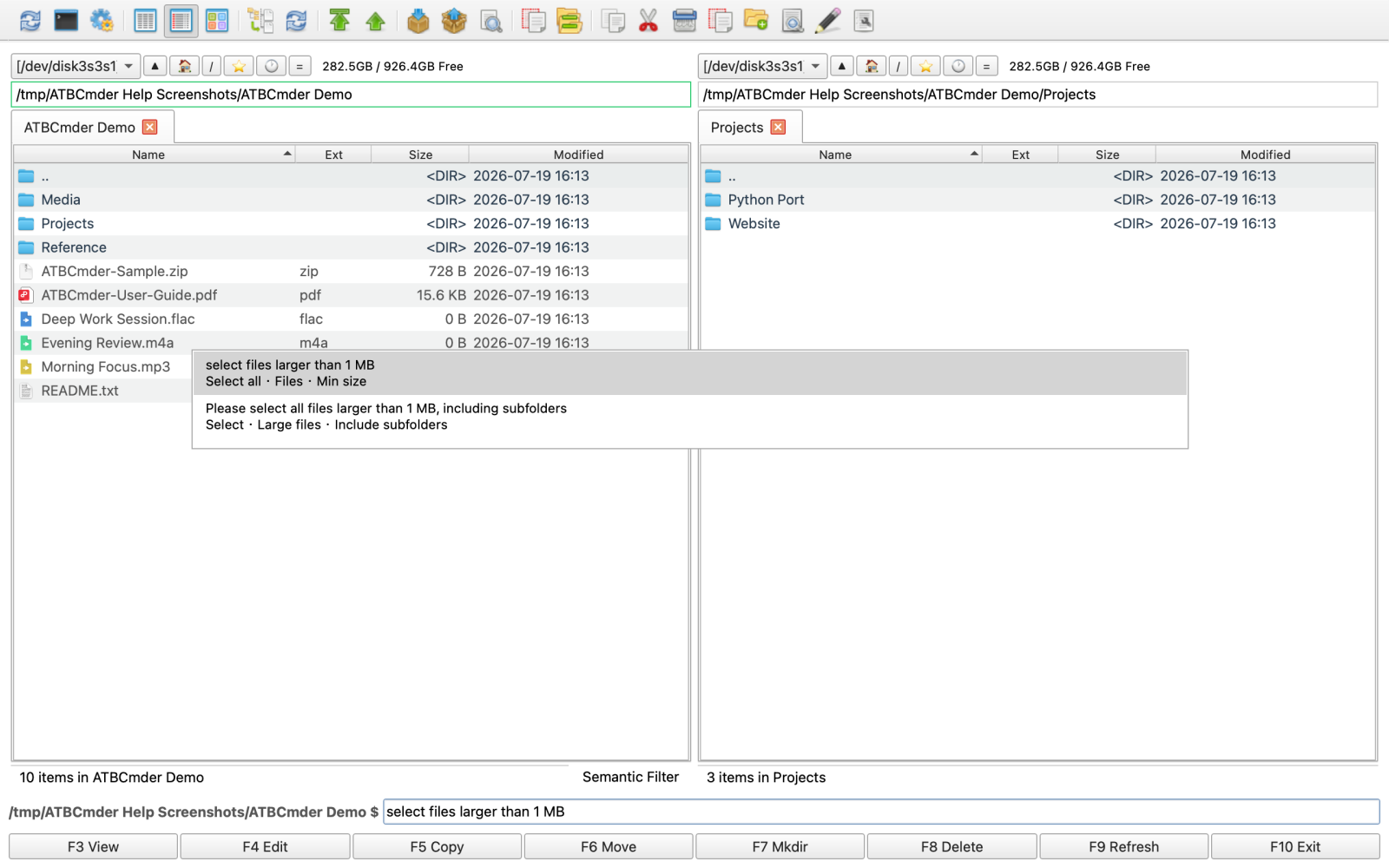
Figure 5.4: The Semantic Command Bar parsing a natural language query with live auto-completion templates.
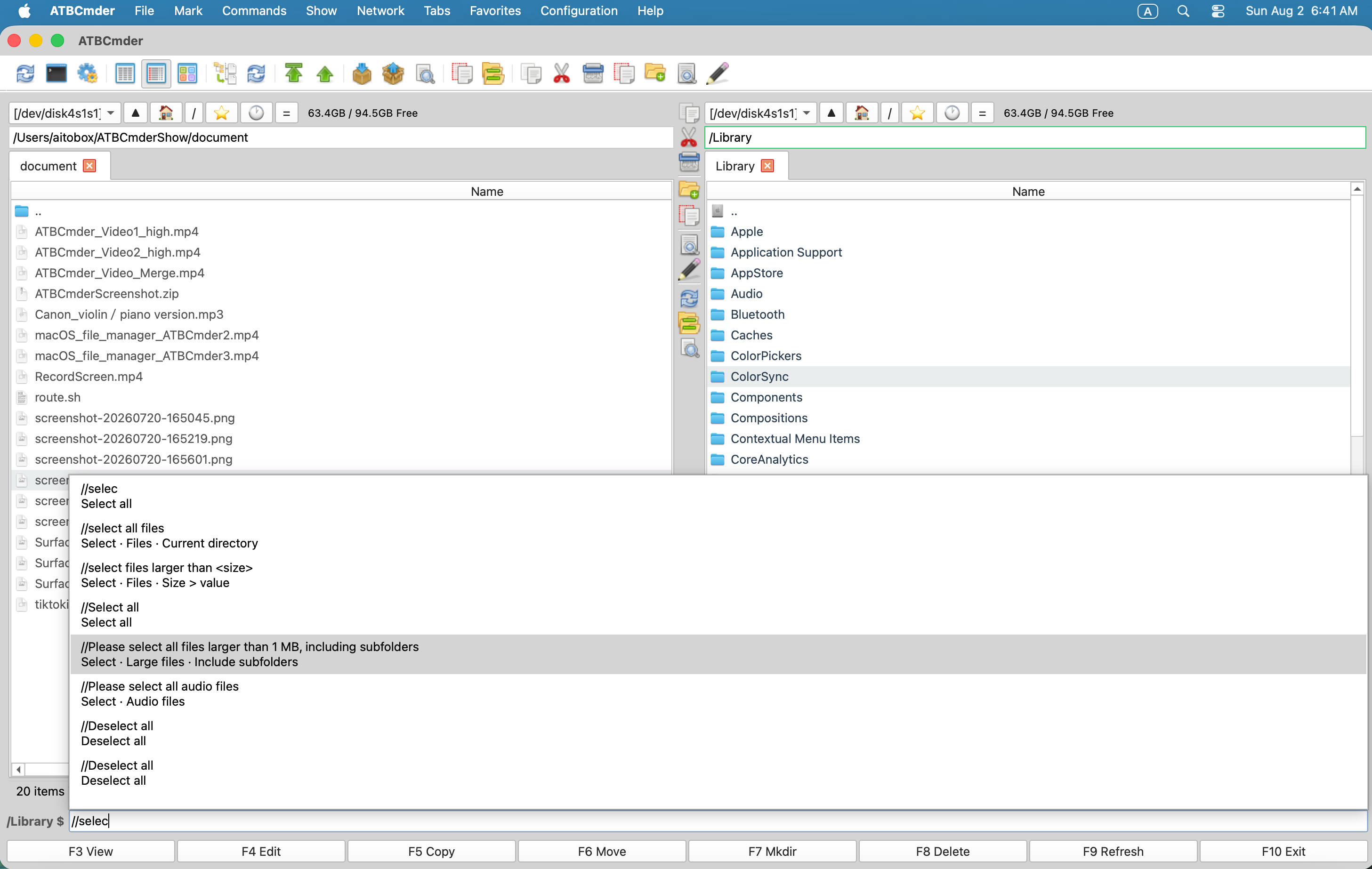
Figure 5.5: Semantic Search results displayed directly inside the active panel.
6.1 Activating Semantic Commands
- Press
/: In the active file panel, simply press the slash key (/). ATBCmder immediately focuses the bottom command edit bar, pre-populating it with/. - Spotlight Search Shortcut: Press
Ctrl+Shift+F(⌃⇧F) orCmd+Shift+Fto open the semantic filter interface. - Dismiss: Press
Escapeto clear the filter and restore the standard directory listing.
6.2 Scopes: Local (/) vs. Global (//)
ATBCmder differentiates between folder-level filtering and system-wide discovery using prefix conventions:
1. Local Directory Scope (/<query>)
Queries starting with a single slash operate exclusively on the directory open in the active panel (and its subfolders if recursive options are specified):
/larger than 10MB: Shows only files larger than 10 Megabytes in the current folder./> 50MB: Numeric shorthand for size filtering./today modified pdf: Filters for PDF documents modified within the last 24 hours./images: Displays only raster and vector image formats./source code: Shows Python, C++, Rust, Go, JavaScript, and other source files./contains "API_KEY": Filters for text files containing the string "API_KEY"./hide *.log: Hides log files from the active display.
2. Global System Scope (//<query>)
Queries starting with a double slash query the entire macOS system volume via Spotlight:
//today modified pdf: Finds all PDF documents modified today across your entire Mac.//larger than 1GB dmg: Locates all disk image installers exceeding 1 GB.//code contains "OAuth2Handler": Finds all source files system-wide containing "OAuth2Handler".
6.3 AI-Assisted Semantic Queries (? or /?)
When configured with an AI provider (Google Gemini, OpenAI, Anthropic Claude, or local Ollama) in Preferences ➔ Semantic Filter:
- Prefixing a query with
?or/?routes the natural language instruction through an LLM parser. - Example:
/? find all final invoices sent to client Acme last quarter over $5000 - The AI translates complex human phrasing into precise Spotlight metadata attributes (
kMDItemFSSize,kMDItemContentModificationDate,kMDItemTextContent), displaying matching files instantly in the panel.
6.4 Auto-Completion, Catalog (/help), and History (/history)
As you type into the semantic command edit box:
- Interactive Completion Popup: A dropdown menu (
SemanticCompletionPopup) displays contextual template suggestions based on the built-in catalog (semantic-command-templates.xml). UseDownandUparrows to highlight suggestions and pressTaborEnterto accept. - Help Catalog (
/help): Typing/helpopens the Semantic Command Help Dialog, listing dozens of searchable examples across categories (Size, Date, File Type, Content, Tagging). Double-clicking any entry inserts it into the command line. - Command History (
/history): Typing/historydisplays a chronological log of all previously executed semantic commands with execution timestamps, allowing instant recall.
6.5 Instant Panel Action Modifiers
The semantic command bar can also manipulate panel selections and sorting without touching the mouse:
| Semantic Command | Action Executed |
|---|---|
/select all visible |
Selects all items currently displayed after filtering. |
/clear selection |
Deselects all items in the panel. |
/invert selection |
Inverts the current file selection state. |
/select images |
Adds all image files in the panel to the current selection. |
/sort by size descending |
Sorts the file table by size from largest to smallest. |
/reset sort |
Restores default alphabetical name sorting. |
/group by date |
Groups files dynamically by modification date brackets. |
/clear filter |
Removes all active semantic filters and restores the full directory list. |
7. Essential File Utilities & Data Integrity
Beyond search and batch renaming, ATBCmder integrates a suite of essential system utilities designed to manage large files, audit security, and verify cryptographic integrity.
7.1 Large File Splitter (cm_FileSpliter / cm_Split / Alt+F6)
When transferring massive disk images, video archives, or virtual machine containers across storage devices with filesystem size limits (such as FAT32’s 4 GB boundary) or email attachment limits, the File Splitter (SplitWorker) divides files into numbered sequential segments:
- Select the large file in the active panel.
- Choose Files ➔ Split File... (or trigger
cm_Split). - Choose the destination directory (defaults to the opposing panel).
- Select a standard chunk size preset or enter a custom byte size:
- 1.44 MB: Legacy 3.5" Floppy disk.
- 700 MB: Standard CD-R capacity.
- 4.7 GB: Single-layer DVD-R capacity.
- 100 MB: Standard upload chunk.
- Custom Size: User-defined byte, KB, MB, or GB threshold.
- Click OK. ATBCmder splits the source file in a background worker thread, creating
.001,.002,.003... sequence files.
7.2 File Linker & Combiner (cm_FileLinker / cm_Combine / Alt+F7)
Reassembling split file chunks into the original intact file is seamless:
- In the file panel, highlight the first split part (must end with extension
.001). - Choose Files ➔ Combine Files... (or trigger
cm_Combine). - ATBCmder automatically detects all sequential parts (
.001,.002,.003... up to.999). - Select the output filename and target directory.
- Click OK. The background worker (
CombineWorker) sequentially concatenates the parts back into an exact byte-for-byte binary replica.
7.3 Cryptographic Checksums & Verification (cm_CheckSumCalc, cm_CheckSumVerify)
Verifying that downloaded files, disk images, or archive backups have not been corrupted or tampered with is vital for data integrity. ATBCmder includes a built-in Checksum Calculator and Verifier (ChecksumDialog).
┌────────────────────────────────────────────────────────────────────────────────────────┐
│ Checksum Calculator                                                                    │
├────────────────────────────────────────────────────────────────────────────────────────┤
│ Hash Algorithm: [ SHA256           ▾]                                                  │
├────────────────────────────────────────────────────────────────────────────────────────┤
│ 3a491d90bc1f42013149db82a890471b67823f40d12e8424e6a00a120894fe83  arch_linux.iso       │
│ 8f14e45fceea167a5a36dedd4bea25431846b9a898492efd727402c3ef30b65a  rootfs.tar.gz        │
│ e3b0c44298fc1c149afbf4c8996fb92427ae41e4649b934ca495991b7852b855  empty_manifest.txt   │
├────────────────────────────────────────────────────────────────────────────────────────┤
│  [Progress: 100%] Hashing completed.                                                   │
│  [Calculate]    [Stop]    [💾 Save to File]                                 [Close]    │
└────────────────────────────────────────────────────────────────────────────────────────┘
Calculating Hashes (cm_CheckSumCalc / Ctrl+X)
- Select one or more files in the panel.
- Choose Files ➔ Calculate Checksum... (or press
Ctrl+X). - Select your desired algorithm: MD5, SHA1, SHA256, or SHA512.
- Click Calculate. The worker streams files through 64 KB chunks in the background without locking the interface.
- Click Save to File to export the hashes into a standard
.sha256or.md5manifest file.
Verifying Checksum Manifests (cm_CheckSumVerify)
- Choose Files ➔ Verify Checksums....
- Select an existing checksum file (
.sha256,.md5,.sha1,.sha512, or.sfv). - ATBCmder automatically parses the manifest, locates corresponding files in the same directory, recalculates hashes on disk, and presents a color-coded status report:
OK: File matches checksum perfectly.FAILED: Data corruption or modification detected!MISSING: Referenced file not found in directory.
7.4 Secure File Shredding / Wipe (cm_Wipe / Alt+Delete / ⌥⌫)
Standard file deletion merely unlinks directory entries, leaving raw data blocks intact on disk where recovery utilities can extract them. When handling confidential keys, credentials, or proprietary source code, use Secure Delete / Wipe (cm_Wipe):
- Select the confidential files or directories.
- Press
Alt+Delete(⌥⌫) or choose File ➔ Secure Delete (Wipe).... - Confirm the security alert prompt.
- The Cryptographic Multi-Pass Shredding Sequence (
wipe_path): - Pass 1: Overwrites the entire file byte length with cryptographically secure pseudo-random bytes (
os.urandom). - Pass 2: Overwrites the entire file with null zero bytes (
\x00). - Pass 3: Overwrites with fresh random bytes.
- Hardware Sync: Calls
os.fsync()on the underlying file descriptor to force the operating system and storage controller cache to write data to physical media. - Truncation & Unlink: Truncates the file to 0 bytes before calling
os.unlink(). - Directory Scrubbing: Recursively wipes all contained files before unlinking parent directories.
7.5 Embedded System Terminal (Ctrl+J / ⌃J / cm_RunTerm)
While ATBCmder excels at graphical dual-panel workflows, shell access is often required for compilation, git branches, or server management:
- Press
Ctrl+J(⌃J) or choose Commands ➔ Run Terminal. - ATBCmder immediately opens macOS Terminal.app (or your configured default terminal emulator) with its working directory initialized to the exact path open in the active panel.
- No typing
cd /Users/...or dragging folders into terminal windows required.
8. ⚡ Pro Tips & Deep Dive Automation Workflows
8.1 Recipe: Recursive Search ➔ Feed to Listbox ➔ Multi-Rename
Objective: Strip version numbers from hundreds of asset files scattered across 50 nested subfolders.
- Open the project root in the Left Panel.
- Press
Alt+F7to open Search. - In File names pattern, enter:
*_v[0-9]*.png. - Click Start Search. Once matching assets appear, click Feed to listbox.
- In the resulting virtual panel tab, select all files with
Cmd+A. - Press
Ctrl+Mto launch the Multi-Rename Tool. - In Find, enter:
_v\d+. Enable Use Regular Expressions (Regex). - Leave Replace with empty.
- Verify the live preview table shows clean filenames without version suffixes.
- Click Start Rename. ATBCmder renames every file across all 50 subfolders instantly!
8.2 Recipe: Safe Cloud & NAS Backup Mirroring with Asymmetric Sync
Objective: Maintain an identical offsite mirror of your documents on an external SSD or SMB NAS drive without duplicate files accumulating.
- Open local
~/Documentsin the Left Panel. - Open
/Volumes/BackupSSD/Documentsin the Right Panel. - Press
Shift+F12(cm_SyncDirs). - In Settings, ensure Compare Subdirectories is checked.
- Check Asymmetric (Delete target if missing in source).
- Click Compare.
- Review the list:
- Blue/Green arrows (
->) indicate files that will be copied to the backup. - Red deletions (
<-) indicate outdated files on the backup disk that you have since deleted locally. - Click Synchronize. Your backup drive is now a mirror of your local folder.
8.3 Recipe: Forensic Hash Manifests Before Long-Term Archive Storage
Objective: Calculate and store cryptographic checksums for a multi-terabyte project before moving it to cold tape or cloud glacier storage.
- Navigate to the directory containing your project deliverables.
- Select all items (
Cmd+A) and pressCtrl+X(cm_CheckSumCalc). - Set Algorithm to SHA256.
- Click Calculate. The streaming hash worker processes the files in the background.
- Click Save to File and name it
MANIFEST-SHA256.txt. - Whenever you retrieve the files years later, simply select
MANIFEST-SHA256.txtand run Verify Checksums to guarantee zero bit rot or silent corruption.
8.4 Recipe: Combining Natural Language Semantic Filtering with Flat Branch View (Cmd+B)
Objective: Find and organize all media files across a complex deep directory structure without opening search dialogs.
- Highlight your top-level project folder and press
Cmd+B(cm_FlatView) to flatten all subfolder contents into a single list. - Press
/to focus the Semantic Command Bar. - Type:
/images larger than 5MB. - The flattened list instantly isolates high-resolution images across every nested directory.
- Press
/select all visible, then pressF5to copy them all into an organized target directory in the opposite panel. - Press
Cmd+Bagain to restore normal hierarchical tree browsing.
9. Safety, Performance & System Alerts
Caution
Asymmetric Directory Sync Irreversibility
Enabling the Asymmetric option in Directory Synchronization (Shift+F12) causes files in the target directory that do not exist in the source to be permanently deleted. Always perform a visual inspection of the comparison preview table before clicking Synchronize.
Warning
Multi-Rename RegEx Substitutions
When performing Regular Expression substitutions with backreferences ($1, $2), ensure your capture group numbers match the parentheses in your pattern. Test your pattern against the live preview table rows before clicking Start Rename. If target duplicate names appear, ATBCmder blocks execution to protect you from data loss.
Important
Solid-State Drive (SSD) Shredding Limitations
The Secure Wipe utility (cm_Wipe / Alt+Delete) overwrites file data with multiple passes of random and zero bytes, followed by an fsync call. However, modern Solid-State Drives (SSDs) utilize wear-leveling algorithms and controller-level over-provisioning that may redirect writes to alternate flash blocks. For high-security SSD disposal, combine file shredding with macOS FileVault full-disk encryption.
Note
Spotlight Availability on Network & FAT Volumes
Fast Spotlight Search (Ctrl+Shift+F) relies on macOS metadata indices, which are active by default on internal APFS drives. Remote network mounts (SMB, SFTP) and external exFAT drives may not be indexed by Spotlight. If a Spotlight query returns no results on an external drive, use Deep Scan (Alt+F7) or enable recursive directory scanning.
Tip
Apple Function Keys (Fn) Compatibility
On Apple Magic Keyboards and MacBooks, function keys (F1-F12) default to hardware actions (brightness, volume). To press Shift+F12 or Alt+F7, hold the Fn key: Fn+Shift+F12, Fn+Alt+F7. Alternatively, enable "Use F1, F2, etc. keys as standard function keys" in macOS System Settings ➔ Keyboard ➔ Keyboard Shortcuts ➔ Function Keys.
10. Master Dual-Matrix Keyboard Reference Table
| Functional Area | Action Description | macOS Shortcut | Classic Commander Key | Command ID |
|---|---|---|---|---|
| Multi-Rename | Launch Batch Multi-Rename Tool | Ctrl+M / ⌃M |
Ctrl+M |
cm_MultiRename |
| Multi-Rename | Execute / Start Rename | Enter / ⏎ |
Enter |
— |
| Multi-Rename | Cancel / Close Tool | Esc |
Esc |
— |
| File Diff | Compare Selected Files / Panes | Meta+Shift+F12 / ⌘⇧F12 |
Meta+Shift+F12 |
cm_FileDiff / cm_CompareFiles |
| File Diff | Jump to Next Difference | Alt+Down / ⌥↓ |
Ctrl+Down |
— |
| File Diff | Jump to Previous Difference | Alt+Up / ⌥↑ |
Ctrl+Up |
— |
| File Diff | Copy Hunk Left to Right | Alt+Right / ⌥→ / Alt+P |
Ctrl+Alt+Right |
— |
| File Diff | Copy Hunk Right to Left | Alt+Left / ⌥← / Alt+O |
Ctrl+Alt+Left |
— |
| File Diff | Save Changes to Focused Editor | Cmd+S / ⌘S |
Ctrl+S |
— |
| File Diff | Recalculate Differences | F5 / Fn+F5 |
Ctrl+R |
— |
| Directory Sync | Open Synchronize Directories | Shift+F12 / ⇧F12 |
Shift+F12 |
cm_SyncDirs |
| Directory Sync | Start Directory Comparison | Alt+C / ⌥C |
Enter |
— |
| Directory Sync | Cancel Comparison / Sync | Click Stop |
Esc |
— |
| File Search | Open Advanced Search Dialog | Alt+F7 / ⌥F7 |
Alt+F7 |
cm_Search / cm_FileSearch |
| File Search | View Result in Universal Lister | F3 / Fn+F3 |
F3 |
cm_View |
| File Search | Edit Result in Text Editor | F4 / Fn+F4 |
F4 |
cm_Edit |
| File Search | Go to File in Active Panel | Enter / ⏎ |
Enter |
— |
| File Search | Feed Results to Virtual Panel | Click Feed to listbox |
Click Feed to listbox |
— (Dialog Action) |
| Spotlight & NLP | Spotlight Fast Search | Ctrl+Shift+F / ⌃⇧F |
Ctrl+Shift+F |
(Commands Menu) |
| Spotlight & NLP | Activate Semantic Command Bar | / |
/ |
cm_VisSemanticCommand |
| Spotlight & NLP | Dismiss Semantic Filter | Esc |
Esc |
— |
| File Utilities | Split File into Chunks | Alt+F6 / ⌥F6 |
Alt+F6 |
cm_FileSpliter / cm_Split |
| File Utilities | Combine Numbered Split Chunks | Menu: Files ➔ Combine Files | — | cm_FileLinker / cm_Combine |
| File Utilities | Calculate Checksum (Hash) | Ctrl+X / ⌃X |
Ctrl+X |
cm_CheckSumCalc / cm_CalculateChecksum |
| File Utilities | Verify Checksum Manifest File | Tools Menu | Tools Menu | cm_CheckSumVerify / cm_VerifyChecksum |
| File Utilities | Secure Multi-Pass Wipe (Shred) | Alt+Delete / ⌥⌫ |
Alt+Delete |
cm_Wipe |
| File Utilities | Open Native macOS Terminal | Ctrl+J / ⌃J |
Ctrl+J |
cm_RunTerm |
Ready to connect to remote servers and explore virtual archives?