ATBCmder User Guide & Documentation Portal

-blue.svg)


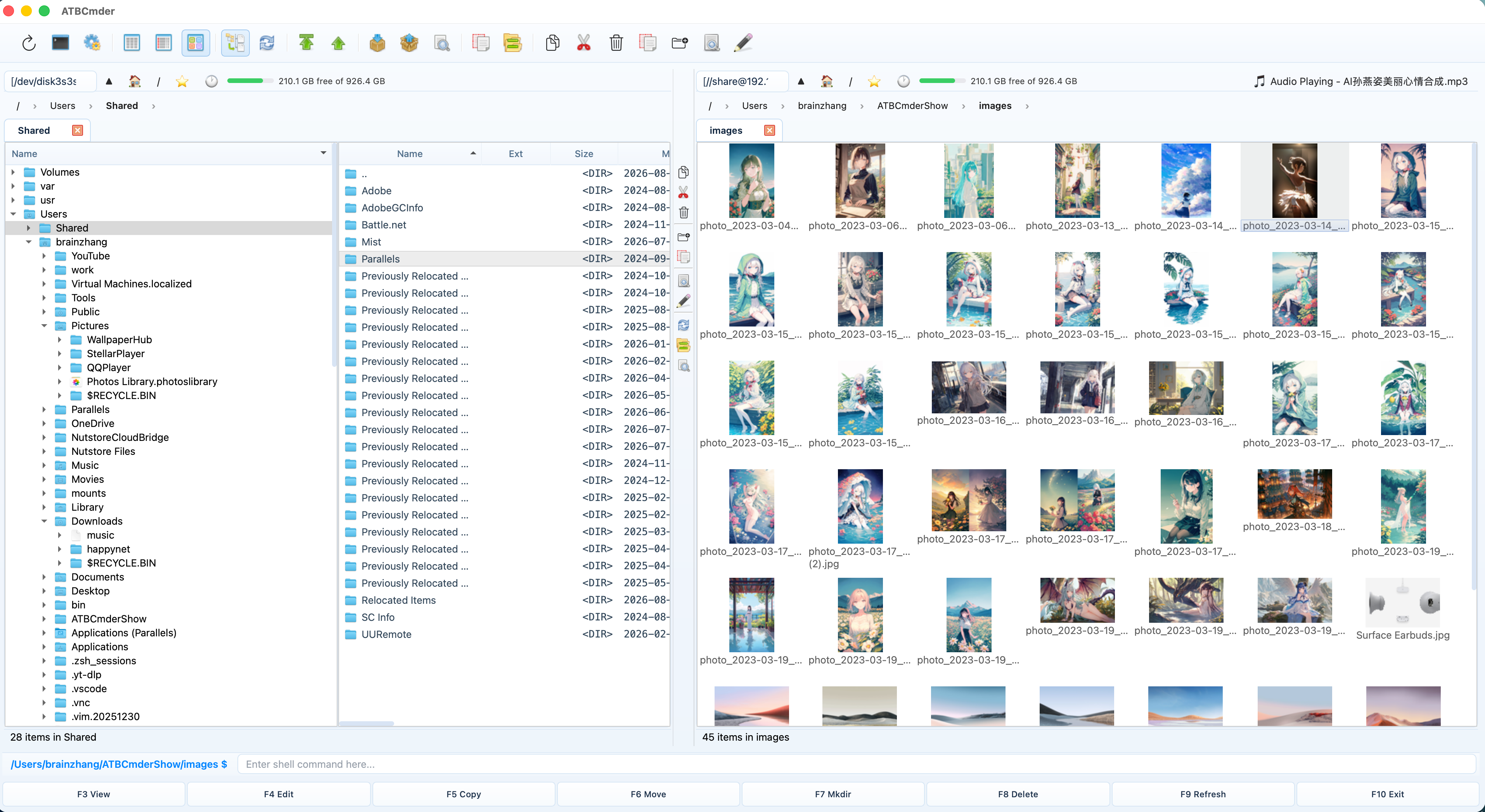
Welcome to the official documentation portal for ATBCmder — the fast, keyboard-first, dual-panel file manager designed specifically for macOS. ATBCmder unites the speed and command heritage of orthodox file managers (Total Commander, Double Commander, Norton Commander) with modern macOS design, native system integration, and advanced power tools.
The Dual-Panel Philosophy
Traditional single-window desktop file managers like macOS Finder force users into an endless cycle of opening overlapping windows, losing track of source and destination folders, and risking accidental drops onto wrong subfolders.
Traditional File Browsing (Finder):
┌────────────────────────┐      ┌────────────────────────┐
│ Folder A (Where was I?)│ ──?  │ Folder B (Which one?)  │  → Clutter, lost focus,
└────────────────────────┘      └────────────────────────┘    and accidental drops

The ATBCmder Way (Orthodox Dual-Panel):
┌───────────────────────────────┬───────────────────────────────┐
│     ACTIVE PANEL (Source)     │    INACTIVE PANEL (Target)    │
│  Files waiting for action     │  Predictable destination      │
│  [ Copy / Move / Diff / Sync  ═════════════════════════════► ]│
└───────────────────────────────┴───────────────────────────────┘
ATBCmder solves this through the Source-Target Dual-Panel Paradigm:
- Constant Orientation: Two independent directory views are visible side-by-side at all times.
- Predictable Directional Operations: When you trigger Copy (
F5) or Move (F6), ATBCmder automatically transfers items from the Active Panel (where your cursor is) to the Inactive Panel (the opposite view). No dragging, no guessing, no searching for hidden destination windows. - Keyboard Velocity: Keep your hands on the keyboard. Jump through directories, select files with wildcards, inspect archives, and execute batch transforms in milliseconds.
- Zero Finder Window Clutter: One window handles everything — local volumes, network servers (FTP, SFTP, SMB, WebDAV), archive contents (
.zip,.7z,.tar), and background transfer queues.
Visual Interface Tour & Landmarks
ATBCmder organizes power into a clean, intuitive layout designed to give you instant situational awareness of both directories.
┌──────────────────────────────────────────────────────────────────────────────────────────┐
│ [1] Menu Bar: File   Mark   Commands   Show   Configuration   Help                       │
├──────────────────────────────────────────────────────────────────────────────────────────┤
│ [2] Main Toolbar:  [🔍 Search]  [⚡ Queue]  [⚙️ Preferences]  [📁 Drive Bar]             │
├─────────────────────────────────────────────┬────────────────────────────────────────────┤
│ [3] Breadcrumbs: 🏠 > Users > brain > work  │ [3] Breadcrumbs: 💾 > Volumes > Backup     │
├─────────────────────────────────────────────┼────────────────────────────────────────────┤
│ [4] Tab Bar: [Project Alpha ✕] [Docs] [+]   │ [4] Tab Bar: [2026 Archive ✕] [+]          │
├──────────────────────────────────────┬──────┼────────────────────────────────────────────┤
│ [5] Left Panel (Active / Source)     │ [6]  │ [5] Right Panel (Inactive / Target)        │
│ 📁 .. [Parent Directory]             │  M   │ 📁 .. [Parent Directory]                   │
│ 📁 assets                            │  I   │ 📁 archive_2025                            │
│ 📁 src                               │  D   │ 📁 release_builds                          │
│ 📄 Cargo.toml             1.2 KB     │  D   │ 📄 CHANGELOG.md                 14.8 KB    │
│ 📄 main.rs                8.4 KB     │  L   │ 📄 README.md                     4.1 KB    │
│ 📄 config.json            2.1 KB     │  E   │ 📦 backup_bundle.zip           128.4 MB    │
│                                      │      │                                            │
├──────────────────────────────────────┴──────┴────────────────────────────────────────────┤
│ [7] Status Bar: 6 items | 2 selected (10.5 KB)   │ Drive: 142.6 GB free / 494.3 GB total │
└──────────────────────────────────────────────────────────────────────────────────────────┘
UI Landmark Reference
- Menu Bar & Native macOS Integration (
[1]): Complete macOS application menu support, standard shortcuts (⌘,,⌘Q,⌘W), and full menu access to every internal Commander command (cm_*). - Main Toolbar & Fast Launchers (
[2]): Immediate one-click access to Search (Alt+F7), Background Transfer Queue (cm_OperationsPanel), Preferences (Cmd+,), and Drive selectors. - Interactive Breadcrumb Path Bar (
[3]): Click any directory segment in the path to jump directly up the hierarchy. Click the segment dropdown arrow to browse subdirectories. - Folder Tabs & Workspaces (
[4]): Open unlimited tabs in each panel (Cmd+T), close tabs (Cmd+W), lock favorite locations, and save entire dual-panel tab workspaces (cm_SaveFavoriteTabs). - Dual File Panels (
[5]): Independent file tables. The active panel displays a distinct accent border and focused cursor. Switch focus instantly withTab. - Middle Toolbar & Draggable Splitter (
[6]): A vertical quick-action strip placed directly on the panel divider. Provides one-click triggers for View (F3), Edit (F4), Copy (F5), Move (F6), New Folder (F7), Delete (F8), Wipe, and Swap Panels (cm_Exchange). Drag the splitter left or right to resize panels. - Status Bar & Drive Storage Meter (
[7]): Shows live file counts, selected item statistics, aggregate byte sizes, and an active volume storage capacity gauge with free space calculation.
Interface Showcase
Explore ATBCmder's capabilities through key feature highlights:
Dual Panels & Tree View
Dual-panel layout with directory tree and thumbnail preview.
Middle Quick-Action Toolbar
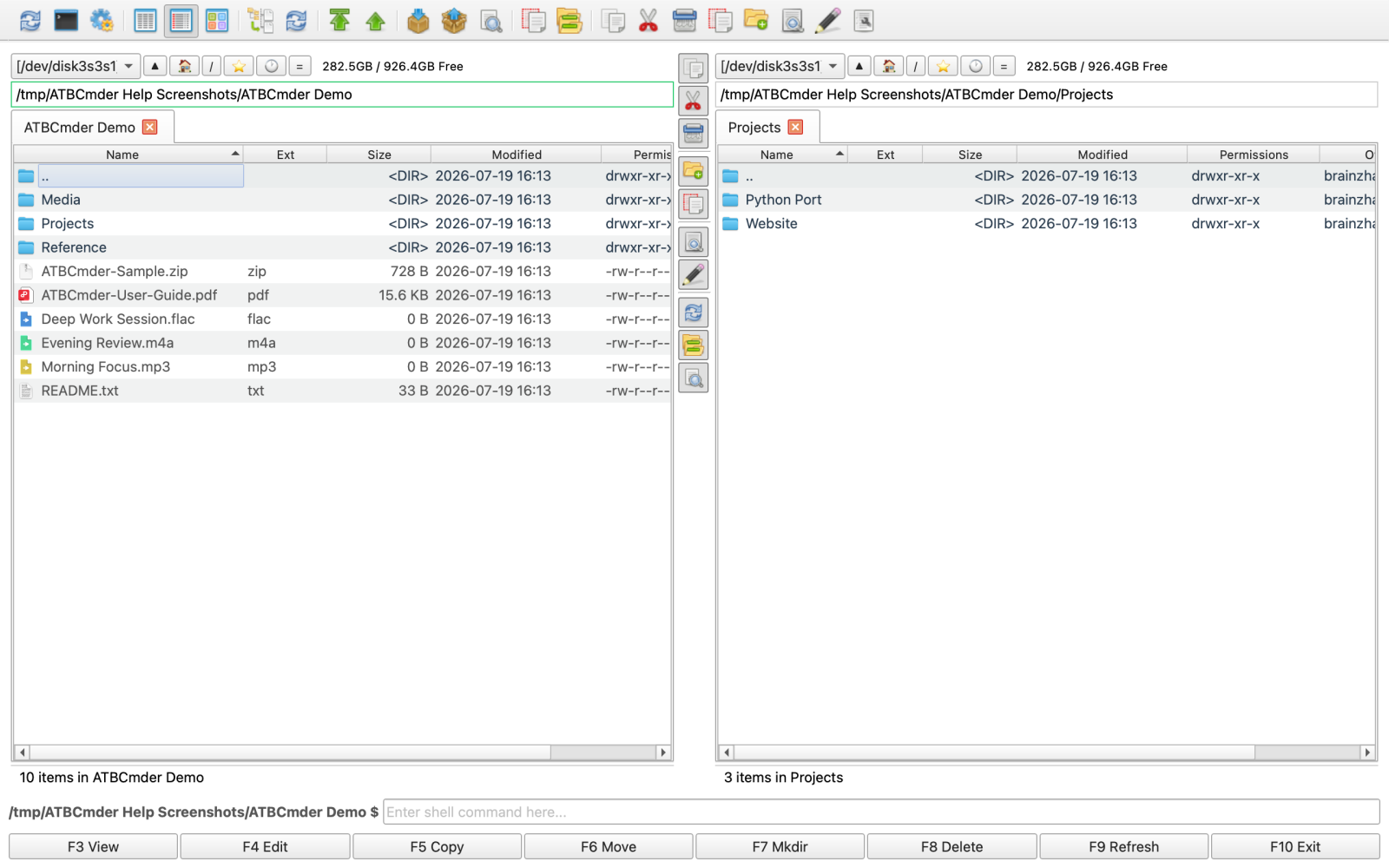
Quick action strip: View, Edit, Copy, Move, MkDir, Delete, Wipe.
Natural Language Commands
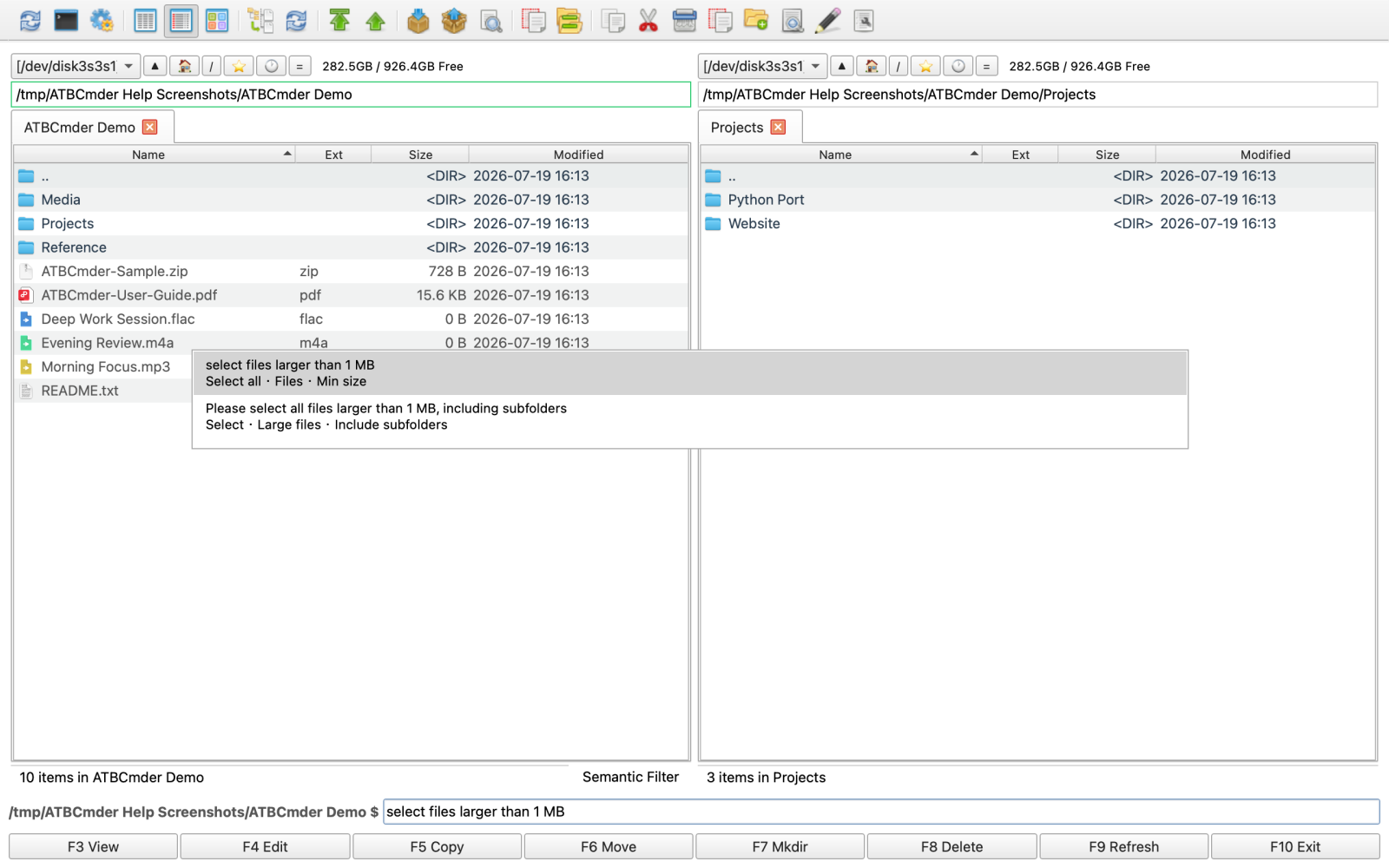
Instant search powered by macOS Spotlight and semantic query parsing.
Recursive Flat Branch View
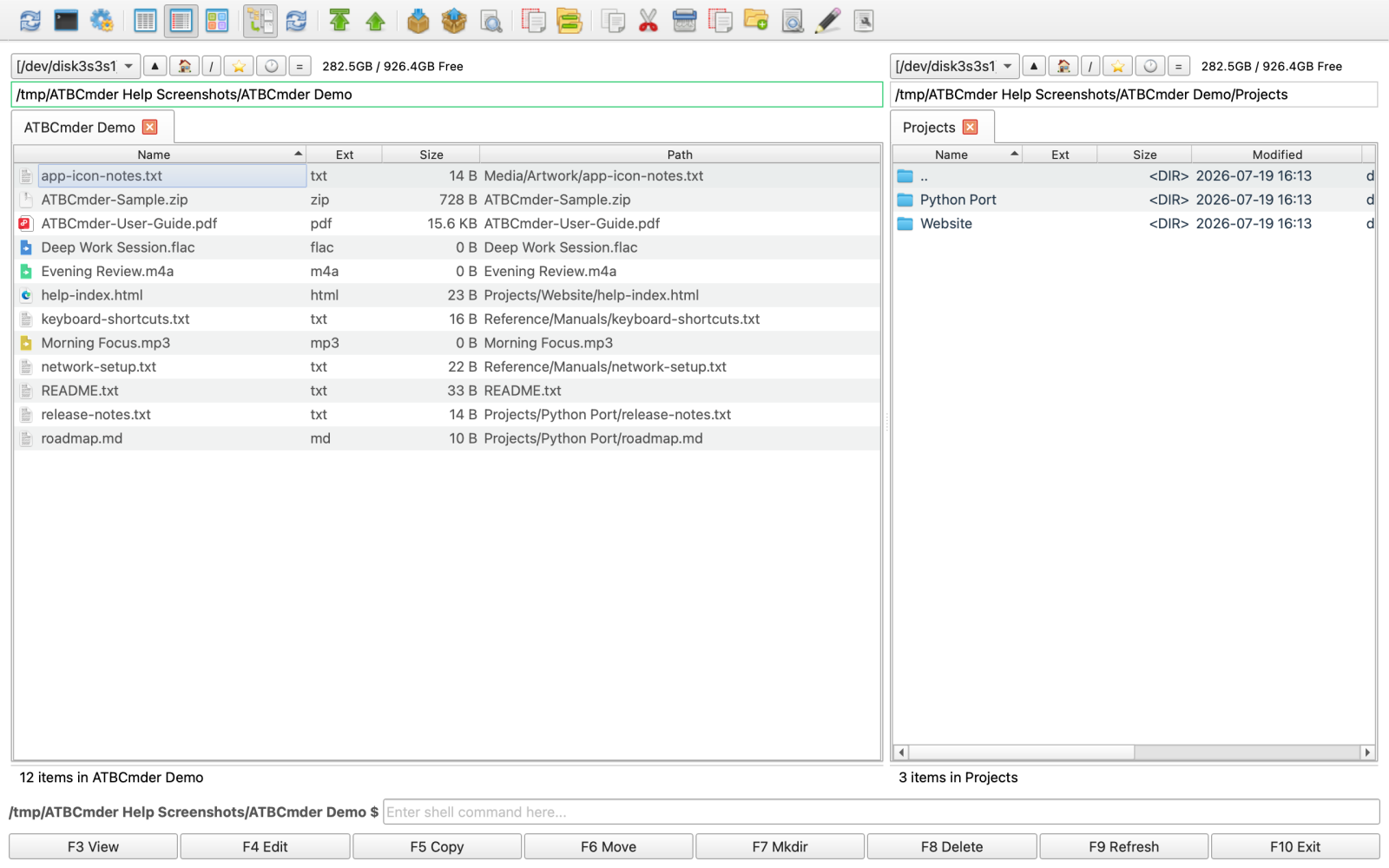
Branch View (Cmd+B) displaying nested contents in a single flat list.
Network & Remote VFS
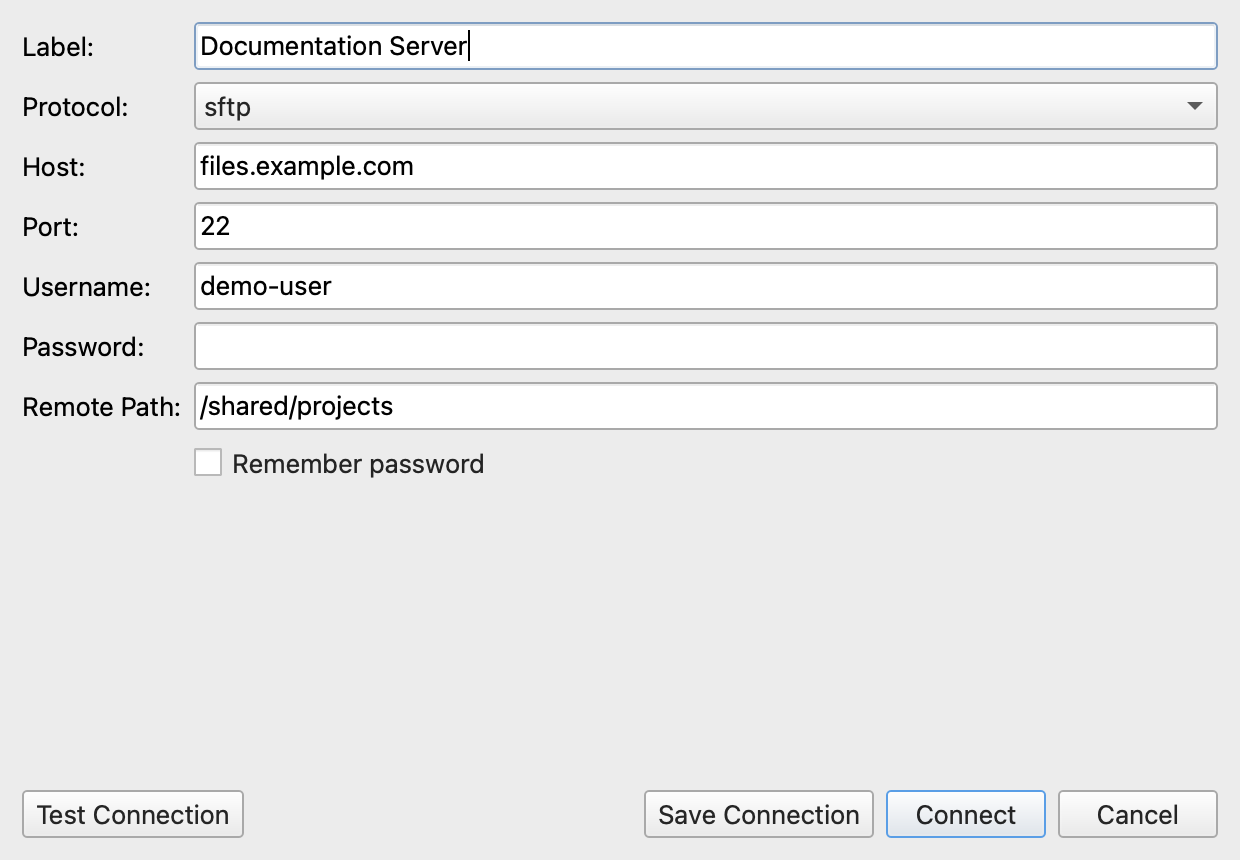
Connect to FTP, SFTP, WebDAV, and SMB/Samba network shares.
Archive VFS (No Extraction Needed)
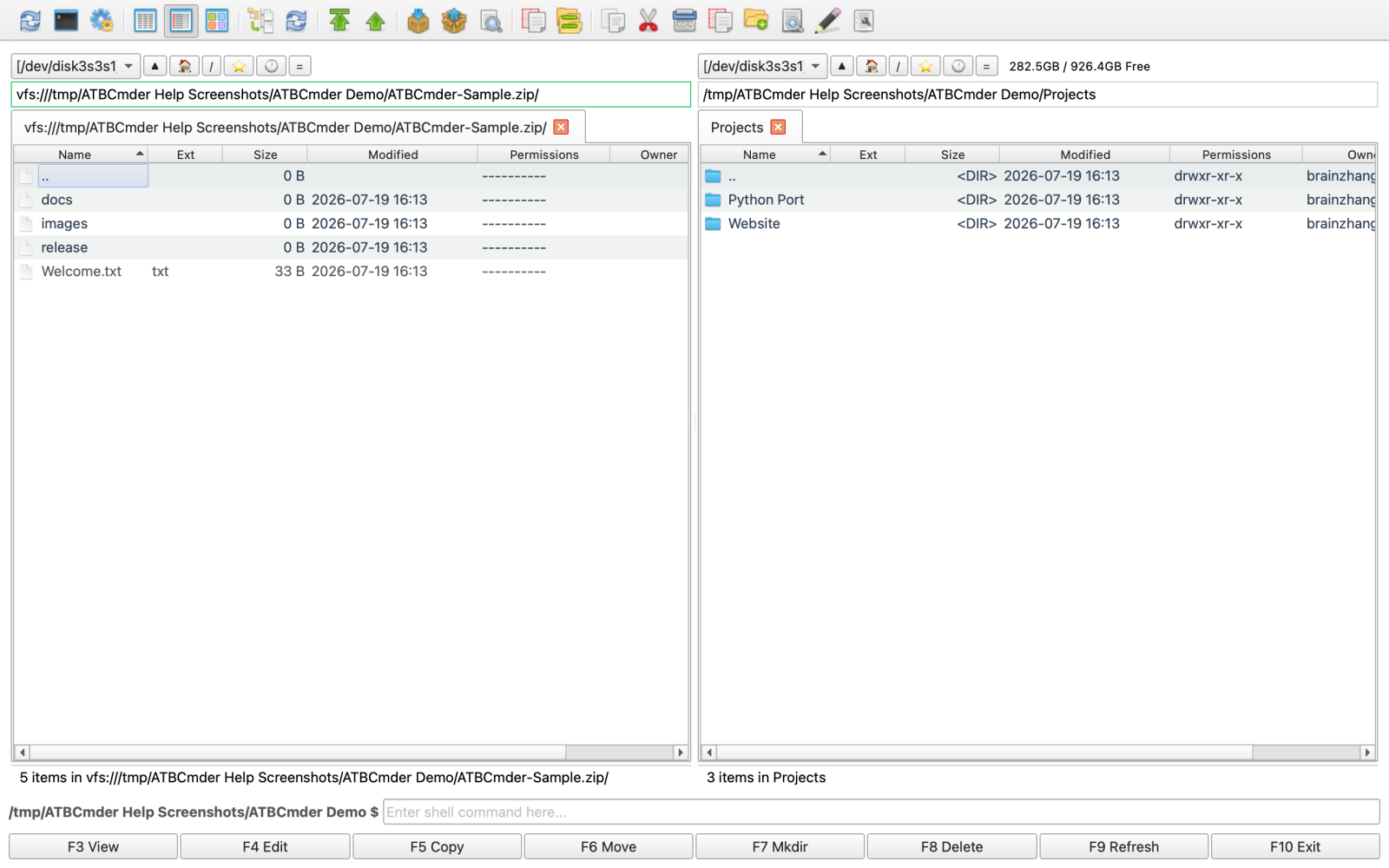
Browse and edit inside ZIP, TAR, 7z archives like standard folders.
Choose Your Path
Whether you have never touched a dual-panel tool before or you have spent two decades using Total Commander, ATBCmder provides an optimized path forward:
🟢 Track A: New to Dual-Panel File Managers?
Welcome to a faster, cleaner way of managing files on macOS.
If you are coming from Finder or standard desktop operating systems, orthodox file managers might look unfamiliar at first. Once you learn the core patterns, you will never want to go back to dragging files across scattered windows:
- Start with the Core Concepts: Read Chapter 1: Fundamentals & macOS Setup to understand Active vs. Inactive panels, the Middle Toolbar, and granting macOS disk permissions.
- Master Daily Operations: Learn how to copy, move, rename, and delete without touching your mouse in Chapter 3: Daily File Operations & Queue.
- Preview Everything Instantly: Discover how to preview images, listen to audio files, read code, and inspect PDFs with a single keystroke in Chapter 4: Universal Lister & Editors.
- Follow Hands-On Guides: Check out practical everyday workflows and common questions in Chapter 10: Real-World Recipes & Troubleshooting.
⚡ Track B: Migrating from Total Commander / Double Commander?
All the power and keyboard reflexes you know, natively engineered for macOS.
ATBCmder was created to bring the authentic Commander experience to modern macOS without running clunky X11, wine wrappers, or unmaintained legacy ports:
- Master the Dual-Matrix Keybindings: Review our complete side-by-side shortcut matrix (
macOS CmdvsCommander Fn) in Chapter 9: Master Keyboard Shortcuts. - Harness Advanced Power Tools: Use the Batch Multi-Rename Tool (
Ctrl+M), Side-by-Side File Diff (Meta+Shift+F12), Folder Sync (Shift+F12), and Advanced Search in Chapter 5: Power Tools & Automation. - Connect to Remote & Virtual Systems: Browse and edit directly inside
.zipand.tararchives with live repacking, or manage remote servers via SFTP, SMB, and WebDAV in Chapter 6: Virtual File Systems & Network. - Monitor System & Maintain Storage: Use the real-time resource monitor HUD (
⌘⇧M), visual Treemap disk analyzer (⌘⇧D), safe system cleaner (⌘⇧C), and deep application uninstaller (⌘⇧U) in Chapter 7: System Tools & Maintenance. - Customize & Port Your Setup: Rebind commands, configure auto-refresh behavior, and export your configuration XML in Chapter 8: Preferences & Customization.
Master Table of Contents
Explore the complete ATBCmder documentation suite:
🚀 Chapter 1: Fundamentals & macOS Setup
Understand the dual-panel philosophy, explore interface anatomy, configure macOS App Sandbox permissions via the onboarding assistant (cm_GrantFilesystemAccess), set system language overrides across 30+ locales, and tailor Light/Dark themes.
🧭 Chapter 2: Navigation & Folder Tabs
Move effortlessly through directory trees using interactive breadcrumbs, keyboard jumps (Ctrl+\, Backspace), multi-tab organization (Cmd+T, Cmd+W), dual-panel favorite workspace sets (cm_SaveFavoriteTabs), Directory Hotlist bookmarks (Ctrl+D), and flexible view modes (Brief, Full Columns, Thumbnails, Tree View, and Flat Branch View Cmd+B).
📁 Chapter 3: Daily File Operations & Queue
Perform fast, rock-solid file operations: Copy (F5), Move (F6), New Folder (F7), Delete to Trash (F8), and inline quick rename (F2). Master wildcard and attribute selections, drag-and-drop interoperability, collision conflict resolution, UNIX octal permissions (Alt+Enter), and asynchronous transfer monitoring via the Background Operations Queue (cm_OperationsPanel).
👁️ Chapter 4: Universal Lister & Built-in Editors
Inspect files without launching heavy third-party software. Use Quick View (Ctrl+Q / Cmd+Q) for live side-panel previews, and Universal Lister (F3) for Word documents, spreadsheets, SQLite databases, Jupyter notebooks, EPUBs, syntax-highlighted code, raw Hex byte inspection (2), image annotations and watermarking (F4), PDF document reader, and integrated Audio/Video media players with background audio playback. Edit files directly with the built-in text editor (F4).
⚡ Chapter 5: Power Tools & Automation
Automate complex file management challenges: Batch Multi-Rename (Ctrl+M) with tokens and RegEx substitution, Side-by-Side Visual File Diff (Meta+Shift+F12), Two-Way Directory Synchronization (Shift+F12), Advanced Multi-Filter Search (Alt+F7) with "Feed to Listbox", Spotlight & Natural Language Semantic Commands (/), File Splitter & Linker, Checksum Verification (MD5, SHA-256, CRC32), Secure Multi-Pass Wipe (cm_Wipe), and Embedded Terminal (Ctrl+J).
🌐 Chapter 6: Virtual File Systems & Network
Treat remote servers and compressed archives like ordinary local folders using unified vfs:// URIs. Navigate inside .zip, .tar, and .7z archives without uncompressing, edit files in-place with automated live repacking, create encrypted archives (Alt+F5), and manage persistent connections across FTP, SFTP (SSH keys), WebDAV, and SMB/Samba network shares.
🛠️ Chapter 7: System Tools & Maintenance
Inspect real-time system performance from the toolbar status capsule HUD or full diagnostic console (cm_SystemStatus), analyze storage usage with interactive squarified treemaps (cm_DiskUsageAnalyzer), safely purge caches, logs, and development artifacts using two-stage risk analysis (cm_CleanSystem), and perform deep application uninstallation including orphaned remnant removal across ~/Library/ (cm_UninstallApp).
⚙️ Chapter 8: Preferences & Customization
Configure ATBCmder to match your exact work style. Search and bind primary/secondary hotkeys with real-time conflict warnings, customize file table columns and auto-fitting rules, adjust file watcher auto-refresh sensitivity, define custom file extension associations, and export/import portable configuration profiles (cm_ExportConfiguration).
⌨️ Chapter 9: Master Keyboard Shortcuts
Comprehensive dual-matrix shortcut reference guide comparing native macOS shortcuts (Cmd modifiers) with classic Commander function keys (F1-F12). Includes dedicated instructions for Apple keyboard Fn modifier behavior and the macOS "standard function keys" configuration.
❓ Chapter 10: Real-World Recipes & Troubleshooting
Practical, step-by-step walkthroughs for common real-world tasks: synchronizing directory backups, batch renaming camera photo libraries with timestamps, mounting network NAS drives, updating configuration files inside remote archives, and diagnosing macOS sandbox permission errors or auto-refresh issues.
📥 Chapter 11: Download & Installation
Installation options for macOS 12.0+ Monterey through Sequoia. Download directly from the Mac App Store or grab standalone DMG installer packages natively built with universal dual-architecture support for Apple Silicon (M1/M2/M3/M4, ARM64) and Intel (x86_64) Macs.
🔒 Appendix: Privacy Policy & Data Security
Our fundamental pledge to user privacy: ATBCmder includes zero tracking, zero telemetric logging, and zero background analytics. All file operations, network credentials, and search indices remain strictly local to your Mac.
Ready to get started?