Chapter 4: Universal Lister & Built-in Editors
In orthodox dual-panel file management, speed depends heavily on inspection velocity. Launching heavyweight integrated development environments (IDEs) or bloated desktop applications just to verify a checksum, check a configuration line, crop a screenshot, or inspect a PDF creates cognitive friction and window clutter.
ATBCmder solves this by providing a unified, multi-engine viewing and editing subsystem directly built into the application core. Whether you need a real-time inline preview while moving through folders, a deep byte-level forensic analysis in Hex mode, an audio player that continues playing in the background while you organize files, or an atomic, syntax-aware code editor, ATBCmder gives you instant keyboard control.
1. Visual Quickstart: Immediate File Inspection & Editing
ATBCmder divides file inspection and modification into two distinct paradigms:
- Opposing Panel Quick View (
Cmd+Q/Ctrl+Q): Embeds a live, debounced preview directly inside the inactive panel without spawning any separate windows. - Dedicated Universal Lister (
F3) & Internal Editor (F4): Opens independent, non-modal windows supporting specialized format engines, full-text search, media playback, and syntax highlighting.
┌────────────────────────────────────────────────────────────────────────────────────────┐
│  ACTIVE PANEL (File Navigation)                     INACTIVE PANEL (Quick View)        │
│  /Users/brain/Projects/atbcmder/src                 [Quick View Preview: main.py]      │
├──────────────────────────────────────────────┬───┬─────────────────────────────────────┤
│  Name                         Size   Date    │   │ 0001: """                           │
│  ▸ [..]                              --:--   │ Q │ 0002: Main application entry point  │
│  ✔ main.py                    8.4 KB 15:10   │ U │ 0003: """                           │
│  ● config.xml                12.1 KB 14:20   │ I │ 0004: import sys                    │
│  ● hero_banner.png          248.5 KB 09:12   │ C │ 0005: from PySide6.QtWidgets import │
│  ● sample_invoice.pdf       512.0 KB 11:30   │ K │ 0006:     QApplication              │
│  ● release_theme.mp3          4.2 MB 16:45   │   │                                     │
│  ● firmware_dump.bin          1.0 MB 10:00   │ V │ [UTF-8] [Python] [LF] [Line 1/140]  │
├──────────────────────────────────────────────┴───┴─────────────────────────────────────┤
│   [Cmd+Q / Ctrl+Q] Toggle Quick View    [F3] Universal Lister    [F4] Internal Editor  │
└────────────────────────────────────────────────────────────────────────────────────────┘
Dual-Matrix Inspection & Editing Cheat Sheet
| Action | macOS Shortcut | Classic Commander Key | Command ID | Description |
|---|---|---|---|---|
| Toggle Quick View | Cmd+Q / ⌘Q |
Ctrl+Q |
cm_QuickView |
Opens live preview in opposing panel. |
| Universal Lister | F3 / Fn+F3 |
F3 |
cm_View |
Opens selected item in Universal Lister. |
| Internal Editor | F4 / Fn+F4 |
F4 |
cm_Edit |
Opens Code Editor for text or Image Editor for graphics. |
| Create & Edit New File | Shift+F4 / ⇧F4 |
Shift+F4 |
cm_EditNew |
Prompts for name and opens editor. |
| Switch Panel Focus | Tab / ⇥ |
Tab |
cm_SwitchPanel |
Switches focus; flips Quick View symmetrically. |
| Hex View Mode | 2 |
2 |
— (Lister) | Toggles byte-level hexadecimal inspection in Lister. |
| Text View Mode | 1 |
1 |
— (Lister) | Returns Lister to formatted plain text mode. |
| Word Wrap Toggle | Alt+W / ⌥W |
Alt+W |
— (Lister/Editor) | Toggles soft line wrapping in Lister and Editor. |
| Line Numbers Toggle | Alt+L / ⌥L |
Alt+L |
— | Toggles left gutter line numbers. |
| Live Log Tail Mode | F5 / Fn+F5 |
F5 |
— | Streams newly appended log entries in real time. |
| Background Audio | Background Button |
— | — | Docks audio playback into panel status strip. |
| Configure Associations | Configuration Menu | — | cm_FileAssoc |
Configures file extensions and helper tools. |
2. Quick View Panel (Cmd+Q / Ctrl+Q / cm_QuickView)
The Quick View Panel is one of the most powerful workflows in orthodox file managers. Rather than opening and closing floating windows as you inspect a folder containing hundreds of items, Quick View transforms the inactive panel into an embedded, contextual viewport.
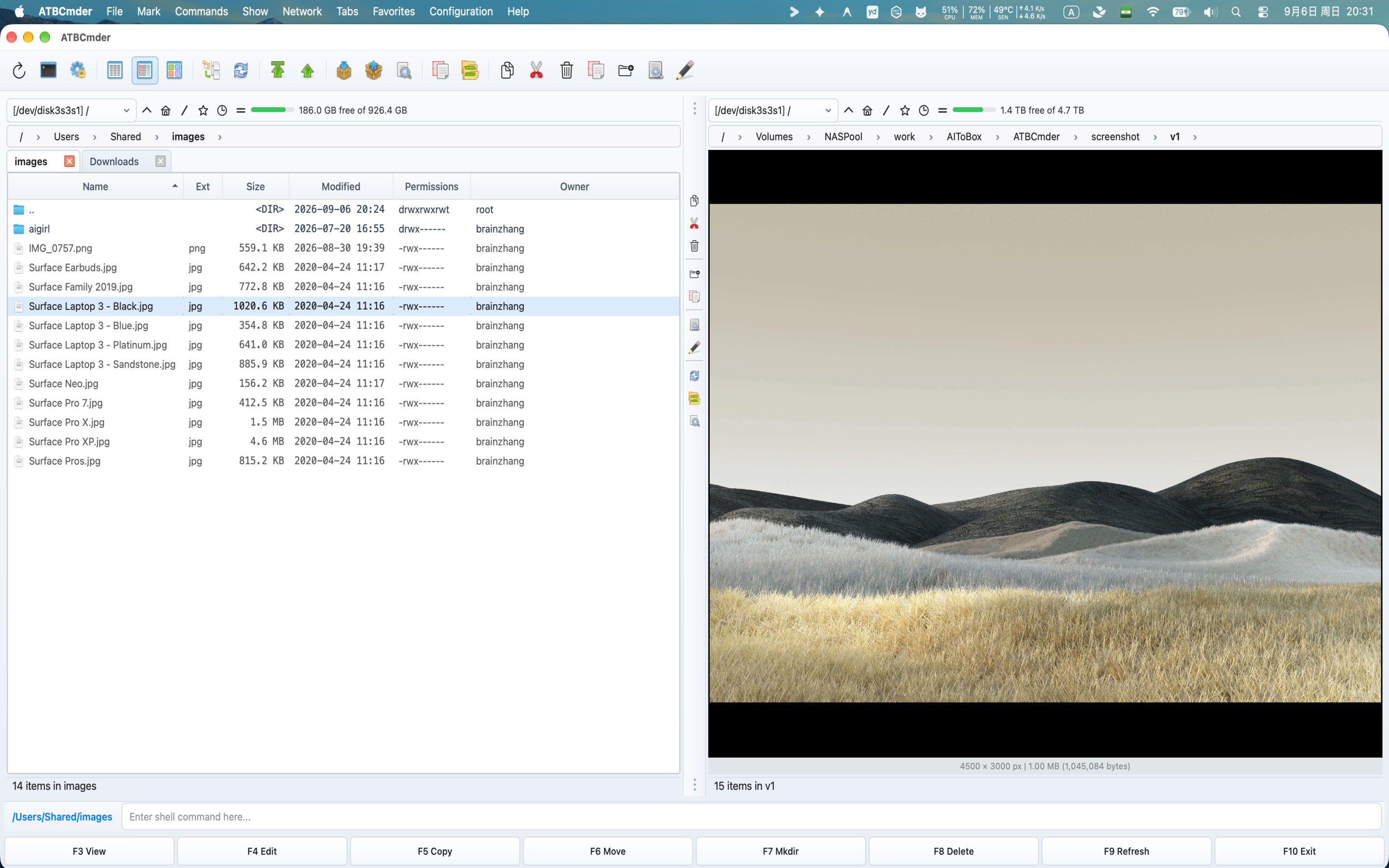
Figure 4.1: Quick View embedded in the opposing panel displaying live syntax-highlighted code alongside directory navigation.
2.1 The Dual-Panel Preview Advantage
To activate Quick View:
- Navigate to any file or directory in the active panel.
- Press
Cmd+Q(⌘Q) on macOS orCtrl+Q(cm_QuickView). - The opposing panel instantly switches from its normal directory listing to the Quick View Container (
QuickViewContainer), rendering the contents of the item under your cursor. - Pressing
Cmd+QorCtrl+Qagain closes the preview and restores the opposing panel's previous tab and folder listing without losing your place.
2.2 100ms Debounced Real-Time Updating
When holding down the Up or Down arrow keys to rapidly scroll through a folder of thousands of files, standard file previewers often freeze the user interface or trigger intense disk thrashing.
ATBCmder solves this through an internal 100-millisecond single-shot debounce timer (_quick_view_timer):
- As you navigate rapidly across rows, the active file path is staged in memory.
- The heavy file loading, syntax parsing, and thumbnail rendering only trigger once your cursor pauses on an item for at least 100ms.
- Scrolling remains perfectly smooth at 60+ frames per second, even when browsing multi-gigabyte media directories or raw disk dumps.
2.3 Symmetric Focus Flip on Tab
A common issue in dual-panel managers is losing your preview when switching panels. In ATBCmder, Quick View features Symmetric Focus Flipping:
- If Quick View is active on the Right Panel and you press
Tabto switch active focus to the Right Panel: - The Right Panel immediately restores its normal file table so you can interact with files.
- Quick View automatically and seamlessly flips to the Left Panel, displaying a live preview of whatever file is highlighted in the Right Panel.
- This maintains an uninterrupted navigation and inspection loop regardless of which panel you are working in.
2.4 Intelligent Content Routing
The Quick View Container dynamically detects file extensions, MIME signatures, and raw byte headers to select the optimal preview engine:
| Content Type | Extensions / Signatures | Embedded Preview Engine |
|---|---|---|
| Source Code & Text | .py, .rs, .cpp, .c, .h, .js, .ts, .html, .css, .json, .xml, .yaml, .md, plain text heuristics |
TextPanel with Pygments syntax highlighting and line numbers. |
| Raster & Vector Images | .png, .jpg, .jpeg, .webp, .svg, .bmp, .gif, .ico, .tiff |
ImagePanel with smooth downsampling and aspect ratio preservation. |
| PDF Documents | .pdf |
PdfPanel with native PySide6.QtPdf page rendering (Fit to Width). |
| Audio & Video Media | .mp3, .wav, .flac, .aac, .m4a, .ogg, .mp4, .mkv, .mov, .avi, .webm |
MediaPanel with muted audio preview and playback controls. |
| Tabular Data | .csv, .tsv, .xlsx, .xls, .ods |
SpreadsheetPanel with read-only table grid and column auto-sizing. |
| Documents & E-Books | .docx, .odt, .rtf, .epub |
DocumentPanel / EpubPanel rich-text document renderer. |
| Database Files | .sqlite, .sqlite3, .db |
SqlitePanel with schema browser and table data viewer. |
| Archives | .zip, .tar, .gz, .bz2, .xz, .7z |
ArchiveInspectorPanel displaying uncompressed member hierarchies. |
2.5 Metadata Property Fallback (QuickViewPropertiesWidget)
When you highlight a directory or a file format that cannot be rendered as text or media, ATBCmder automatically switches to the Properties Fallback View (QuickViewPropertiesWidget):
┌────────────────────────────────────────────────────────┐
│  📁 release_builds                                     │
│  /Volumes/ExternalSSD/Projects/release_builds          │
├────────────────────────────────────────────────────────┤
│  Metadata                                              │
│    Full Path:      /Volumes/ExternalSSD/...            │
│    Size:           Directory (or 148,290,112 bytes)    │
│    Last Modified:  2026-09-06 14:10:22                 │
│    Last Accessed:  2026-09-06 15:02:18                 │
├────────────────────────────────────────────────────────┤
│  Permissions (UNIX)                                    │
│    Octal Mode: 0755                                    │
│    Owner:  [✔] Read  [✔] Write  [✔] Execute            │
│    Group:  [✔] Read  [ ] Write  [✔] Execute            │
│    Others: [✔] Read  [ ] Write  [✔] Execute            │
├────────────────────────────────────────────────────────┤
│  Checksums / Stats                                     │
│    Contents: 42 files, 8 folders                       │
│    MD5:      Calculating... ➔ 8f14e45fceea167a...      │
│    SHA256:   Calculating... ➔ 3a491d90bc1f4201...      │
└────────────────────────────────────────────────────────┘
- Header Card: Displays the high-resolution system icon, file name, and parent path.
- File Metadata: Shows exact byte size, human-readable size (
KB,MB,GB,TB), modification timestamp (mtime), and access timestamp (atime). - UNIX Permission Matrix: Displays the 4-digit octal permission mode (e.g.
0755,0644) alongside a read-only 3x3 checkbox matrix for Owner, Group, and Others (rwx). - Asynchronous Background Hashes: For files, an asynchronous background thread (
HashWorker) computes MD5 and SHA-256 cryptographic hashes without blocking the interface. For directories, it scans and reports the aggregate count of nested files and subfolders.
3. Universal Lister (F3 / Fn+F3 / cm_View)
While Quick View is optimized for fast previews within the dual-panel window, the Universal Lister (F3 / Fn+F3 / cm_View) opens a dedicated, top-level non-modal window (UniversalViewerDialog). Multiple Universal Lister windows can be open simultaneously, allowing you to compare documents side-by-side or keep logs streaming on secondary displays.
Top Quick-Action Toolbar
The Lister features an integrated quick-action toolbar providing rapid access to view modes, navigation, and display settings:
[Text (1)] [Hex (2)] [Wrap (Alt+W)] [Line Numbers (Alt+L)] [Tail (F5)] | [◀ Prev (P)] [Next ▶ (N)] | [🔍 Search (Ctrl+F)] [Go to Line (Ctrl+G)] | [Open in System (Ctrl+O)] [Fullscreen (F11)]
- Text Mode (
1) / Hex Mode (2): Instantly toggle between decoded character display and raw byte inspection. - Word Wrap (
Alt+W/⌥W): Toggles soft word wrapping for long lines. - Line Numbers (
Alt+L/⌥L): Toggles the line numbering gutter. - Tail Mode (
F5): Automatically scrolls and captures newly written log data in real time. - Previous File (
P) / Next File (N): Navigates to the adjacent file in the parent folder's file table without closing the viewer window. - Find (
Ctrl+F/Cmd+F): Opens the docked bottom search bar. - Go to Line (
Ctrl+G/Cmd+G): Prompts for a line number to jump directly to target code. - Open in System (
Ctrl+O/Cmd+O): Hands the file off to the macOS system default application (e.g. Preview, Safari, or Xcode). - Fullscreen (
F11/Alt+Enter): Maximizes the Lister window to fill the display.
3.1 Domain 1: Documents & Structured Books
ATBCmder embeds specialized layout engines for structured documents, slide decks, electronic books, and formatted text, eliminating the need to wait for external office suites to launch.
3.1.1 Word & Rich Text Documents (DocumentPanel)
When pressing F3 on Microsoft Word (.docx, .doc), Rich Text (.rtf), or OpenDocument (.odt) files, ATBCmder engages DocumentPanel:
- Document Page Cards: Renders structured pages on centered paper cards (
.doc-page) with crisp typography and margins matching modern word processor layouts. - Formatting Preservation: Preserves paragraph hierarchies, bold/italic/underline styles, font color variations, unordered and numbered lists, and inline hyperlinks.
- Complex Table & Embedded Image Rendering: Parses complex multi-column table grids with bordered cell spacing and renders embedded inline raster illustrations.
- Page Zoom & Search: Granular page zoom controls (
Ctrl++/Ctrl+-or zoom spin box) and integrated in-document search bar (ViewerSearchBar).
3.1.2 Presentation Slide Decks (PresentationPanel)
For Microsoft PowerPoint presentations (.pptx, .ppt), ATBCmder launches PresentationPanel:
- Slide Card Reader: Each slide is extracted and formatted as a distinct, shadowed presentation card (
.slide-card), letting you review content sequentially. - Slide Selector Strip: A visual navigation drawer lists all slides with thumbnail indices, allowing you to jump instantly to any slide in a 100-slide deck.
- Slide Search: Press
Cmd+Fto search slide titles, bullet points, speaker notes, and callout text blocks across the entire deck.
3.1.3 PDF Document Viewer (PdfPanel)
Powered natively by PySide6.QtPdf and QPdfView, ATBCmder embeds an enterprise-grade PDF reader:
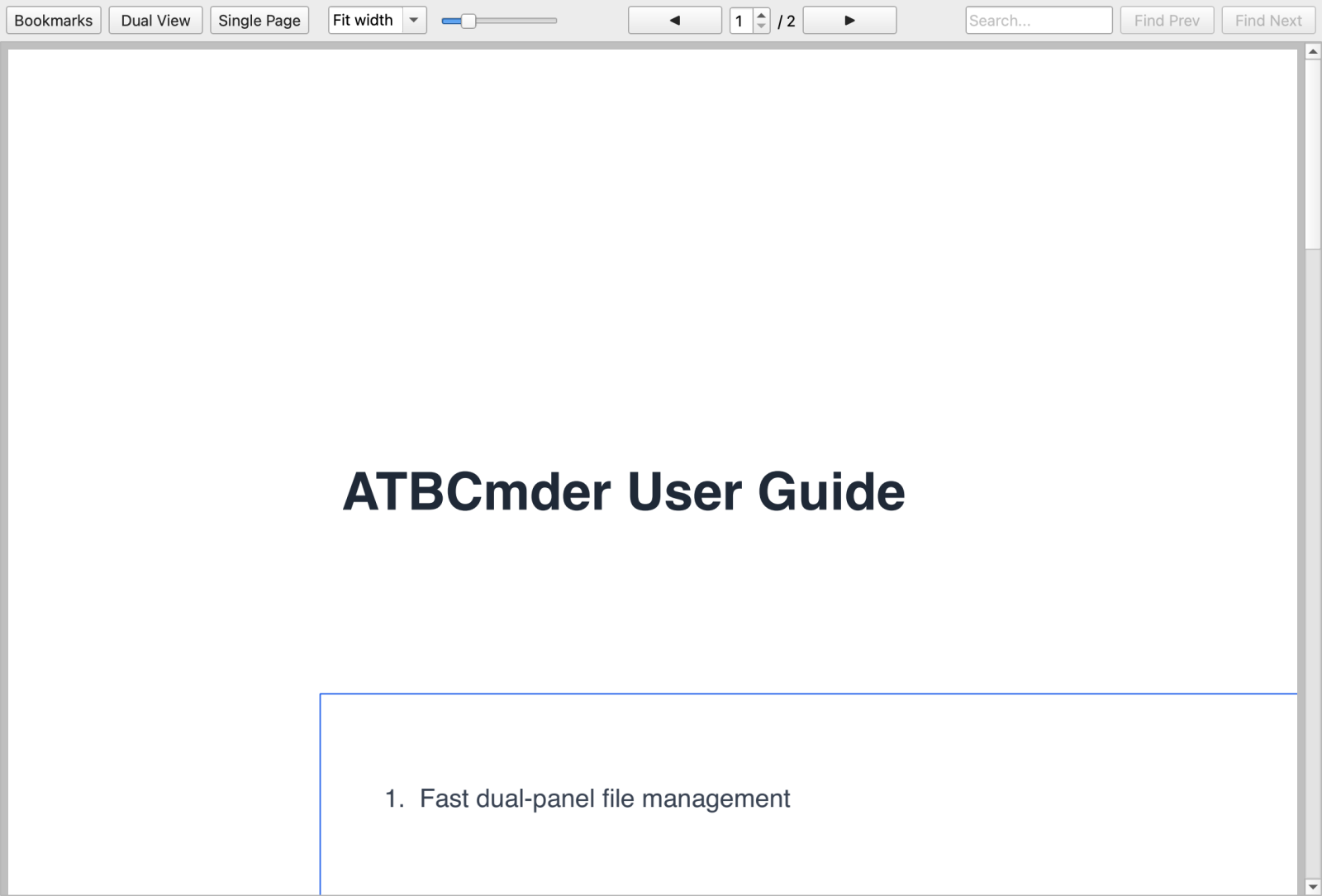
Figure 4.2: Integrated PDF Viewer featuring bookmarks outline, page thumbnail strip, in-document search, and reading themes.
- Continuous Multi-Page Scrolling: Seamlessly scroll across hundreds of pages in multi-page mode (
QPdfView.PageMode.MultiPage), or switch to single-page and two-page book spread views. - Document Sidebar:
- Outline / Bookmarks Tree: Click any chapter or section heading in the PDF table of contents (
QPdfBookmarkModel) to jump directly to that section. - Page Thumbnails Strip: Visually scan layout and graphic elements via the vertical thumbnail list (
PdfThumbnailList). - In-Document Search & Highlighting: Press
Cmd+Fto search text across the document. Matches are highlighted on-screen with real-time occurrence indexing (Match 3 of 28). Jump between occurrences withEnterorShift+Enter. - Reading Themes:
- Normal: Standard document paper rendering.
- Inverted Night Mode: Inverts RGB pixel luminance (
InvertColorEffect) for comfortable reading in dark environments without eye strain. - Sepia Warmth: Soft warm tone reducing blue light emission during extended document review.
- Security & Encryption: Seamlessly prompts for passwords on encrypted PDF files via
PdfPasswordDialogand inspects creator/producer metadata viaPdfPropertiesDialog.
3.1.4 EPUB eBooks (EpubPanel)
Managing technical documentation, manuals, or digital books in EPUB format (.epub) is native to ATBCmder:
- Dual-Engine Architecture: Employs a high-fidelity WebEngine renderer (
QWebEngineViewwithEpubUrlSchemeHandlerfor rich CSS styling and SVG vector illustrations) with an automatic fallback toQTextBrowseron minimal environments. - Table of Contents Sidebar: Displays nested chapter trees (
QTreeView), allowing one-click jumping between book chapters and appendices. - Typography & Font Scaling: Dynamically scale reading text size via the bottom toolbar font slider.
- Reading Comfort Themes: Instant toggling between Light, Dark, and Sepia color palettes.
3.1.5 Markdown Documents (MarkdownPanel)
For README files, technical notes, and developer documentation (.md, .markdown):
- GitHub-Flavored Markdown (GFM): Renders headers, blockquotes, horizontal rules, task lists (
- [x]), and multi-column tables. - Code Block Syntax Styling: Automatically formats fenced code blocks (
python,bash, ```json) with distinct background shading, monospaced typography, and syntax coloring.
3.2 Domain 2: Data, Tables & Developer Runtimes
For technical users, data analysts, and software engineers, ATBCmder provides instant, offline data inspection tools that eliminate the overhead of external database clients or spreadsheet applications.
3.2.1 High-Performance Spreadsheets (SpreadsheetPanel)
Opening large CSV files or multi-sheet Excel workbooks in heavy office suites can take 10–20 seconds. ATBCmder’s SpreadsheetPanel renders them instantly:
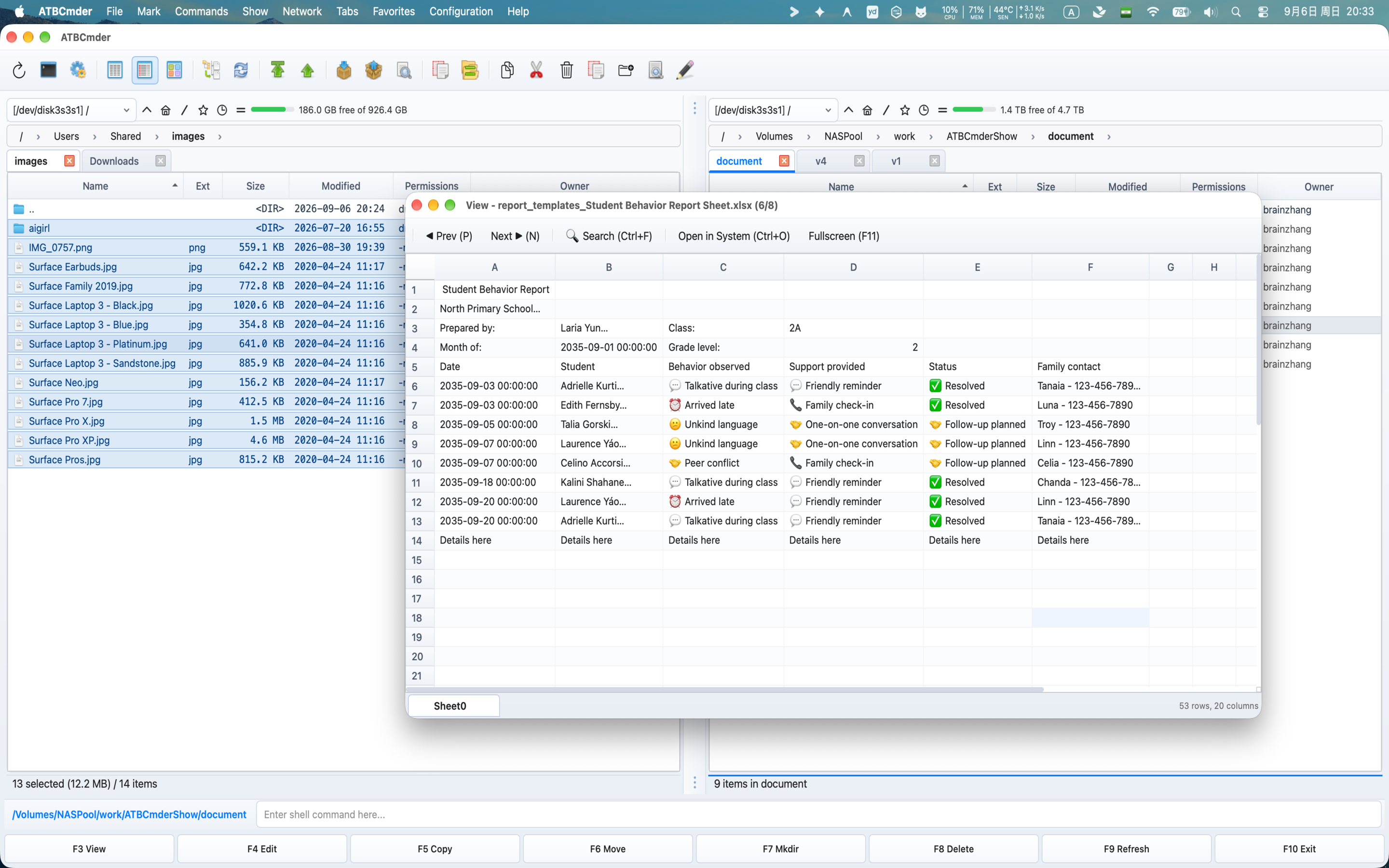
High-performance Excel spreadsheet preview in Universal Lister with multi-sheet tabs and frozen coordinates
- Format Support: Microsoft Excel (
.xlsx,.xls), Comma-Separated Values (.csv), and Tab-Separated Values (.tsv). - Multi-Sheet Tabs: Workbooks with multiple sheets feature a bottom tab bar (
QTabBar), enabling rapid switching between data sheets. - Virtual Table Model (
VirtualSpreadsheetModel): Utilizes lazy incremental row loading viacanFetchMoreandfetchMore. You can scroll through CSVs or worksheets with hundreds of thousands of rows smoothly with minimal memory footprint. - Frozen Column & Row Headers: Standard spreadsheet coordinates (
A, B, C...and1, 2, 3...) remain pinned during scrolling for clear orientation. - Clipboard TSV Export: Select any cell range and press
Cmd+C(⌘C) to copy data formatted as clean Tab-Separated Values ready for pasting into code, Slack, or terminal pipes. - Fast Search: Press
Cmd+Fto search cell contents across all columns with real-time cell focus.
3.2.2 SQLite Database Browser (SqlitePanel)
Inspect SQLite databases (.sqlite, .sqlite3, .db) directly without external GUI clients:
- Tables & Views Directory: Left sidebar lists all database tables and views alongside their active row counts. Clicking any table loads its contents immediately.
- Virtualized Data View: Uses the high-performance
VirtualSpreadsheetModelfor seamless scrolling through massive tables. - Interactive SQL Query Console: Type custom SQL queries in the top query editor and press
Ctrl+Return(orCmd+Return) to execute. Results populate into the table view instantly. - Data Type Formatting: Handles data safely—formats binary blobs as
<BLOB: N B>and displays empty fields as italicizedNULL. - Export Data: Right-click to copy selected records or export query results to CSV or TSV.
3.2.3 Jupyter Notebooks (NotebookPanel)
Review data science experiments, machine learning runs, and Python analysis notebooks (.ipynb):
- Zero-Server Native Rendering: Parses JSON notebook structures completely offline without requiring an active Jupyter or JupyterLab server daemon.
- Card-Based Cell Layout:
- Markdown Cells: Rendered into clean typography with headings, bold text, and lists.
- Code Cells: Formatted with syntax-highlighted Python code, line numbers, and cell execution badges (e.g.
[1],[14]). - Output Blocks: Displays console output streams, error tracebacks, and inline base64-encoded charts and graphs (PNG/SVG).
3.2.4 Code & Plain Text Viewing (TextPanel)
The primary text inspection engine is optimized for high-speed browsing and huge data dumps:
- Chunked 64 KB Loader (
FileLoaderWorker): Reads large files in 64 KB blocks with automatic newline boundary snapping, preventing thread freezing and UTF-8 multibyte character corruption. - Pygments Syntax Highlighting: Over 150 programming and configuration languages supported with dynamic Light/Dark mode adaptation.
- Dynamic Encoding Switcher: Statistical charset detection (
chardet) with status bar manual switching between UTF-8, GB18030, Big5, Shift-JIS, Windows-1252, and ISO-8859-1. - Live Tail Mode (
F5): EngageFileTailWatcherto stream appending log lines in real time, matching UNIXtail -f. PressF5again to pause.
3.2.5 Raw Hex Byte Inspection (2 / Hex Mode)
When inspecting binaries, firmware dumps, compiled libraries, or corrupted files:
- 16-Byte Hex Grid: Displays 8-digit hex offset addresses, 16 hexadecimal bytes split into two 8-byte visual columns, and printable ASCII text on the right (
.for control bytes). - Auto-Hex Detection: If null bytes (
\x00) are detected within the first 1 KB of a file, ATBCmder automatically switches to Hex mode to prevent terminal garble.
3.3 Domain 3: Media & System Assets
ATBCmder includes hardware-accelerated media players, graphics viewers, and typography inspectors built directly into the core.
3.3.1 Image Viewer (ImagePanel)
Press F3 on any supported image format (.png, .jpg, .webp, .svg, .gif, .bmp, .ico, .tiff):
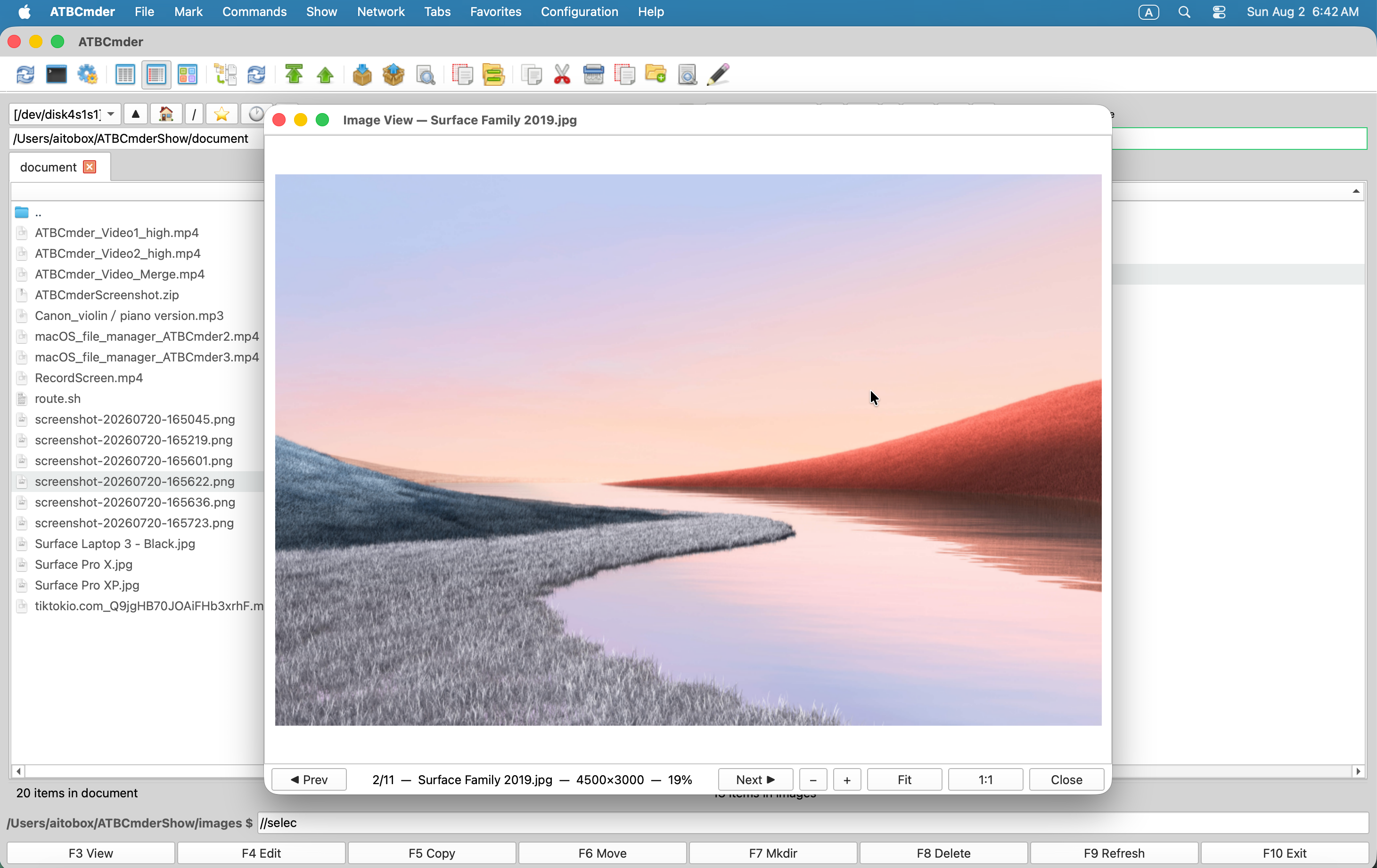
Figure 4.3: Integrated Image Viewer with interactive canvas zoom, rotation, and EXIF metadata extraction.
- Interactive Canvas: Smooth mouse wheel zooming anchored to cursor position (
SmoothPixmapTransform), 1:1 pixel inspection, Fit to Window, and hand drag panning. - EXIF Telemetry Inspector: Clicking EXIF Info extracts camera metadata: make, model, lens focal length, exposure time, aperture, ISO, and GPS coordinates.
- Checkerboard Transparency Scene (
CheckerboardScene): Transparent alpha channels in PNG, WebP, and SVG images are rendered over an industry-standard gray-and-white checkerboard grid.
3.3.2 Audio Player & Background Playback Mode (AudioPlayerDialog)
Play podcasts, sound effects, or music collections while you work:
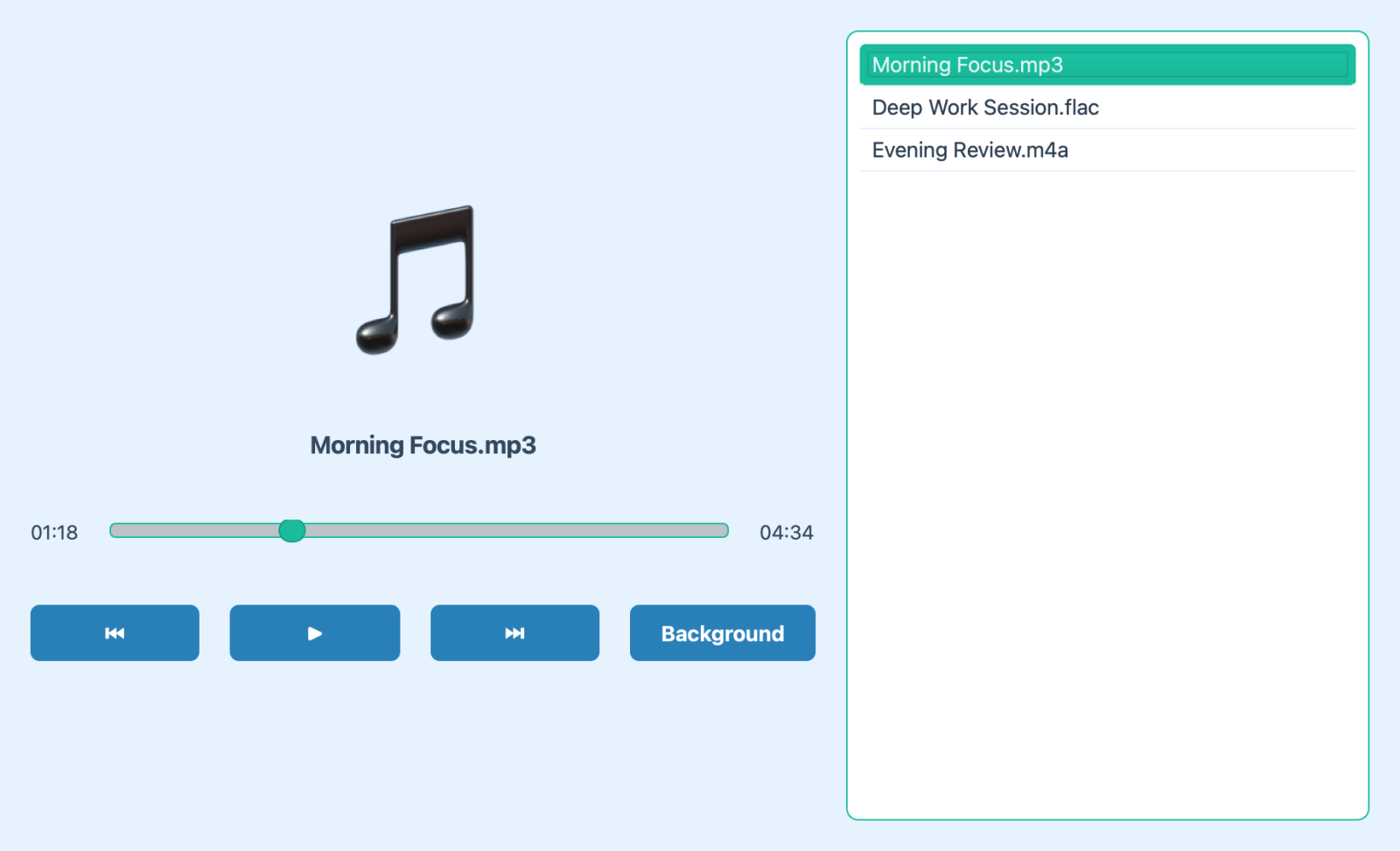
Figure 4.4: Integrated Audio Player featuring ID3 tag parsing, album artwork, and drag-and-drop playlist management.
- Supported Formats: MP3, FLAC, WAV, AAC, M4A, OGG, and AIFF with mutagen ID3 tag and cover artwork extraction.
- Background Playback Mode: Click the Background button in the player. The player window docks into a compact mini-player controller in the Right Panel's background operations bar (
bg_ops_container): - Displays currently playing track title and artist.
- Interactive playback buttons: Previous (
⏮), Play/Pause (▶/⏸), and Next (⏭). - Music plays uninterrupted while you browse files, run batch renames, or sync folders.
- Pressing
F3on additional audio files in the file panel automatically appends them to the running playlist!
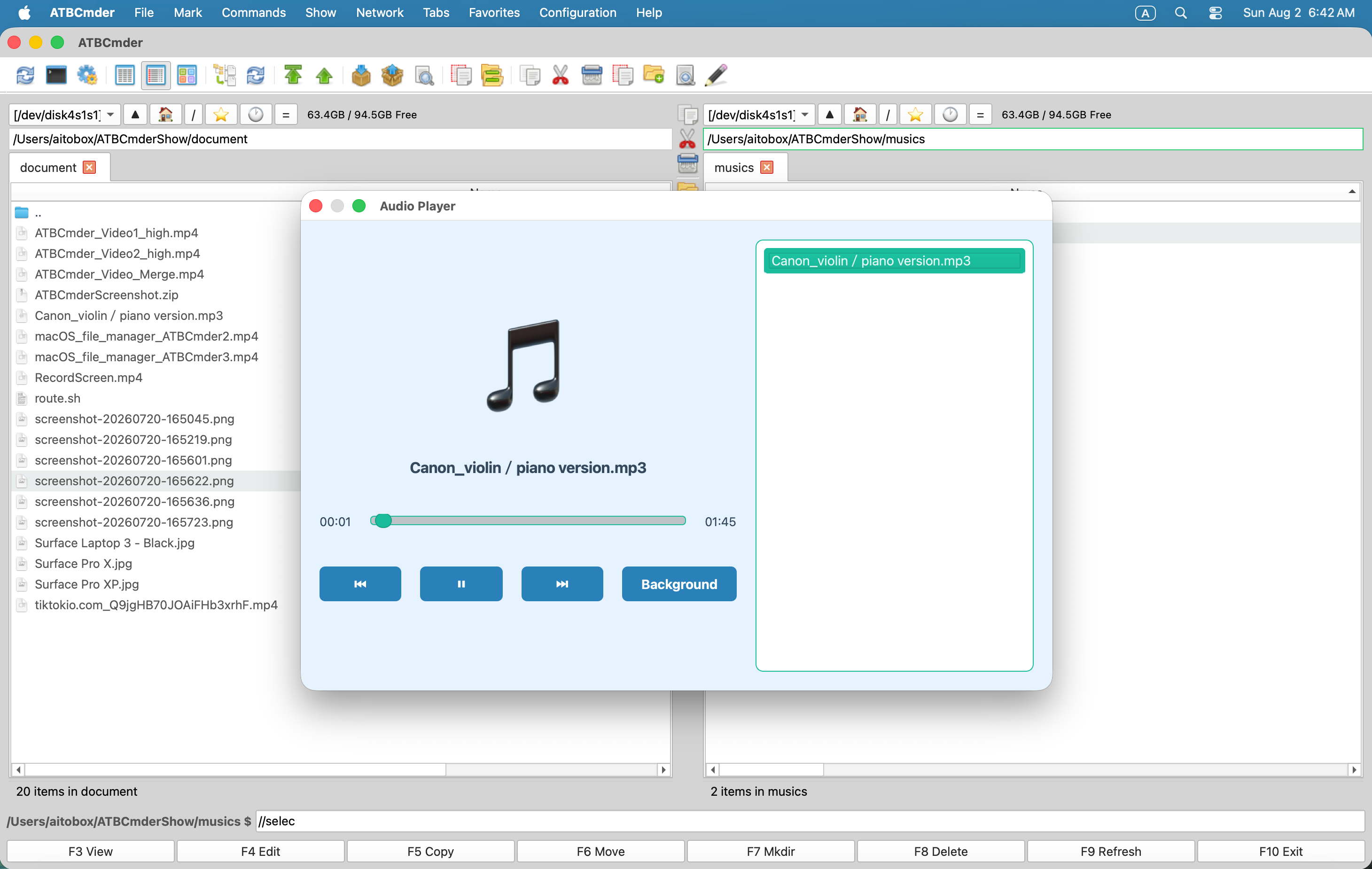
Figure 4.5: Background mini-player embedded directly in the panel operations bar.
3.3.3 Hardware-Accelerated Video Player (MediaPanel)
For video files (.mp4, .mkv, .mov, .avi, .webm):
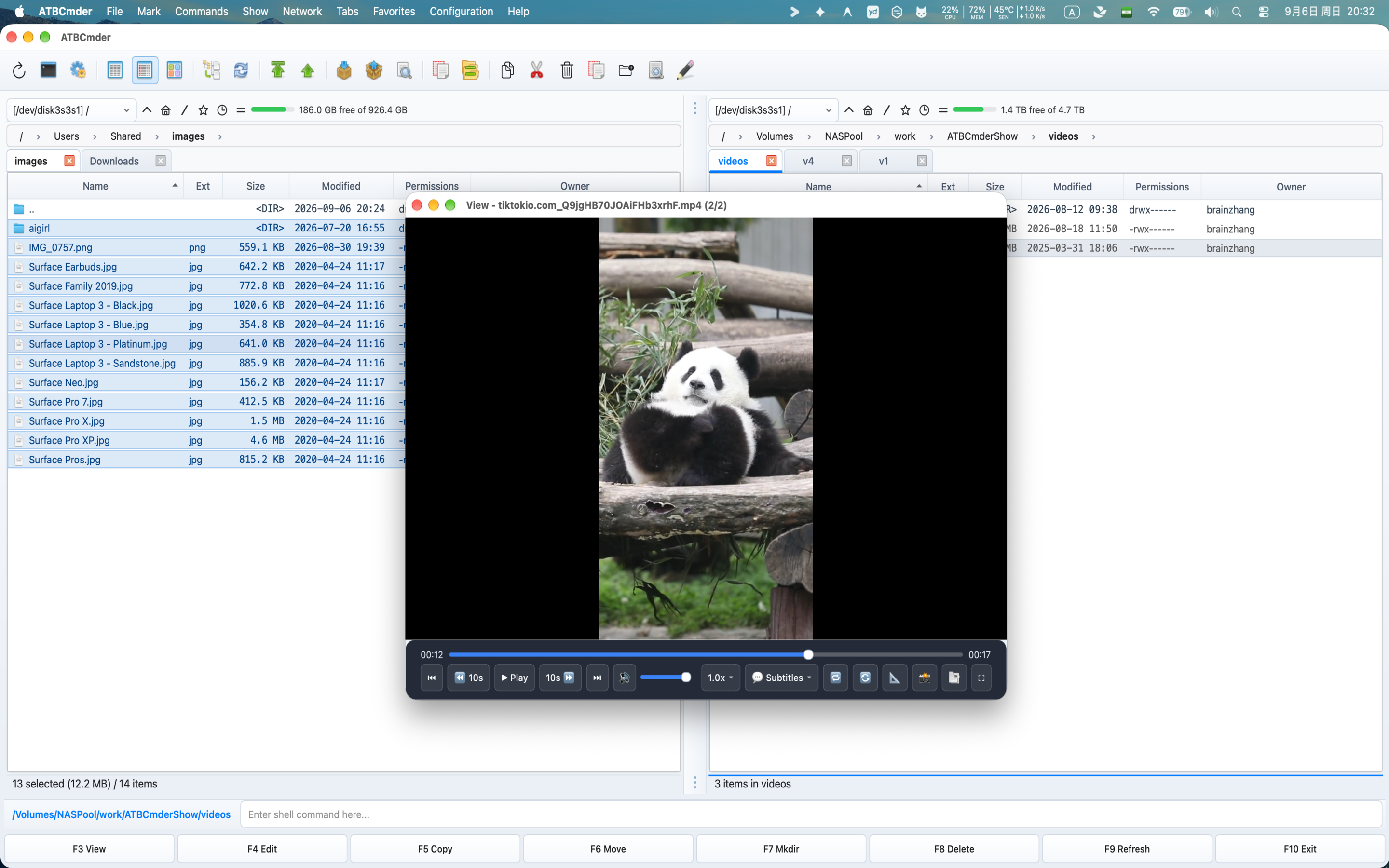
Figure 4.6: Hardware-accelerated Video Player with floating on-screen display (OSD) controls.
- Zero-Overhead Decoding: Powered by
QtMultimediautilizing macOS VideoToolbox and Apple Silicon GPU acceleration. - Auto-Fading OSD Controls: Floating timeline scrubber, volume slider, and playback controls fade out during playback.
- Subtitle & Track Switching: Switch between embedded audio streams and external subtitle files (
.srt,.vtt). - Fullscreen Mode: Press
F11or double-click to enter fullscreen; pressEscto return.
3.3.4 Font Typography Inspector (FontPanel)
Preview system and design fonts (.ttf, .otf, .woff, .woff2, .ttc):
- Waterfall Size Previews: Renders preview text across standard design point sizes: 12, 16, 20, 24, 32, 48, and 64 pt.
- Custom Test String: Enter custom strings to test specific character kerning and punctuation.
- Bilingual Pangrams: Default preview displays complete bilingual pangrams: "The quick brown fox jumps over the lazy dog 1234567890 敏捷的棕狐跃过懒狗".
3.4 Domain 4: System Archives & Communications
3.4.1 In-Lister Archive Inspector (ArchivePanel)
While pressing Enter opens archives directly in the file panel via Archive VFS, pressing F3 on an archive (.zip, .tar, .7z, .tar.gz, .tar.bz2, .tar.xz) opens the Archive Inspector:
- Inspect internal directory hierarchies, member counts, uncompressed byte sizes, compressed byte sizes, and compression ratios in a fast, read-only tree view.
3.4.2 Email Archive Viewer (EmailPanel)
For saved email communications and message archives (.eml, .msg):
- RFC 2047 MIME Header Decoding: Accurately decodes international sender names, dates, CC recipients, and email subjects.
- Visual Header Card: Formats email headers into a clean metadata card.
- Rich Body Toggle: Switch between formatted HTML email bodies and raw plain text.
- Attachment Extraction: Lists all embedded attachments with file sizes and provides a "Save Attachment As..." button to extract files directly to disk.
4. Internal Editors: Dual-Mode Architecture (F4 / Fn+F4 / cm_Edit)
ATBCmder features an intelligent Dual-Mode Editor Dispatch Engine:
- When cursor is on text, code, or configuration files: Pressing
F4opens the Internal Code Editor (EditorWindow). - When cursor is on image files (
.png,.jpg,.webp,.bmp,.svg): PressingF4automatically launches the Dedicated Image Editor (ImageEditorDialog)!
To create and edit a brand-new file from scratch in the active folder, press Shift+F4 (cm_EditNew). ATBCmder prompts you for a file name (e.g. deploy.sh or docker-compose.yml), initializes the file, and immediately opens it in the editor.
4.1 Internal Code Editor (EditorWindow)
┌────────────────────────────────────────────────────────────────────────────────────────┐
│  Edit: /Users/brain/Projects/atbcmder/scripts/deploy.sh [*]                            │
├────────────────────────────────────────────────────────────────────────────────────────┤
│  [💾 Save] [Save As] | [↶ Undo] [↷ Redo] | [🔍 Find] [Replace] | [Wrap] [Lines] [Zoom]   │
├──────┬─────────────────────────────────────────────────────────────────────────────────┤
│ 0001 │ #!/usr/bin/env bash                                                             │
│ 0002 │ set -euo pipefail                                                               │
│ 0003 │                                                                                 │
│ 0004 │ echo "Deploying ATBCmder release bundle..."                                     │
│ 0005 │ TARGET_DIR="/opt/atbcmder"                                                      │
│ 0006 │ if [ ! -d "$TARGET_DIR" ]; then                                                 │
│ 0007 │     mkdir -p "$TARGET_DIR"                                                      │
│ 0008 │ fi                                                                              │
├──────┴─────────────────────────────────────────────────────────────────────────────────┤
│  Find: [deploy                  ]  Replace: [release                  ] [Match 1 of 3] │
│  [Aa] Match Case   [\b] Whole Word   [.*] RegEx   [Find Next] [Replace] [Replace All]  │
├────────────────────────────────────────────────────────────────────────────────────────┤
│  Line 5, Col 12 | 8 lines | UTF-8 | LF (UNIX) | Bash Shell | [Modified *]              │
└────────────────────────────────────────────────────────────────────────────────────────┘
Core Code Editor Capabilities
- Pygments Syntax Highlighting: Recognizes over 150 programming, scripting, and configuration formats with automatic language detection from file extensions and shebang lines.
- Dynamic Line Number Gutter: Left margin dynamically expands to accommodate line numbers with visual alignment.
- Smart Auto-Indentation & Block Indent: Pressing
Entercarries forward indentation whitespace; select blocks and pressTabto indent orShift+Tabto unindent. - Soft Word Wrap (
Alt+W/⌥W): Wraps long lines at window boundaries without inserting hard newline breaks. - Zoom Controls: Scale typography effortlessly using
Cmd++(⌘+),Cmd+-(⌘-), or reset withCmd+0(⌘0).
Interactive Find & Replace Bar (EditorReplaceBar)
Pressing Cmd+F (⌘F) or Cmd+Option+F (⌥⌘F) docks the Find & Replace bar at the bottom:
- Real-time incremental search with occurrence indexing (
Match 4 of 19). - Search flags: Case Sensitive (
[Aa]), Whole Word ([\b]), and Python Regular Expressions ([.*]). - Batch actions: Replace (current occurrence) and Replace All (entire document).
Status Bar & Atomic Save Protection
- Telemetry: Displays line, column, total line count, encoding, and newline convention (
LFvsCRLF). - Dirty State Badge: A prominent
*indicator appears in the title bar and status bar whenever unsaved edits exist. - Atomic Save Protection: When pressing
Cmd+S, ATBCmder writes data to a temporary file on the same volume, syncs disk buffers, and executes an atomic replace, ensuring your original file is never corrupted if a crash or power cut occurs mid-save.
4.2 Dedicated Image Editor (ImageEditorDialog)
When you press F4 on any graphic or screenshot, ATBCmder opens the comprehensive Image Editor:
Interactive Canvas & Transforms
- Checkerboard Background (
CheckerboardScene): Transparent graphics are rendered over a clean gray-and-white grid, ensuring alpha borders are clearly visible. - Rotation & Flipping: Rotate 90° clockwise/counter-clockwise, fine-tune arbitrary leveling angles, or mirror horizontally and vertically.
- Zoom & Panning: Smooth zooming with cursor tracking and hand drag navigation.
Cropping with Aspect Ratio Presets
- Drag canvas handles to define crop boundaries.
- Switch between Freeform, 1:1 Square (avatars/app icons), 4:3 Classic, and 16:9 Cinema aspect ratios. Press
Enterto apply.
Vector Annotations
- Rectangles & Circles: Highlight interface elements with custom border widths and palette colors.
- Directional Arrows: Draw sharp vector callout arrows.
- Freehand Pen: Sketch freehand corrections or signatures directly onto the canvas.
- Text Stamps: Add typography with customizable fonts, sizes, colors, and subtle drop shadows.
Privacy Redaction (Mosaic / Blur)
Need to share a screenshot containing confidential tokens, customer names, or phone numbers?
- Select the Mosaic / Blur tool.
- Drag a selection box over the sensitive information.
- ATBCmder applies variable-radius pixelation or Gaussian blur, securely redacting sensitive data before export.
Watermark Module
Apply professional ownership branding using 4 preset placements:
- Tiled (
tiled): Angled, repeating watermark pattern covering the entire canvas (ideal for confidential drafts). - Stamp (
stamp): Distinct authentication stamp placed in the lower-right corner. - Banner (
banner): Horizontal semi-transparent branding banner running across the canvas. - Single Logo (
single): Freely positionable single logo or text watermark with opacity slider.
4.3 Seamless Round-Trip VFS Editing (Remote & Archives)
The most powerful aspect of ATBCmder's editor subsystem is its Universal VFS Integration:
- Whether you press
F4on a shell script stored on a remote SFTP server, a configuration file inside an AWS Nextcloud WebDAV mount, or a screenshot inside a nested.ziparchive (vfs://): - ATBCmder downloads the file asynchronously to a secure temporary sandbox.
- The file opens in either
EditorWindoworImageEditorDialog. - When you press
Cmd+S, ATBCmder intercepts the save event, synchronizes the modified file, and automatically streams the updated data back over SFTP/SMB or engagesRepackWorkerto repack the archive! - Upon closing the editor, temporary cache files are scrubbed cleanly. You never have to manually unpack, edit, and re-upload files.
5. ⚡ Pro Tips & Deep Dive
Master these advanced features to maximize your inspection and editing efficiency.
Pro Tip 1: Dynamic Audio Queue Ingest with F3
When you have the Audio Player running in Background Playback Mode while browsing your music collection, you do not need to reopen the dialog to queue more music:
- Highlight one or more audio files in either file panel.
- Press
F3(orFn+F3). - ATBCmder detects that an audio player instance is already active and automatically appends the selected tracks to the running playlist (
append_tracks) without interrupting the currently playing track.
Pro Tip 2: Custom File Associations (cm_FileAssoc)
By default, pressing F3 opens the Universal Lister and F4 opens the internal Code Editor. However, you can map specific file extensions to external desktop applications or custom shell commands using the File Associations Manager (cm_FileAssoc):
Navigate to Configuration ➔ Configuration of File Associations:
- You can map extensions (e.g.
*.rs,*.py,*.psd) to custom actions. - Internal Commands: Bind to internal commander actions (e.g.
cm_View,cm_Edit). - External Shell Commands with Token Substitution:
%f➔ Replaced by the absolute file path (e.g./Users/brain/main.rs).%d➔ Replaced by the parent directory path (e.g./Users/brain).%n➔ Replaced by the file name without extension (e.g.main).%e➔ Replaced by the file extension without dot (e.g.rs).
Example external association for Rust files:
Pro Tip 3: Live Tail Mode (F5) for DevOps Logs
When debugging local server daemons, Docker containers, or build scripts, open the log file in Universal Lister (F3) and press F5:
- Engages the
FileTailWatcherdaemon. - Lister automatically scrolls to the bottom and streams newly appended lines to the screen in real time, matching the behavior of UNIX
tail -f. - You can keep search filters active while tailing to highlight errors as they occur.
Pro Tip 4: Arbitrary Offset Streaming for Multi-Gigabyte Files
If you need to inspect a 20 GB database dump or disk image, do not attempt to open it in a standard editor. In ATBCmder’s Universal Lister:
- Use Go to Line (
Ctrl+G) or jump slider controls. - The underlying
FileLoaderWorkeruses direct binary file pointer seeks (fh.seek(offset)), reading only the exact 64 KB block required to render the view. - You can inspect arbitrary sectors of a multi-terabyte volume instantaneously with zero memory overhead.
6. Step-by-Step Practical Recipes
Recipe 1: Inspecting & Redacting a Sensitive Screenshot
Goal: You captured a screenshot containing confidential API tokens or customer information and need to redact it before uploading it to a public issue tracker.
Step 1: Highlight screenshot.png in the active panel and press F3 (Universal Lister).
Step 2: On the top toolbar, click "Edit Image" to launch the Image Editor.
Step 3: Select the "Mosaic / Blur" tool from the tool palette.
Step 4: Click and drag a selection rectangle over the API token to pixelate the text.
Step 5: Select the "Crop" tool, frame the relevant portion of the window, and press Enter.
Step 6: Click "Save" (Cmd+S) to overwrite, or "Save As" to create screenshot_redacted.png.
Step 7: Press Esc to close the editor; your clean image is ready in the file panel.
Recipe 2: Live Log Monitoring & Hex Forensic Inspection
Goal: A background process is failing with an encoding error. You need to watch the log live and inspect raw bytes around a malformed sequence.
Step 1: Highlight server.log in the active panel and press F3.
Step 2: Press F5 to activate Tail Mode. Watch incoming live log entries stream past.
Step 3: When the error appears, press F5 again to pause tailing.
Step 4: Press Ctrl+F and search for the error code (e.g. "0xEF").
Step 5: Press 2 on your keyboard to switch into Hex Mode.
Step 6: Inspect the exact 16-byte hexadecimal dump to examine unprintable control characters.
Step 7: Press 1 to return to formatted text mode, or Esc to close.
Recipe 3: Rapid Source Code Creation & Git Staging
Goal: Create a new shell script in your current project repository, set up standard bash headers, and prepare it for execution without leaving ATBCmder.
Step 1: In the active directory, press Shift+F4 (cm_EditNew).
Step 2: In the dialog prompt, type "build_release.sh" and press Enter.
Step 3: The Internal Code Editor opens immediately with an empty buffer.
Step 4: Type your script. Notice that auto-indent automatically indents loops and if-blocks:
        #!/usr/bin/env bash
        set -euo pipefail
        echo "Building binaries..."
Step 5: Press Cmd+S (⌘S) to save the file atomically to disk.
Step 6: Press Cmd+W (⌘W) to close the editor.
Step 7: With build_release.sh highlighted in the panel, press Alt+Enter (cm_SetFileProperties).
Step 8: Check the "Execute" permission for Owner (chmod +x) and press Enter.
7. Safety & System Alerts
Warning
External Modification Watchers
If an open file is modified or truncated by an external application while you are working in the Internal Editor (F4), ATBCmder displays an external change conflict warning before saving. Always choose Reload to inspect the latest disk version, or Save As to preserve your local modifications in a separate file.
Important
Binary File Safety: Text vs. Hex Mode
Opening an unknown binary file in Text Mode and saving it back to disk can permanently corrupt the file due to UTF-8 decoding replacements (\ufffd). ATBCmder’s Universal Lister is read-only by default, ensuring your binary files are never accidentally overwritten during inspection.
Caution
Quick View Performance on Remote Network Shares
When browsing high-latency remote servers (FTP, SFTP, or WebDAV) with Quick View (Cmd+Q) active, previewing massive remote video or archive files will trigger remote streaming. If network bandwidth is limited, toggle Quick View off (Cmd+Q) to browse directory trees at full speed.
Tip
macOS Function Key Accessibility
On modern Apple MacBooks and Magic Keyboards, function keys (F1-F12) are mapped by default to hardware controls (brightness, media playback). To trigger F3 or F4, hold the Fn key (e.g. Fn+F3, Fn+F4). Alternatively, enable "Use F1, F2, etc. keys as standard function keys" in macOS System Settings ➔ Keyboard ➔ Keyboard Shortcuts ➔ Function Keys.
8. Dual-Matrix Keyboard Reference Table
| Functional Area | Action Description | macOS Shortcut | Classic Commander Key | Command ID |
|---|---|---|---|---|
| Quick View | Toggle Opposing Panel Preview | Cmd+Q / ⌘Q |
Ctrl+Q |
cm_QuickView |
| Quick View | Switch Panel & Flip Preview | Tab / ⇥ |
Tab |
cm_SwitchPanel |
| Lister | Open File in Universal Lister | F3 / Fn+F3 |
F3 |
cm_View |
| Lister | Plain Text View Mode | 1 |
1 |
— (Lister) |
| Lister | Raw Hexadecimal View Mode | 2 |
2 |
— (Lister) |
| Lister | Toggle Word Wrap | Alt+W / ⌥W |
Alt+W |
— (Lister/Editor) |
| Lister | Toggle Line Numbers | Alt+L / ⌥L |
Alt+L |
— (Lister/Editor) |
| Lister | Toggle Live Log Tail Mode | F5 / Fn+F5 |
F5 |
— (Lister) |
| Lister | Previous File in Directory | P |
P |
— (Lister) |
| Lister | Next File in Directory | N |
N |
— (Lister) |
| Lister | Find Text | Cmd+F / ⌘F |
Ctrl+F |
— (Lister/Editor) |
| Lister | Go to Line Number | Cmd+G / ⌘G |
Ctrl+G |
— (Lister/Editor) |
| Lister | Open in System Default App | Cmd+O / ⌘O |
Ctrl+O |
— (Lister) |
| Lister | Fullscreen Toggle | F11 / Fn+F11 |
F11 |
cm_FullScreen |
| Editor | Edit Selected File (Code / Image) | F4 / Fn+F4 |
F4 |
cm_Edit |
| Editor | Create and Edit New File | Shift+F4 / ⇧F4 |
Shift+F4 |
cm_EditNew |
| Editor | Save File (Atomic) | Cmd+S / ⌘S |
Ctrl+S |
— |
| Editor | Save File As | Shift+Cmd+S / ⇧⌘S |
F12 |
— |
| Editor | Reload / Revert File | Cmd+R / ⌘R |
Ctrl+R |
— |
| Editor | Close Editor Window | Cmd+W / ⌘W |
Esc |
— |
| Editor | Find in Document | Cmd+F / ⌘F |
Ctrl+F |
— |
| Editor | Find and Replace | Cmd+Option+F / ⌥⌘F |
Ctrl+H |
— |
| Editor | Indent Selected Block | Tab / ⇥ |
Tab |
— |
| Editor | Unindent Selected Block | Shift+Tab / ⇧⇥ |
Shift+Tab |
— |
| Editor | Zoom In / Out / Reset | ⌘+ / ⌘- / ⌘0 |
Ctrl++ / Ctrl+- / Ctrl+0 |
— |
| Media | Background Audio Playback | Click Background |
— | — |
| Media | Append Audio to Playlist | F3 (when playing) |
F3 |
cm_View |
| Config | File Associations Manager | Configuration Menu | — | cm_FileAssoc |
Ready to automate complex workflows and batch processing?