Chapter 2: Navigation & Folder Tabs
Fluid, high-velocity movement through directories is the cornerstone of orthodox file management. In ATBCmder, you never have to waste time dragging scrollbars, clicking through nested folders repeatedly, or wrestling with dozens of fragmented Finder windows.
This chapter covers everything you need to navigate local and remote file systems with absolute confidence: interactive breadcrumbs, keyboard hierarchy leaps, native macOS multi-tab workflows, persistent dual-panel Favorite Tab workspaces, instant fuzzy-search bookmarks, and five specialized panel view modes.
1. Visual Quickstart: Effortless Hierarchy & Spatial Organization
In ATBCmder, each panel operates as an autonomous browsing engine equipped with its own breadcrumb chain, independent tab strip, history stack, and view modes.
┌─────────────────────────────────────────────────────────────────────────────────┐
│ [BREADCRUMB]  🏠 / ▸ Users ▸ username ▸ Projects ▸ ATBCmder ▸ src               │
├─────────────────────────────────────────────────────────────────────────────────┤
│ [TAB STRIP]   [★ Source (Locked)] [Assets] [Build Output] [+]                   │
├─────────────────────────────────────────────────────────────────────────────────┤
│  Name                         Ext       Size      Date Modified      Attr       │
│  ▸ [..]                                           --:--              drwxr-xr-x │
│  ▸ core                       <DIR>               Today, 14:22       drwxr-xr-x │
│  ▸ ui                         <DIR>               Today, 15:05       drwxr-xr-x │
│  ● main.py                    py        8.4 KB    Today, 15:10       -rw-r--r-- │
│  ● config.xml                 xml       12.1 KB   Yesterday, 19:40   -rw-r--r-- │
│                                                                                 │
├─────────────────────────────────────────────────────────────────────────────────┤
│ [QUICK SEARCH]  🔍 Find: mai_   (Matches: main.py)                              │
└─────────────────────────────────────────────────────────────────────────────────┘
Dual-Matrix Navigation Cheat Sheet
| Action | macOS Shortcut | Classic Commander Key | Command ID | Description |
|---|---|---|---|---|
| Parent Directory | Backspace / ⌘↑ |
Ctrl+PgUp |
cm_ChangeDirToParent |
Move up one directory level (..). |
| Root Directory | Ctrl+\ / ⌃\ |
\ |
cm_ChangeDirToRoot |
Jump directly to system root (/). |
| Home Directory | Ctrl+Shift+Home / ⌃⇧Home |
Alt+Home |
cm_ChangeDirToHome |
Jump to user home directory (~). |
| Open Item / Enter Dir | Enter / ⌘↓ |
Enter |
— | Enter selected directory or open file. |
| New Tab | Cmd+T / ⌘T |
Ctrl+T |
cm_NewTab |
Open active folder in a new tab. |
| Close Tab | Cmd+W / ⌘W |
Ctrl+W |
cm_CloseTab |
Close currently focused tab. |
| Directory Hotlist | Ctrl+D / ⌃D |
Ctrl+D |
cm_DirHotList |
Open instant fuzzy bookmark popup. |
| History Back | Cmd+[ / ⌘[ |
Alt+Left |
cm_ViewHistoryPrev |
Go back to previously visited folder. |
| History Forward | Cmd+] / ⌘] |
Alt+Right |
cm_ViewHistoryNext |
Move forward in directory history. |
| History Dropdown List | Alt+F8 / ⌥F8 |
Ctrl+Down |
cm_DirHistory |
Display history dropdown list. |
| Drive / Volume List (Left / Right) | ⌥F1 / ⌥F2 (⌥D) |
Alt+F1 / Alt+F2 (Alt+D) |
cm_LeftOpenDrives / cm_RightOpenDrives (cm_Drives) |
Open drive menu for left or right panel (Alt+D for active panel). |
| Quick Search | Ctrl+S / ⌃S |
Ctrl+S |
cm_QuickSearch |
Open real-time search overlay in panel. |
2. Basic Directory Navigation: Paths, Breadcrumbs, and Shortcuts
ATBCmder gives you multiple redundant, ergonomic ways to move through your filesystem—whether you prefer mouse gestures, trackpad clicks, or pure keyboard velocity.
Mouse & Trackpad Navigation
- Entering Folders: Double-click any directory row or press
Enter(Return). - Ascending Hierarchies: Double-click the top
[..]row to immediately jump to the parent folder. - Background Tabs: Middle-click any folder row to open that directory in a new background tab without losing your current view (
cm_OpenDirInNewTab).
Finder-Style Interactive Breadcrumb Bar
Positioned directly above each file panel, the interactive breadcrumb bar represents your current UNIX path as a chain of clickable segments:
- Instant Ancestor Leaping: Click any ancestor segment (such as
ProjectsorUsers) to jump straight to that level, bypassing multiple parent folder navigations. - Sibling Directory Dropdowns: Hover over or click the chevron (
▸) between segments to reveal a drop-down menu listing all sibling folders at that hierarchy level. Click any sibling to navigate directly to it. - Contextual Utilities: Right-click any breadcrumb segment to summon a dedicated context menu:
- Open in New Tab: Opens that specific ancestor folder in a new tab.
- Reveal in Finder: Opens the directory in native macOS Finder (
open -R). - Copy Path: Copies the absolute UNIX path of the segment to your macOS clipboard.
- Open in Terminal: Spawns a Terminal window inside that exact directory.
- Direct Path Text Editing (
BreadcrumbLineEdit): - Double-click the blank space to the right of the breadcrumb chain (or press
Shift+F2). - The breadcrumb segments instantly transform into an editable text field (
QLineEdit). - Type or paste arbitrary paths (such as
~/Library/Application Support,/var/log,/Volumes/ExternalDrive, orvfs://archive locations). - Press
Enterto jump, orEscto cancel and return to breadcrumb buttons.
Rapid Keyboard Jumps
Keep your hands on the home row with these dedicated navigation commands:
- Parent Directory (
Backspace/⌘↑/Ctrl+PgUp/cm_ChangeDirToParent): Instantly ascends to the parent directory. When you ascend, ATBCmder automatically positions the cursor on the folder you just exited, ensuring you never lose your place. - Root Directory (
Ctrl+\/cm_ChangeDirToRoot): Jumps directly to the root of your macOS startup volume (/). - Home Directory (
Ctrl+Shift+Home/cm_ChangeDirToHome): Jumps directly to your user home directory (/Users/usernameor~). - First & Last Entry: Press
Home(cm_GoToFirst) to snap cursor focus to the top entry (..), orEnd(cm_GoToLast) to jump to the final file in the current panel.
3. Folder Tabs: Multitasking Within Each Panel
Working on complex software projects, photo libraries, or server backups often requires juggling multiple folders simultaneously. Rather than opening dozens of windows, ATBCmder incorporates independent multi-tab strips for both panels.
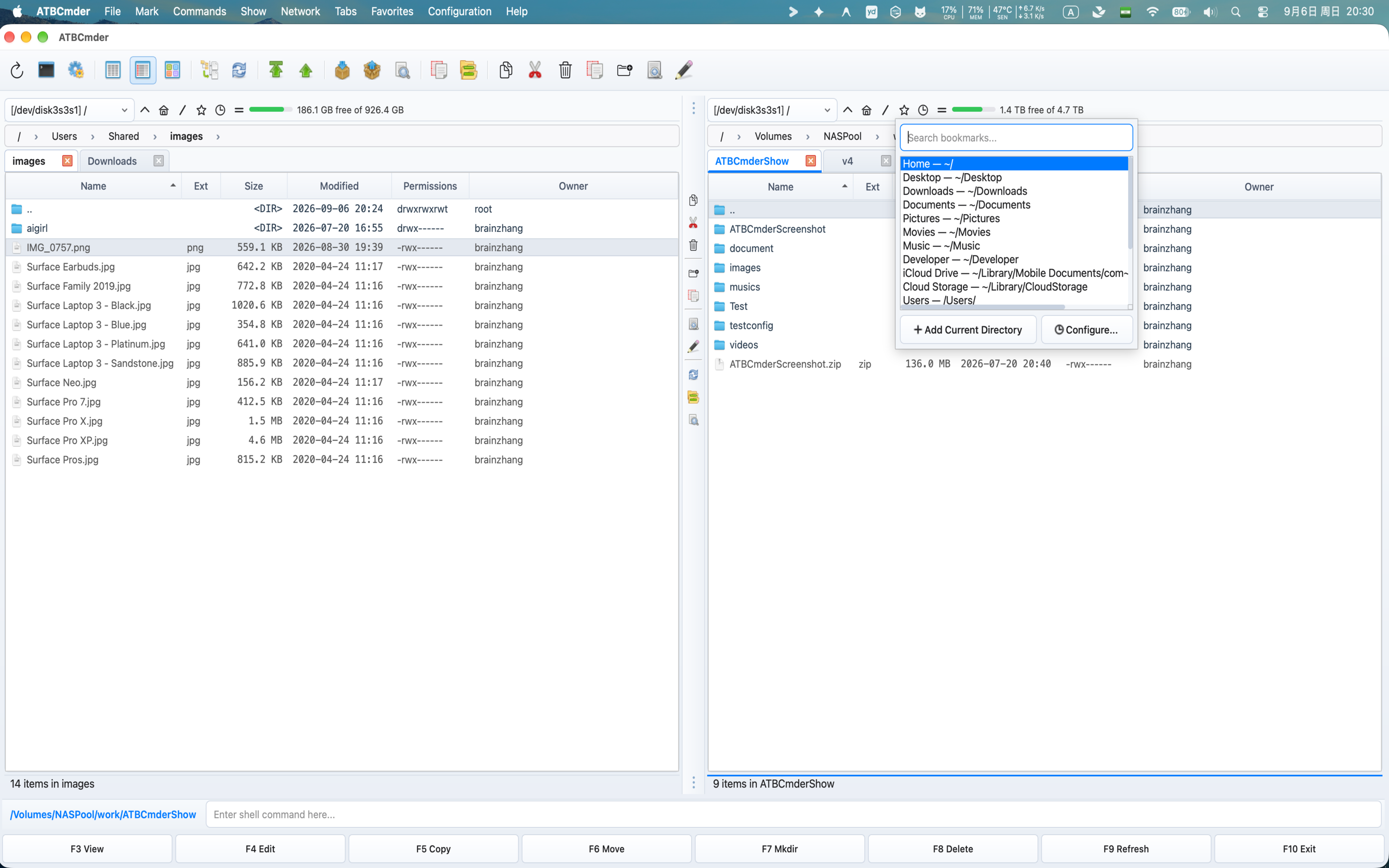
Multi-tab management and quick navigation in ATBCmder
Native macOS Tab Bar Design
Built with MacNativeTabBar, the tab bar matches modern macOS aesthetics:
- Visual Design: Rounded tab corners, smooth hover states, and clear active tab accent indicators.
- Hover Close Buttons: Every tab features an integrated
✕close button that appears upon hover or selection. - Middle-Click to Close: Click any tab with your mouse middle button / trackpad three-finger click to close it immediately.
- Double-Click to Add: Double-click empty space on the tab strip to instantly spawn a new tab cloned from the active path.
Tab Operations & Hotkeys
| Action | macOS Shortcut | Classic Key | Command ID | Description |
|---|---|---|---|---|
| New Tab | Cmd+T / ⌘T |
Ctrl+T |
cm_NewTab |
Opens the current directory in a new tab. |
| Close Tab | Cmd+W / ⌘W |
Ctrl+W |
cm_CloseTab |
Closes the active tab (minimum 1 tab retained). |
| Next Tab | Ctrl+Tab / ⌃⇥ |
Ctrl+Tab |
cm_NextTab |
Cycles focus to the next tab to the right. |
| Previous Tab | Ctrl+Shift+Tab / ⌃⇧⇥ |
Ctrl+Shift+Tab |
cm_PrevTab |
Cycles focus to the previous tab to the left. |
| Quick Tab List | Ctrl+Shift+L / ⌃⇧L |
Ctrl+Shift+L |
cm_ShowTabsList |
Pops up a numbered menu of all open tabs. |
| Rename Tab | Right-click tab | — | cm_RenameTab |
Assigns a custom friendly label to the tab. |
| Close Other Tabs | Right-click tab | — | cm_CloseOtherTabs |
Closes all tabs except the selected one. |
| Close Duplicates | Right-click tab | — | cm_CloseDuplicateTabs |
Detects and closes duplicate tabs with identical paths. |
| Close All Tabs | Menu Tabs | — | cm_CloseAllTabs |
Resets the panel down to a single tab. |
| Copy to Opposite | Menu Tabs | — | cm_CopyAllTabsToOpposite |
Copies all tabs in the active panel to the target panel. |
Tab Locking Modes
Prevent accidental directory changes in critical folders by configuring tab lock options. Right-click any tab to choose its locking mode:
- Normal (Unlocked):
- Default tab behavior.
- Navigating through folders updates the current tab path directly.
- Locked (
cmd_SetTabOptionLock): - The tab path is strictly frozen to its initial anchor location.
- A visual lock icon (
🔒or★) appears on the tab title. - If you double-click a subdirectory or navigate, ATBCmder automatically leaves the locked tab unchanged and opens the target folder in a new adjacent tab.
- Locked with Subdirectories Allowed (
cmd_SetTabOptionLockWithSubdirs): - Allows you to browse freely into child folders and subdirectories within this tree.
- Restricts you from ascending higher than the locked base folder.
- If you switch away or reload, the tab safely resets back to its anchor root.
4. Favorite Tabs: Named Dual-Panel Workspaces
While individual tabs provide local flexibility, Favorite Tabs allow you to capture and restore complete dual-panel operational environments in a single command.
┌────────────────────────────────────────┐
│ FAVORITE TAB SET: "Client Release"     │
├───────────────────┬────────────────────┤
│ LEFT PANEL TABS   │ RIGHT PANEL TABS   │
│ 1. [★ src/api]    │ 1. [build/dist]    │
│ 2. [docs/guides]  │ 2. [vfs://sftp/nas]│
│ 3. [tests/unit]   │ 3. [~/Downloads]   │
└───────────────────┴────────────────────┘
A Favorite Tab set encapsulates:
- All open tabs in the Left Panel (including paths and lock states).
- All open tabs in the Right Panel (including paths and lock states).
- The active tab selection for both panels.
Favorite Tabs Commands
- Save Current Tabs (
cm_SaveFavoriteTabs): - Accessible via Menu Favorites → Save current tabs to a New Favorite Tabs, or by right-clicking the tab strip.
- Prompts you to name the workspace (e.g.,
Rust Web Backend,Photo Editing 2026, orServer Deployment). - Stores the workspace definition persistently in
fav_tab_config.xml. - Load Favorite Tabs (
cm_LoadFavoriteTabs): - Accessible via Menu Favorites → Load tabs from Favorite Tabs.
- Opens a modal dialog listing your saved tab sets. Select a set, and both panels immediately reconstruct the full multi-tab layout.
- Resave Favorite Tabs (
cm_ResaveFavoriteTabs): - Updates the currently active workspace set with any newly opened, closed, or navigated tabs without prompting for a new name.
- Reload Favorite Tabs (
cm_ReloadFavoriteTabs): - Reverts both panels back to the clean saved state of the active workspace, discarding any exploratory tabs opened during the session.
- Cycle Workspaces (Next / Previous Favorite Tabs):
- Rapidly switch between different saved project workspaces sequentially from the Favorites menu.
- Configuration (
cm_ConfigFavoriteTabs): - Open Preferences → Favorite Tabs to reorder sets, rename workspaces, edit individual tab paths manually, or delete obsolete sets.
5. Directory Hotlists (Bookmarks)
The Directory Hotlist provides global, instantaneous access to your most frequently used folders across local drives, external disks, and remote network mounts.
Directory Hotlist popup with real-time fuzzy search
Instant Hotlist Popup (Ctrl+D / ⌃D / cm_DirHotList)
Pressing Ctrl+D summons a lightweight, floating search dialog centered right under your eyes:
- Real-Time Fuzzy Search:
- Begin typing immediately. The search bar filters through all your bookmark names and target paths in real time.
- For example, typing
downinstantly matchesDownloads — /Users/username/Downloads. - Keyboard Traversal:
- Use
UpandDownarrow keys to highlight the desired bookmark. - Press
Enterto navigate the active panel directly to that path. - Press
Escto dismiss the popup without changing your directory. - Quick Bookmark Creation:
- Click the Add Current Directory button (or press
Alt+A) inside the popup. - ATBCmder automatically populates the current folder path and suggests a clean display name.
Hotlist Configuration (Ctrl+Shift+D / ⌃⇧D / cm_ConfigDirHotList)
Open Preferences → Directory Hotlist (or trigger cm_ConfigDirHotList) to organize your bookmarks:
- Hierarchical Sub-Menus: Group related bookmarks into categories (e.g.
Work,Personal,Cloud Storage,Network Shares). - Custom Display Labels: Assign friendly names like
Work Documentsinstead of long paths like/Users/username/Library/Mobile Documents/com~apple~CloudDocs/Work. - Drag-and-Drop Reordering: Rearrange bookmark ordering to keep top-priority directories at the very top of your list.
6. History & Drives: Navigating Time and Storage Volumes
ATBCmder maintains a comprehensive audit trail of your browsing sessions, allowing you to retrace your steps across local storage and mounted volumes.
Navigation History
Each panel records its own chronological path history stack:
- Back (
Cmd+[/⌘[orAlt+Left/cm_ViewHistoryPrev): Moves one step backward in the active panel's path history. - Forward (
Cmd+]/⌘]orAlt+Right/cm_ViewHistoryNext): Moves one step forward after navigating back. - Directory History Popup (
Alt+F8/⌥F8orCtrl+Down/⌃↓/cm_DirHistory): - Displays a scrollable popup menu showing the last 20+ visited directories in the active panel.
- Click or arrow down to any previous directory to jump directly to it, skipping repetitive Back presses.
Drive & Volume Switcher
On macOS, all internal partitions, external USB-C / Thunderbolt drives, mounted DMGs, and network shares reside under /Volumes. ATBCmder provides dedicated commands to switch between these targets:
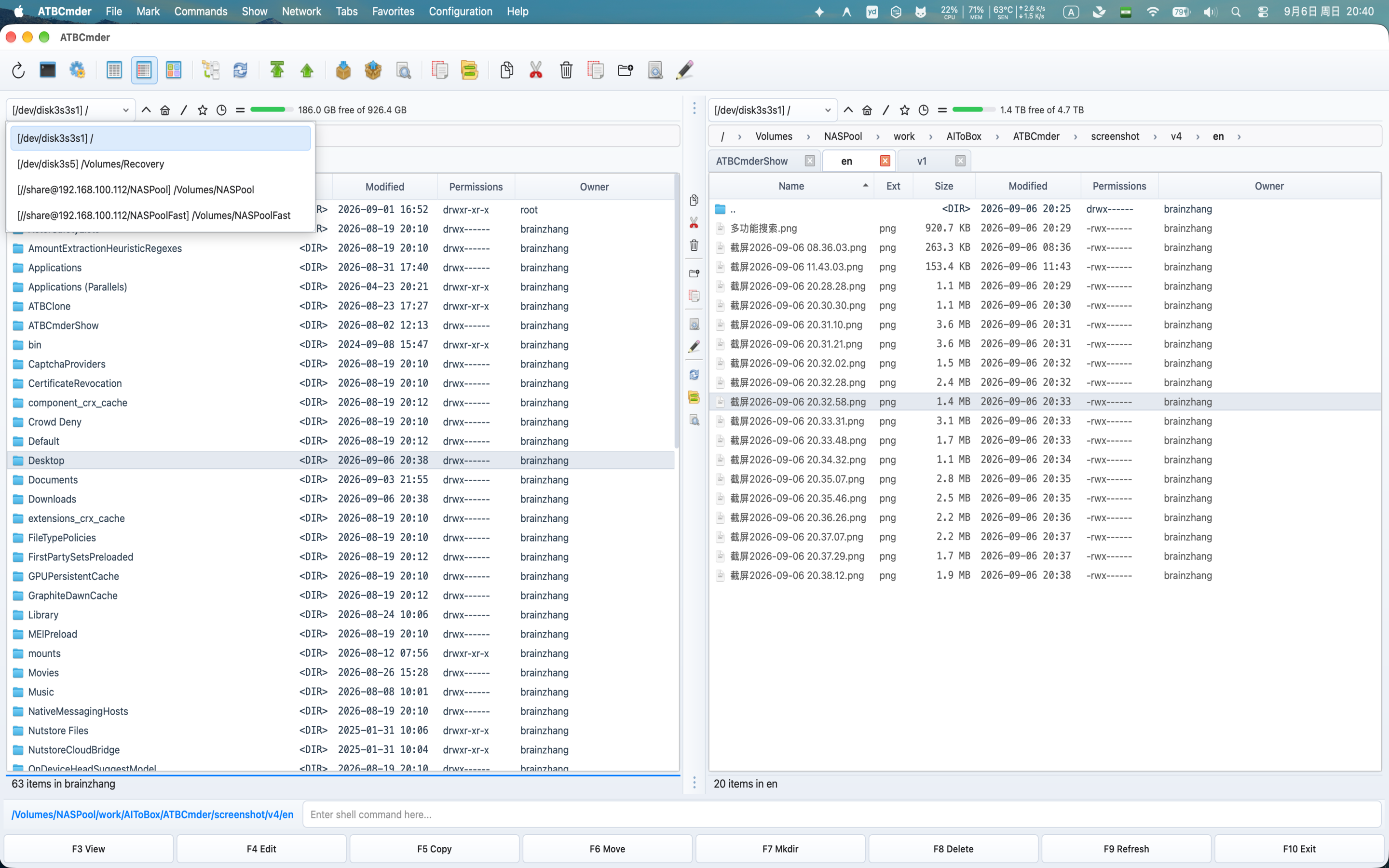
Instant mounted drive and volume selector triggered via Alt+F1 (Left Panel), Alt+F2 (Right Panel), or Alt+D
- Left Panel Drive Switcher (
Alt+F1/⌥F1/cm_LeftOpenDrives): Classic Commander core shortcut that opens the drive and volume selection menu targeting the Left Panel. - Right Panel Drive Switcher (
Alt+F2/⌥F2/cm_RightOpenDrives): Classic Commander core shortcut that opens the drive and volume selection menu targeting the Right Panel. - Active Panel Drive Menu (
Alt+D/⌥D/cm_Drives): Opens a popup menu listing all mounted volumes, root filesystem/, user home~, and connected network endpoints for the currently focused panel.
Note
macOS External Drive Permissions: When navigating to external drives under /Volumes for the first time, macOS App Sandbox may prompt you for permission. ATBCmder will display an authorization dialog to create a persistent Security-Scoped Bookmark for that drive.
7. Panel View Modes: Tailoring the Display
ATBCmder features 5 specialized view modes designed to optimize screen space and information density for different file management workflows.
1. Full Columns View (Ctrl+F2 / ⌃F2 / cm_ColumnsView)
The standard, most comprehensive view mode. It displays files in a rich tabular format with configurable headers:
| Column | Description | Alignment |
|---|---|---|
| Name | File or directory name with native macOS type icon. | Left |
| Ext | File extension (e.g., py, png, zip). |
Left |
| Size | Formatted size (B, KB, MB, GB). Folders show <DIR>. |
Right |
| Date Modified | Timestamp formatted according to macOS locale. | Left |
| Attributes | UNIX permissions (octal 0755 and symbolic rwxr-xr-x). |
Center |
| Owner / Group | UNIX user and group ownership names. | Left |
- Header Sorting: Click any column header to toggle ascending or descending sort order. Click with
Cmdheld to perform secondary sorting.
2. Brief View (Ctrl+F1 / ⌃F1 / cm_BriefView)
Brief View strips away metadata columns, organizing files into multiple compact vertical columns that fill the entire panel width.
- High-Density Browsing: Displays 3x to 5x more items on screen simultaneously.
- Best For: Rapidly scanning large directory listings (such as fonts, photo dumps, or log archives) where you only need to identify filenames.
3. Thumbnails View (Ctrl+Shift+F1 / ⌃⇧F1 / cm_ThumbnailsView)
Thumbnails View converts the file list into an image and media icon grid.
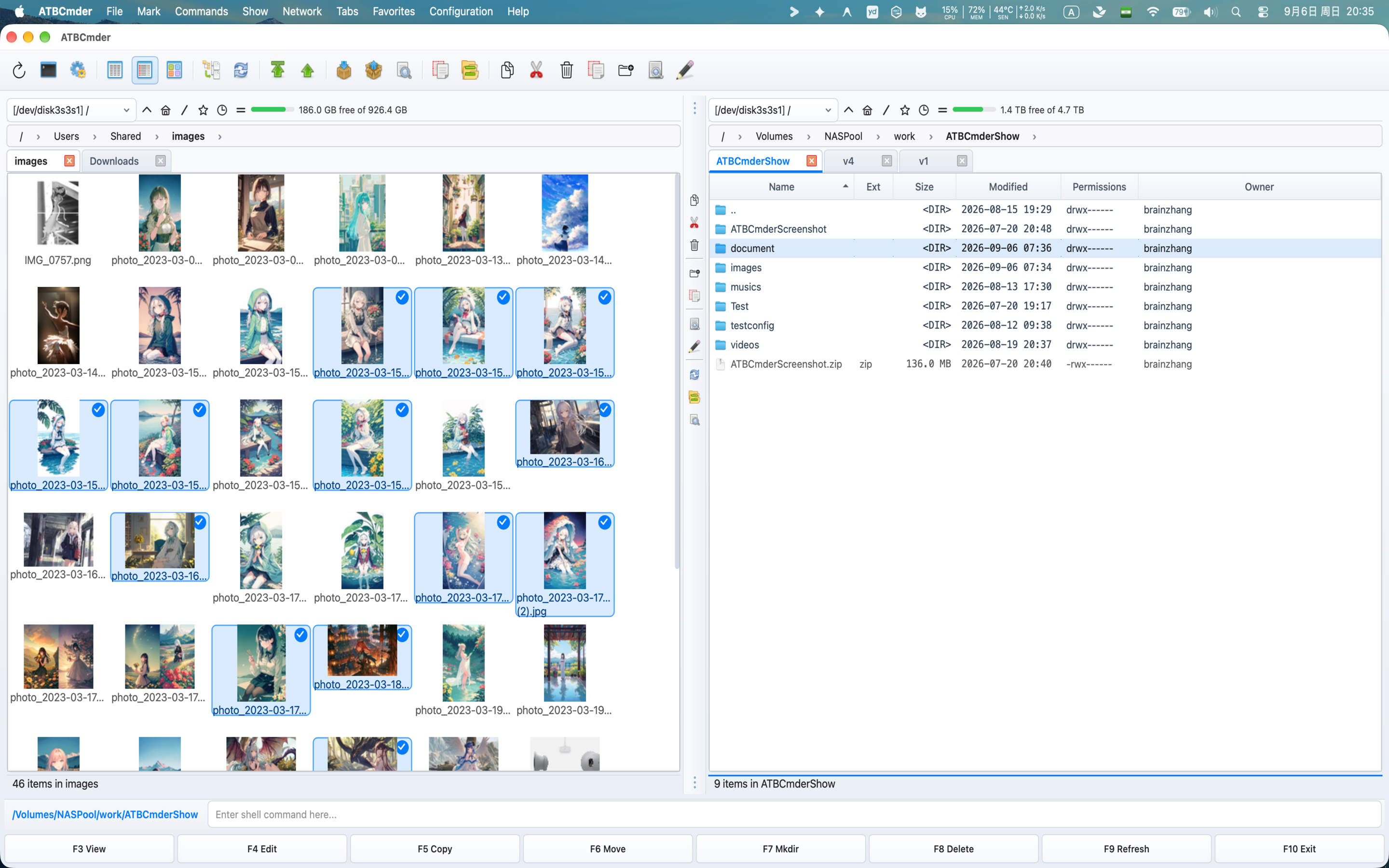
Thumbnails View displaying media previews in the active panel
- Supported Media: Instant previews for photos (JPEG, PNG, HEIC, TIFF, WebP, GIF), vector formats (SVG), PDF documents, and video thumbnails (MP4, MOV, MKV).
- Asynchronous Background Generation: Thumbnail rendering occurs in background threads without blocking user interaction.
- Adjustable Size: Configure thumbnail icon sizes (from 64px up to 256px) in Preferences → File Views.
4. Tree View (cm_TreeView, cm_TreeViewSplit, cm_TreeViewBoth)
The Tree View displays an expandable hierarchical directory tree, making it easy to comprehend deep folder structures at a glance.
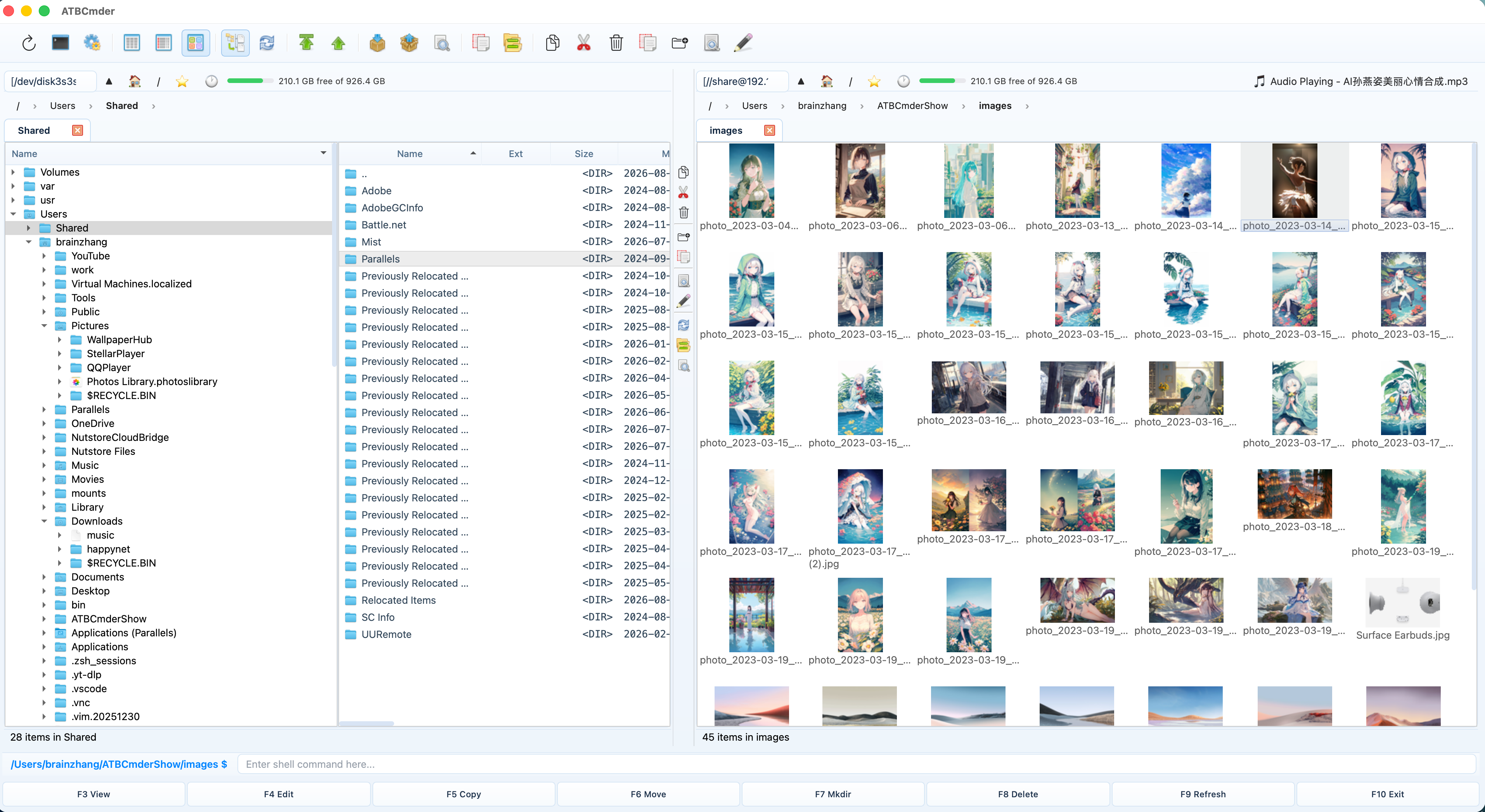
Tree View integrated alongside file listings and thumbnails
ATBCmder supports three distinct Tree View layouts via the Show menu:
- Tree View (Replace) (
cm_TreeView): The active panel's file table is replaced entirely with an expandable directory tree. - Tree View (Split) (
cm_TreeViewSplit): The active panel is divided vertically into two sub-panes: a directory tree on the left, and the standard file listing for the selected tree folder on the right. - Tree View (Both Panels) (
cm_TreeViewBoth): Enables the split directory tree in both the Left and Right panels simultaneously. - Show Files Toggle: Right-click inside the tree view and toggle Show Files to choose whether files should be rendered in the tree alongside directories or hidden to display directories only.
5. Branch / Flat View (Cmd+B / ⌘B or Ctrl+B / ⌃B / cm_FlatView)
Flat View (also known as Branch View) is one of the most powerful features in ATBCmder. It recursively traverses all subdirectories and sub-folders within the current folder, flattening all nested files into a single unified list.
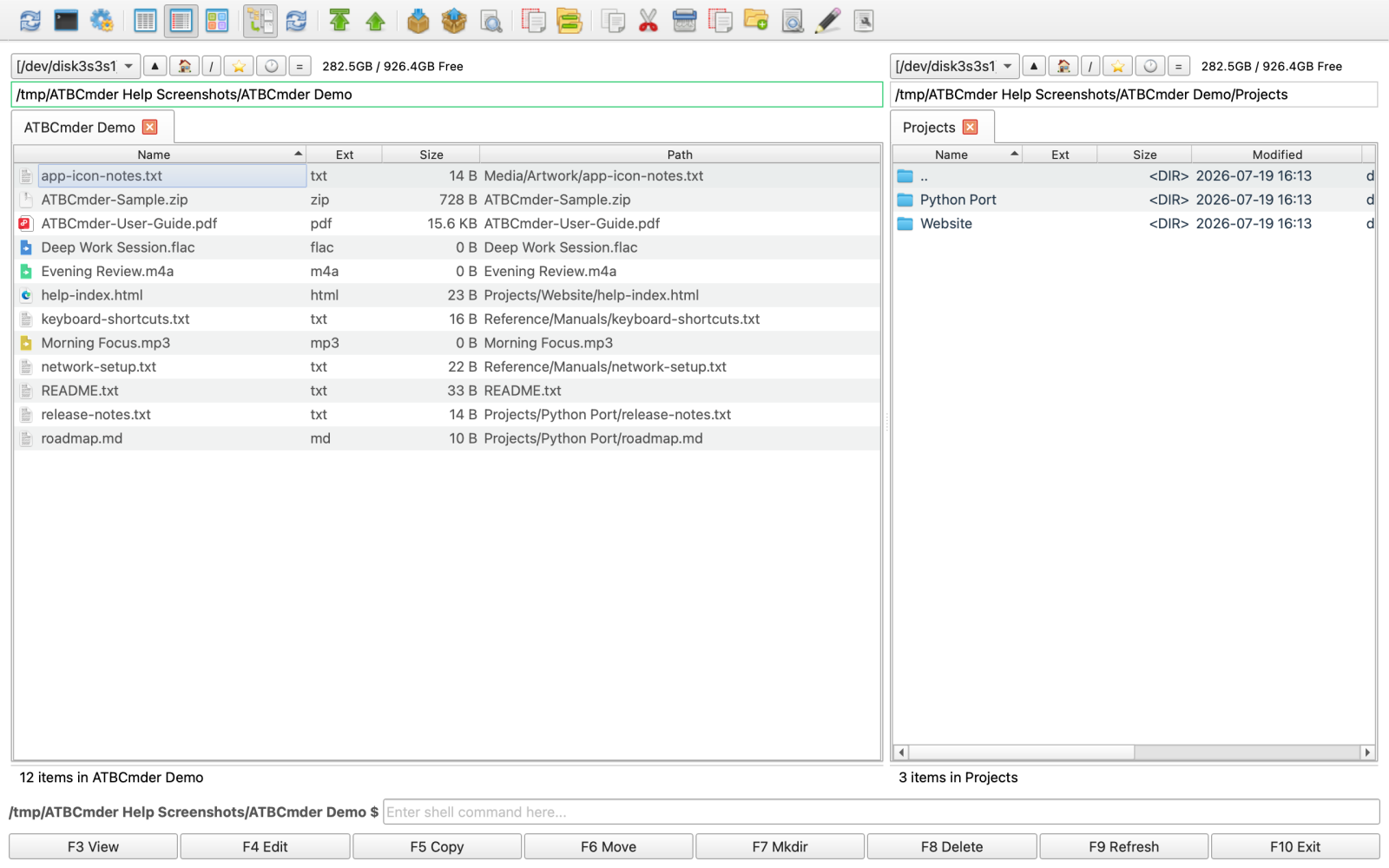
Flat Branch View (Cmd+B) displaying nested contents across all subdirectories
- The Path Column: In Flat View, ATBCmder automatically adds a Path column showing each file's relative nested folder path (e.g.,
assets/icons/orsrc/core/). - Global Sorting: Sort all nested files simultaneously across an entire project tree by size, modification date, or file extension.
- Batch Processing: Select files originating from a dozen different subdirectories and copy, move, diff, or rename them all at once.
- Streaming Traversal: ATBCmder streams search results into the view incrementally using background workers, ensuring large projects (with tens of thousands of nested files) load smoothly without freezing the UI.
- Quick Exit: Press
Cmd+B(Ctrl+B) again to exit Flat View and return to the normal hierarchical directory view.
8. ⚡ Pro Tips & Deep Dive: Precision Control
For advanced users and power keyboardists, ATBCmder offers fine-grained tuning and rapid search mechanisms.
In-Panel Quick Search Overlay (Ctrl+S / ⌃S / cm_QuickSearch)
Quick Search allows you to leap directly to any file by typing its name without opening a full search dialog.
┌─────────────────────────────────────────────────────────────────┐
│  main.py            py      8.4 KB    Today, 15:10   -rw-r--r-- │
│  main_window.py     py     72.1 KB    Today, 15:18   -rw-r--r-- │
├─────────────────────────────────────────────────────────────────┤
│ 🔍 Quick Search: main_                 [ Next: ↓ ] [ Prev: ↑ ]  │
└─────────────────────────────────────────────────────────────────┘
- Incremental Searching:
- Press
Ctrl+S(or simply begin typing if configured in Preferences). - An overlay bar appears docked at the bottom of the active panel.
- As you type characters, the panel cursor jumps in real time to the first matching entry.
- Cycling Matches:
- Press
Down Arrow(↓) to jump to the next matching file. - Press
Up Arrow(↑) to jump to the previous match. - Press
Enterto open or execute the matched item. - Press
Escto dismiss the search bar while keeping the cursor on the found file. - The Trailing Dot Trick:
- Type a trailing period (e.g.,
config.) to specifically match the end of a filename base, distinguishingconfig.xmlfromconfiguration_guide.md. - Quick Search vs. Filter vs. Semantic Filter:
- Quick Search (
Ctrl+S/cm_QuickSearch): Navigates the cursor between matches while keeping all files visible. - Quick Filter (
cm_QuickFilter): Temporarily hides all non-matching files, displaying only matching rows in the table. - Semantic Filter (
Ctrl+F/cm_SemanticFilter): Uses natural language queries (e.g.,/larger than 10MB,//today modified pdf) via macOS Spotlight.
Auto-Fitting Column Modes
Tired of manual column resizing or truncated filenames? ATBCmder features an intelligent column sizing engine configured under Preferences → File Views:
- Max Text Width (
mode="max"): - Scans all visible file names and stretches the Name column so the longest visible filename is fully legible without ellipses (
...). - Average Text Width (
mode="average", Default): - Evaluates the statistical mean character width across files multiplied by a configurable padding factor (
auto_fit_padding, default1.0) plus icon margins. - Advantage: Prevents a single anomalous 150-character filename from pushing all secondary columns (Size, Date, Permissions) off the edge of the screen.
- Fixed Widths (
mode="fixed"): - Retains exact column pixel dimensions.
- Automatically activated whenever you manually drag a column separator in the table header, respecting your manual layout adjustments.
Horizontal Dual Panels Mode (Ctrl+Shift+H / ⌃⇧H / cm_HorizontalFilePanels)
By default, ATBCmder places the two file panels side-by-side (vertical split). On ultra-wide monitors or vertical portrait displays, you can switch to stacked horizontal panels:
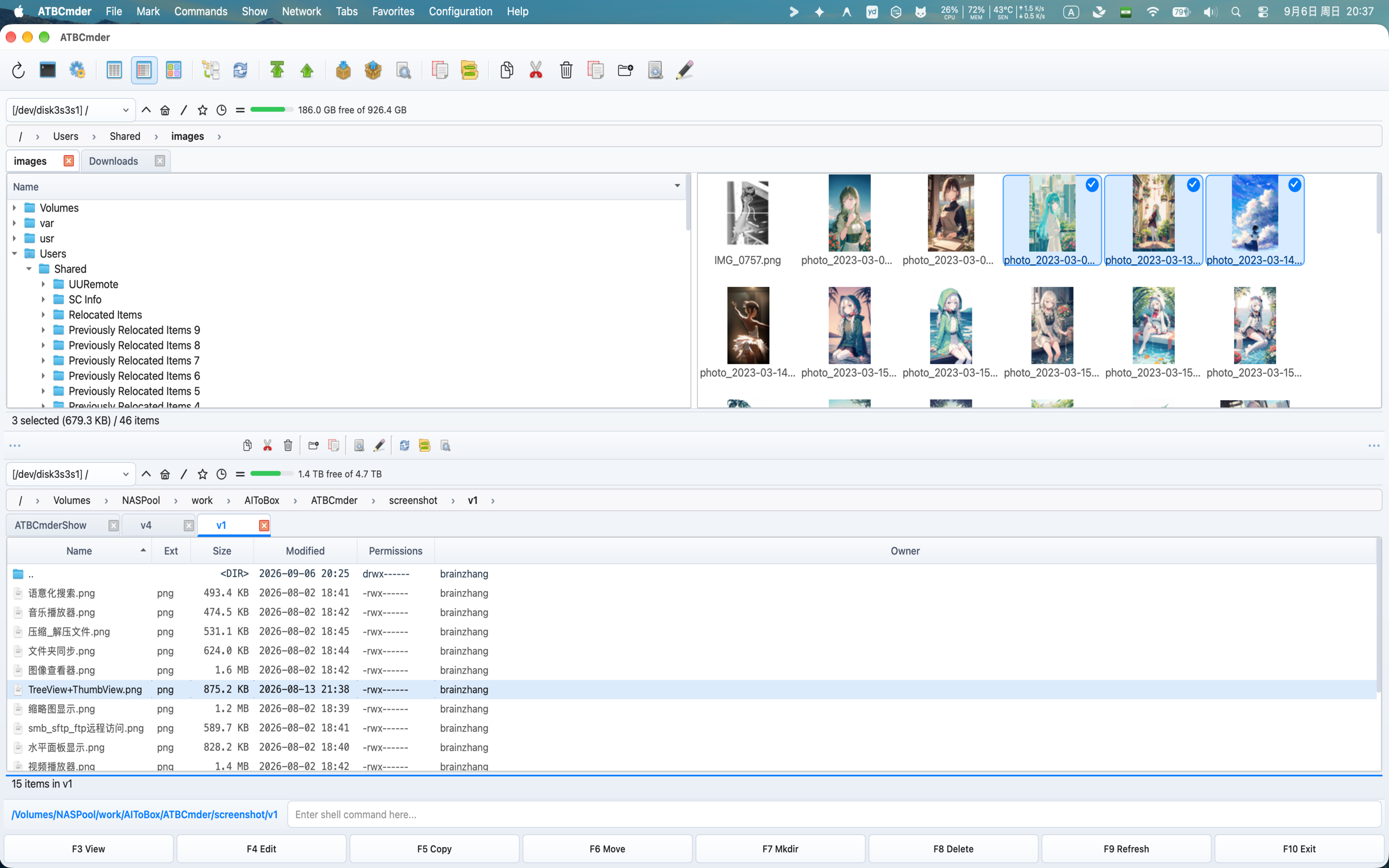
Horizontal stacked panel orientation with top and bottom panels
- Toggle via Menu Show → Horizontal Panels Mode or press
Ctrl+Shift+H(cm_HorizontalFilePanels). - The Active/Inactive paradigm remains identical: operations flow smoothly between Top (Source) and Bottom (Target) panels.
Per-Tab View Settings Persistence
In most file managers, changing the sort column or switching from detailed columns to thumbnails forces the entire window to change globally.
ATBCmder isolates and remembers view preferences at the individual Tab level (TabState), automatically persisted across restarts via SessionManager (atbcmder_session.xml):
- Independent View Modes: You can keep Tab 1 in Full Columns View for code reviews, Tab 2 in Thumbnails Grid View for graphics assets, and Tab 3 in Brief View for rapid skimming.
- Independent Sorting: Each tab remembers its own sort column (Name, Extension, Size, Date, or Permissions) and sort direction (ascending vs. descending). Switching between tabs never resets your sort priorities.
- Independent Flat & Tree States: A tab set to Flat Branch View (
Cmd+B/cm_FlatView) or Tree View Mode maintains its recursive directory flattening without altering the view state of any other tab in either panel.
9. Step-by-Step Practical Recipes
Here are three real-world recipes showcasing how navigation, tabs, and hotlists combine to streamline daily tasks.
Recipe 1: Building a Persistent Development Workspace
Goal: Set up a dual-panel workspace for full-stack development that can be restored with one click anytime.
- Configure Left Panel (Source Code):
- Navigate to
~/Projects/MyApp/src. - Open a second tab (
Cmd+T) and navigate to~/Projects/MyApp/tests. - Right-click the
srctab and choose Lock Tab (cmd_SetTabOptionLock). - Configure Right Panel (Build & Logs):
- Click the right panel to focus it (
Tab). - Navigate to
~/Projects/MyApp/dist. - Open a second tab (
Cmd+T) and navigate to/var/log. - Save Favorite Workspace:
- Choose Menu Favorites → Save current tabs to a New Favorite Tabs (
cm_SaveFavoriteTabs). - Enter
MyApp FullStackand pressEnter. - Instant Restoration:
- Whenever you work on this project, simply select Favorites → Load tabs from Favorite Tabs (
cm_LoadFavoriteTabs) and pickMyApp FullStack. Both panels will instantly configure all four tabs with your exact paths and lock settings.
Recipe 2: Flattening Deep Directory Trees to Find Bloated Assets
Goal: Find and clean up oversized test fixtures and log dumps scattered across dozens of nested subfolders.
- Navigate to the top of your project or media directory in the active panel.
- Press
Cmd+B(⌘B) orCtrl+B(cm_FlatView) to activate Flat Branch View. - Watch as all subdirectories are recursively flattened into a single list in the panel.
- Click the Size column header once or twice to sort all files from largest to smallest.
- The largest files across the entire directory tree immediately appear at the top of the panel, with the Path column showing their exact nested locations.
- Inspect or delete the bloated files directly.
- Press
Cmd+Bagain to turn off Flat View and return to standard folder browsing.
Recipe 3: Lightning-Fast Bookmarking Across Internal & Network Volumes
Goal: Bookmark a remote NAS backup folder and jump to it in under two seconds.
- Navigate to your mounted network drive (e.g.,
/Volumes/BackupShare/Archives). - Press
Ctrl+D(⌃D) to summon the Directory Hotlist popup. - Click the Add Current Directory button (
btn_add/cm_AddDirToHotlist). - Enter a friendly name such as
NAS Archives. - Tomorrow, when you are anywhere in your local filesystem, simply press
Ctrl+D, typenas, and pressEnter. ATBCmder instantly transports you across the network to that exact folder.
10. Safety & System Alerts
Note
External Storage & Network Shares:
When accessing external USB drives or network shares (/Volumes/...) within tabs or bookmarks, ensure the volume is currently mounted. If a drive is unmounted when ATBCmder launches, tabs pointing to it will safely display a "Location Unavailable" notice rather than crashing or removing the tab.
Tip
Mirroring Tabs Across Panels:
Want your right panel to immediately mirror all the open tabs of your left panel? Use Menu Tabs → Copy All Tabs to Opposite Panel (cm_CopyAllTabsToOpposite) to replicate your tab layout across both sides.
Warning
Caution with Operations in Flat View (Cmd+B):
In Flat Branch View, files from multiple distinct directory branches appear side-by-side in one list. Be mindful when using Cmd+A (Select All) followed by F8 (Delete) or F6 (Move), as your action will apply recursively across all nested subdirectories.
11. Dual-Matrix Keyboard Reference Table
| Category | Action | macOS Shortcut | Classic Key | Internal Command ID |
|---|---|---|---|---|
| Directory Navigation | Parent Directory | Backspace / ⌘↑ |
Ctrl+PgUp |
cm_ChangeDirToParent |
| Root Directory | Ctrl+\ / ⌃\ |
\ |
cm_ChangeDirToRoot |
|
| Home Directory | Ctrl+Shift+Home / ⌃⇧Home |
Alt+Home |
cm_ChangeDirToHome |
|
| First Entry | Home |
Home |
cm_GoToFirst |
|
| Last Entry | End |
End |
cm_GoToLast |
|
| Folder Tabs | New Tab | Cmd+T / ⌘T |
Ctrl+T |
cm_NewTab |
| Close Tab | Cmd+W / ⌘W |
Ctrl+W |
cm_CloseTab |
|
| Close Duplicate Tabs | Tab Context Menu | — | cm_CloseDuplicateTabs |
|
| Close All Tabs | Tabs Menu | — | cm_CloseAllTabs |
|
| Rename Tab | Tab Context Menu | — | cm_RenameTab |
|
| Copy Tabs to Opposite | Tabs Menu | — | cm_CopyAllTabsToOpposite |
|
| Next Tab | Ctrl+Tab / ⌃⇥ |
Ctrl+Tab |
cm_NextTab |
|
| Previous Tab | Ctrl+Shift+Tab / ⌃⇧⇥ |
Ctrl+Shift+Tab |
cm_PrevTab |
|
| Show Tabs List | Ctrl+Shift+L / ⌃⇧L |
Ctrl+Shift+L |
cm_ShowTabsList |
|
| Favorite Tabs | Save Favorite Tabs | Favorites Menu | — | cm_SaveFavoriteTabs |
| Load Favorite Tabs | Favorites Menu | — | cm_LoadFavoriteTabs |
|
| Resave Active Favorite | Favorites Menu | — | cm_ResaveFavoriteTabs |
|
| Reload Active Favorite | Favorites Menu | — | cm_ReloadFavoriteTabs |
|
| Configure Favorite Tabs | Preferences | — | cm_ConfigFavoriteTabs |
|
| Hotlists & History | Directory Hotlist | Ctrl+D / ⌃D |
Ctrl+D |
cm_DirHotList |
| Configure Hotlist | Ctrl+Shift+D / ⌃⇧D |
Ctrl+Shift+D |
cm_ConfigDirHotList |
|
| Add Dir to Hotlist | Hotlist Popup | — | cm_AddDirToHotlist |
|
| History Backward | Cmd+[ / ⌘[ |
Alt+Left |
cm_ViewHistoryPrev |
|
| History Forward | Cmd+] / ⌘] |
Alt+Right |
cm_ViewHistoryNext |
|
| History Dropdown List | Alt+F8 / ⌥F8 |
Ctrl+Down |
cm_DirHistory |
|
| Drives & Volumes | Left Panel Drives | Alt+F1 / ⌥F1 |
Alt+F1 |
cm_LeftOpenDrives |
| Right Panel Drives | Alt+F2 / ⌥F2 |
Alt+F2 |
cm_RightOpenDrives |
|
| Active Panel Drive Menu | Alt+D / ⌥D |
Alt+D |
cm_Drives |
|
| View Modes | Full Columns View | Ctrl+F2 / ⌃F2 |
Ctrl+F2 |
cm_ColumnsView |
| Brief View | Ctrl+F1 / ⌃F1 |
Ctrl+F1 |
cm_BriefView |
|
| Thumbnails View | Ctrl+Shift+F1 / ⌃⇧F1 |
Ctrl+Shift+F1 |
cm_ThumbnailsView |
|
| Tree View (Replace) | Show Menu | Ctrl+Shift+F8 |
cm_TreeView |
|
| Tree View (Split) | Show Menu | — | cm_TreeViewSplit |
|
| Tree View (Both Panels) | Show Menu | — | cm_TreeViewBoth |
|
| Flat Branch View | Cmd+B / ⌘B |
Ctrl+B |
cm_FlatView |
|
| Horizontal Panels Mode | Ctrl+Shift+H / ⌃⇧H |
Ctrl+Shift+H |
cm_HorizontalFilePanels |
|
| Search & Filters | Quick Search Overlay | Ctrl+S / ⌃S |
Ctrl+S |
cm_QuickSearch |
| Semantic Filter | Ctrl+F / ⌃F |
Ctrl+F |
cm_SemanticFilter |
Now that you have mastered directory navigation, tabs, and panel views: