Chapter 1: Fundamentals & macOS Setup
Welcome to ATBCmder! Designed natively for macOS 12+ with dual-architecture support for both Apple Silicon (M1/M2/M3/M4, ARM64) and Intel (x86_64) Macs, ATBCmder brings the unmatched speed, keyboard agility, and precision of orthodox dual-panel file management to the Mac.
This chapter walks you through the core dual-panel philosophy, details every major interface landmark, guides you through macOS App Sandbox permissions onboarding, and provides the essential system configurations required for a seamless experience.
1. Visual Quickstart: The Dual-Panel Philosophy
If you have used macOS Finder, you are accustomed to opening multiple overlapping windows, dragging files across cluttered desktops, and hoping files land in the intended destination folder rather than an accidental adjacent subfolder.
ATBCmder replaces this friction with the time-tested Orthodox File Manager (OFM) paradigm: two independent, complementary directory panels placed side-by-side.
┌─────────────────────────────────────────────────────────────────────────────────┐
│  ACTIVE (SOURCE) PANEL                     INACTIVE (TARGET) PANEL              │
│  /Users/username/Downloads                 /Volumes/BackupDrive/Projects        │
├─────────────────────────────────────┬───┬───────────────────────────────────────┤
│  Name               Size    Date    │   │  Name                Size     Date    │
│  ▸ [..]                     --:--   │ C │  ▸ [..]                       --:--   │
│  ▸ Project_Assets   <DIR>   Yesterday O │  ▸ 2025_Archive      <DIR>    May 12  │
│  ● release_notes.md 14.2 KB Today   │ P │  ▸ Website_V2        <DIR>    Aug 28  │
│  ● update_v1.7.pkg  84.5 MB Today   │ Y │  ● config.yaml       3.2 KB   Jun 04  │
│                                     │ ➔ │                                       │
│  [ Focused / Blue Accent Outline ]  │   │  [ Unfocused / Subdued Outline ]      │
└─────────────────────────────────────┴───┴───────────────────────────────────────┘
The Active (Source) vs. Inactive (Target) Model
In ATBCmder, you never have to wonder where an operation will take effect:
- The Active Panel (Source):
- This is the panel where your keyboard focus and cursor currently reside.
- Any selection, navigation, or action you perform directly targets this panel.
-
Visual Cue: The active panel features a prominent focus ring (macOS system accent color), highlighted tab text, and a distinct active cursor highlight on the currently focused item.
-
The Inactive Panel (Target):
- This is the opposite panel. It remains fully visible, displaying an independent folder hierarchy.
- The inactive panel acts as the automatic destination for file operations initiated in the active panel.
- Visual Cue: The inactive panel displays a subdued border, slightly dimmed text, and muted tab titles.
Directional Operations: Always Source ➔ Target
When you initiate an operation in ATBCmder, the application automatically understands the direction:
- Copy (
F5/Cmd+C➔Cmd+V): Copies selected files from the Active (Source) panel directly into the directory currently shown in the Inactive (Target) panel. - Move (
F6/Cmd+C➔Opt+Cmd+V): Moves selected files from the Active panel into the Inactive panel without needing to type or search for the destination directory. - Directory Synchronization (
Shift+F12/cm_SyncDirs): Compares the directory in the active panel with the directory in the inactive panel.
Tip
No Drag-and-Drop Guesswork Required: You do not have to drag items across screen boundaries. Simply select what you want in the active panel, press F5 (Copy) or F6 (Move), press Enter to confirm the prompt, and ATBCmder transfers the files immediately.
Panel Navigation & Focus Switching
| Action | macOS Shortcut | Classic Commander Key | Command ID | Description |
|---|---|---|---|---|
| Switch Focus | Tab |
Tab |
cm_FocusSwap |
Alternates keyboard focus between left and right panels (cm_SwitchPanel). |
| Reverse Focus | Shift+Tab |
Shift+Tab |
cm_FocusSwap |
Reverses focus order across panels and controls. |
| Swap Left & Right | Ctrl+U |
Ctrl+U |
cm_Exchange |
Swaps directory paths between left and right panels without losing tabs or selection. |
| Equalize Ratio | Double-click splitter |
Double-click splitter |
— | Automatically resets middle splitter to a clean 50/50 balance. |
2. Interface Anatomy & Landmark Tour
ATBCmder provides a clean, native macOS interface built with Qt6 and PySide6, designed according to Apple Human Interface Guidelines while honoring classic keyboard-centric commander workflows.
┌─────────────────────────────────────────────────────────────────────────────────┐
│ [1] NATIVE MACOS MENU BAR                                                       │
├─────────────────────────────────────────────────────────────────────────────────┤
│ [2] TOP MAIN TOOLBAR  [ ↺ Refresh ] [ 📋 Copy ] [ ✂ Move ] [ 🗑 Delete ] ...   │
├─────────────────────────────────────┬───┬───────────────────────────────────────┤
│ [3] BREADCRUMB BAR (Left Panel)     │   │ [3] BREADCRUMB BAR (Right Panel)      │
│  / ▸ Users ▸ username ▸ Projects    │   │  /Volumes ▸ Backup ▸ Assets           │
├─────────────────────────────────────┤   ├───────────────────────────────────────┤
│ [4] FOLDER TABS: [Dev] [Docs] [+]   │[6]│ [4] FOLDER TABS: [Photos] [Backup] [+]│
├─────────────────────────────────────┤MID│───────────────────────────────────────┤
│                                     │DLE│                                       │
│ [5] DUAL FILE PANEL (Left)          │   │ [5] DUAL FILE PANEL (Right)           │
│     - Virtualized table listing     │BAR│     - Virtualized table listing       │
│     - Name, Ext, Size, Date, Attr   │ & │     - Name, Ext, Size, Date, Attr     │
│     - Real-time sort & filter       │SPL│     - Real-time sort & filter         │
│                                     │IT-│                                       │
│                                     │TER│                                       │
├─────────────────────────────────────┴───┴───────────────────────────────────────┤
│ [7] STATUS BAR & DRIVE STORAGE METER                                            │
│  3 of 28 files selected (42.8 MB / 1.2 GB)  |  Macintosh HD: 218.4 GB free      │
└─────────────────────────────────────────────────────────────────────────────────┘
[1] Native macOS Menu Bar
Fully integrated into the macOS top menu bar. All operations, view toggles, power tools, and preferences are categorized logically:
- File: New Tab, Close Tab, File Properties, Sandbox Permissions, Exit.
- Mark: Select Group (
Num+), Unselect Group (Num-), Invert Selection (Num*), Select All (Cmd+A). - Commands: Directory Hotlist (
Ctrl+D), Left/Right Drives (Alt+F1/F2), Search (Alt+F7), Sync Directories (Shift+F12), Swap Panels (Ctrl+U), Terminal (Ctrl+J). - Show: View mode toggles (Brief, Full Columns, Thumbnails, Tree, Flat Branch View), Toolbar visibility, Horizontal Panels layout.
- Configuration: Options / Preferences (
Cmd+,), Save Position (cm_ConfigSavePos), Save Tabs.
[2] Top Main Toolbar
Located directly beneath the window title bar. Provides instant one-click access to global commands:
- Default Actions: Refresh (
Ctrl+R), Quick View (Ctrl+Q), Copy (F5), Move (F6), New Folder (F7), Delete (F8), Search (Alt+F7), and Options (Cmd+,). - Customizable: Customize icon sizes (16px to 48px), toggle button text labels, or hide the toolbar entirely via menu Show → Show Toolbar to maximize screen real estate.
[3] Finder-Style Interactive Breadcrumb Bar
Positioned above each file panel, the breadcrumb path bar allows lightning-fast hierarchy jumps:
- Segment Navigation: Click any ancestor folder in the breadcrumb chain (e.g., clicking
usernamein/Users/username/Projects/ATBCmder) to navigate directly to that directory. - Sibling Drop-Downs: Hover or click the chevron arrow between segments to reveal a drop-down menu listing all sibling folders at that level.
- Segment Context Menu: Right-click any breadcrumb segment to access quick contextual utilities:
- Open in New Tab: Keeps your current view while opening the parent directory in a new tab.
- Reveal in Finder: Opens the directory in macOS Finder (
open -R). - Copy Path: Copies the absolute UNIX path of the segment to your system clipboard.
- Open in Terminal: Spawns macOS Terminal directly inside that folder (
open -a Terminal). - Direct Path Editing (
BreadcrumbLineEdit): Double-click the empty space to the right of the breadcrumb chain. The bar instantly converts into an editable text field where you can paste or type any path (e.g./var/log,~/Library, orvfs://archives). PressEnterto navigate orEscto cancel.
[4] Folder Tab Bar
Each panel maintains an independent set of tabs:
- Open new tabs with
Cmd+T(cm_NewTab), close tabs withCmd+W(cm_CloseTab). - Drag-and-drop to reorder tabs within a panel.
- Right-click tabs to lock paths, rename titles, close duplicates, or duplicate tabs to the opposite panel.
[5] Dual File Panels
High-performance virtualized file lists capable of rendering folders with hundreds of thousands of entries smoothly without UI stutter:
- Column sorting: Click any header (Name, Ext, Size, Date, Attributes) to sort ascending or descending.
- Multiple view modes: Full details view, Brief grid view, Thumbnail gallery view, Tree view, and recursive Flat Branch view (
Cmd+B).
[6] Middle Toolbar & Draggable Splitter
Positioned directly between the left and right file panels, the Middle Toolbar is a unique ATBCmder feature combining one-click file management with an adjustable panel divider:
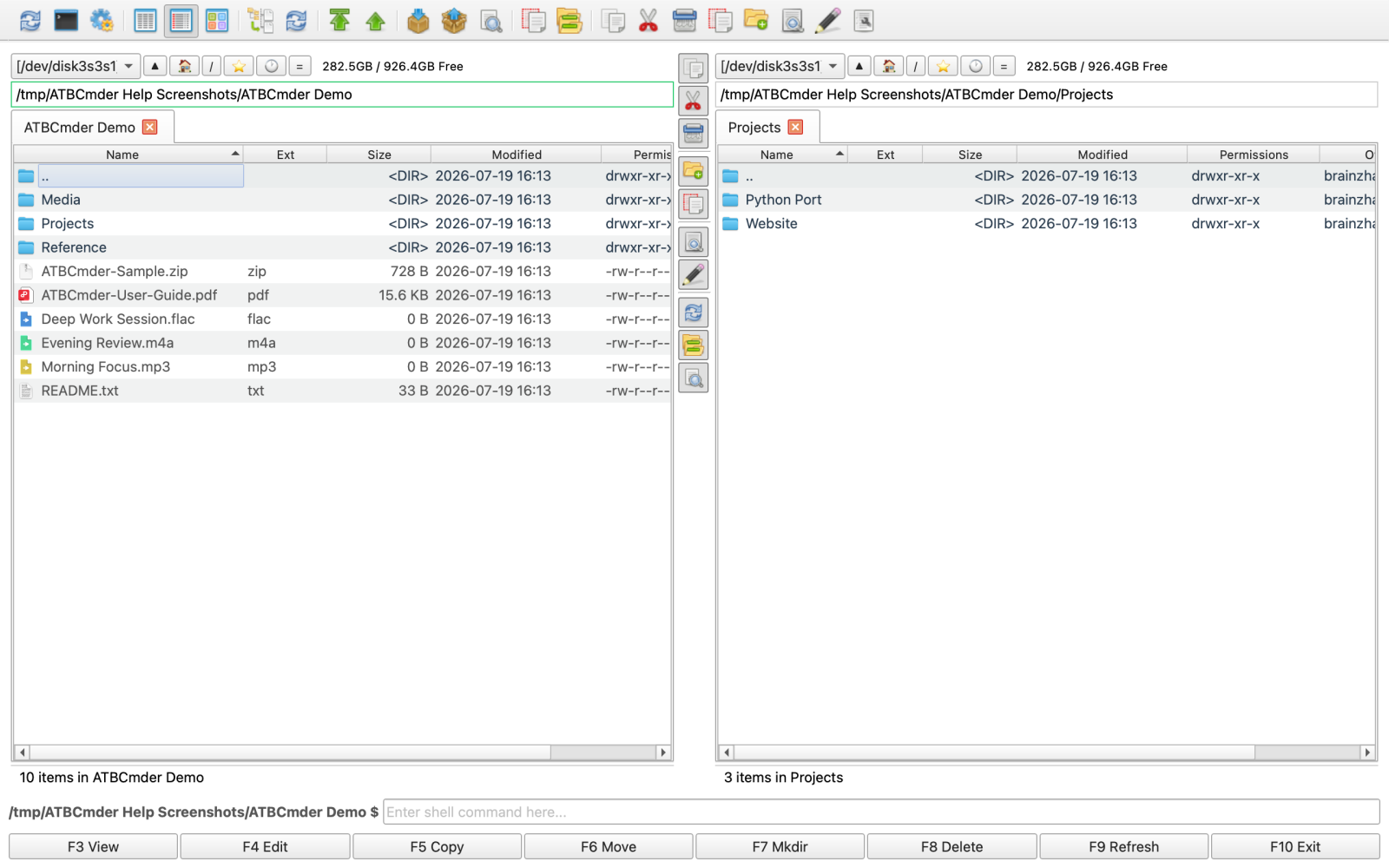
- Quick Action Strip: Houses vertical buttons for common operations:
cm_Copy(Copy)cm_Move(Move / Cut)cm_Delete(Delete to Trash)cm_MkDir(New Directory)cm_Rename(Inline Quick Rename)cm_View(Universal Lister)cm_Edit(Internal Text/Code Editor)cm_Exchange(Swap Left & Right Panels)cm_SyncDirs(Folder Synchronizer)cm_FileSearch(Advanced Search)- Continuous Splitter Dragging: Moving your mouse cursor over the middle bar changes the pointer to a horizontal split cursor (
SplitHCursor). Click and drag horizontally to smoothly adjust the width proportion between the two panels. - Stylish Theme Ratio Presets: When using the modern "Stylish" theme, the middle bar displays segmented controls allowing instant snapping to 50/50, 70/30, or 30/70 panel width distribution.
- Middle Toolbar Preferences: Enable or disable the middle toolbar, adjust icon sizes, or toggle between modern flat buttons and classic sunken splitters in Preferences (
Cmd+,) → Toolbars → Middle Toolbar.
[7] Status Bar & Drive Storage Meter
Anchored at the very bottom of the window:
- Selection Statistics: Shows real-time metrics for the active panel:
- Total items count and total folder size.
- Number of selected items and combined selected byte size.
- Drive Storage Meter: Visual disk usage indicator displaying the currently mounted volume name (e.g.,
Macintosh HD), total capacity, used storage, and remaining free space percentage.
3. Step-by-Step Recipe: macOS App Sandbox & Filesystem Permissions
Modern macOS employs strict application security sandboxing to protect user data from unauthorized access. When running ATBCmder (particularly when installed via the Mac App Store or distributed with sandboxing enabled), the application is isolated in its own secure container directory:
~/Library/Containers/com.aitobox.atbcmder/Data
By default, sandboxed applications cannot arbitrarily inspect or modify files outside their container unless the user explicitly grants permission through Apple's native open panels.
ATBCmder streamlines this onboarding process with Security-Scoped Bookmarks, allowing you to grant permission once and enjoy persistent, unrestricted access across all future sessions.
Understanding Security-Scoped Bookmarks
When you authorize a folder path using macOS NSOpenPanel:
- macOS issues a cryptographic Security-Scoped Bookmark (
NSURLBookmarkCreationWithSecurityScope). - ATBCmder serializes and saves this bookmark into its configuration directory:
~/Library/Application Support/ATBCmder/sandbox_bookmarks.plist - On every application launch, ATBCmder automatically resolves and activates these bookmarks via
startAccessingSecurityScopedResource(). - Once granted, you never have to re-authorize these directories again.
Guided Setup Walkthrough: Using cm_GrantFilesystemAccess
To configure your permissions on first launch, or at any time later, follow these steps:
Step 1: Open the Permission Onboarding Assistant
From the native menu bar, select File (or Help) → Grant Filesystem Access…, or trigger internal command cm_GrantFilesystemAccess. The onboarding dialog appears:
┌─────────────────────────────────────────────────────────────┐
│  Grant Filesystem Access                                [x] │
├─────────────────────────────────────────────────────────────┤
│  Because this version of ATBCmder runs inside a secure      │
│  macOS Sandbox, it needs your permission to access          │
│  critical folders.                                          │
│                                                             │
│  [  Grant Access to Root Directory (/)  ]                   │
│                                                             │
│  [  Grant Access to External Disks (/Volumes)  ]            │
│                                                             │
│  [  Open Full Disk Access Settings…  ]                      │
│                                                             │
│  Root directory access is required by the App Sandbox.      │
│  Full Disk Access is a separate macOS permission for        │
│  protected user data.                                       │
│                                                   [ Done ]  │
└─────────────────────────────────────────────────────────────┘
Step 2: Grant Root Directory (/) Access
- Click "Grant Access to Root Directory (/)".
- ATBCmder summons macOS's native
NSOpenPanelsheet, pointing to the root diskMacintosh HD(/). - Click "Grant Access" (or Open).
- The button updates immediately to "Root Directory Access Granted ✓" and becomes disabled.
- What this enables: Authorizing the root path
/automatically covers all user directories (~/Documents,~/Downloads,~/Desktop,~/Projects,/Applications, etc.) because Security-Scoped Bookmarks automatically inherit downward permissions to all child subpaths.
Step 3: Grant External Disks (/Volumes) Access
- Click "Grant Access to External Disks (/Volumes)".
- When the native panel displays
/Volumes, click "Grant Access". - The button updates to "External Disks Access Granted ✓".
- What this enables: Unrestricted read/write access to external USB drives, Thunderbolt drives, SD cards, DMG disk image mounts, and network-mounted SMB/NFS/AFP volumes.
Step 4: Selective Folder-by-Folder Access (Alternative)
If you prefer not to grant broad root access to ATBCmder, you do not have to click root access:
- When you navigate into any unauthorized folder (such as an external folder or project repository), ATBCmder detects the permission boundary and displays an on-demand prompt:
ATBCmder requires your permission to access: /Users/username/SecretProject - Click "Grant Access to Folder", approve the native dialog, and that specific directory will be permanently bookmarked.
Step 5: Full Disk Access (FDA) for Protected System Data
Important
Sandbox Bookmarks vs. Full Disk Access (FDA):
- Sandbox Bookmarks grant general filesystem access to standard user folders, files, and external drives.
- Full Disk Access (FDA) is an additional macOS Transparency, Consent, and Control (TCC) privacy permission required to inspect sensitive macOS personal data (such as Safari history, Mail attachments, Messages, Time Machine backups, and system caches).
If you need to manage these protected folders:
- Click "Open Full Disk Access Settings…" in the onboarding dialog.
- macOS opens System Settings → Privacy & Security → Full Disk Access.
- Click the lock or authenticate with Touch ID / password.
- Ensure the toggle switch next to ATBCmder is turned ON.
Revoking and Resetting Permissions
If you ever need to reset or revoke your sandbox bookmarks:
- Open ATBCmder's configuration directory via menu Configuration → Open Config Directory (
cm_OpenConfigDirectory). - Delete the file
sandbox_bookmarks.plist. - Restart ATBCmder.
- To reset macOS system-level TCC permissions, run the following command in macOS Terminal:
4. Language Settings & Appearance Customization
ATBCmder is localized for global workflows and integrates cleanly with macOS appearance preferences.
Internationalization & Language Overrides
ATBCmder supports over 30 languages, including English, Simplified Chinese (简体中文), Traditional Chinese (繁體中文), German (Deutsch), French (Français), Spanish (Español), Russian (Русский), Japanese (日本語), Italian, Polish, Korean, and more.
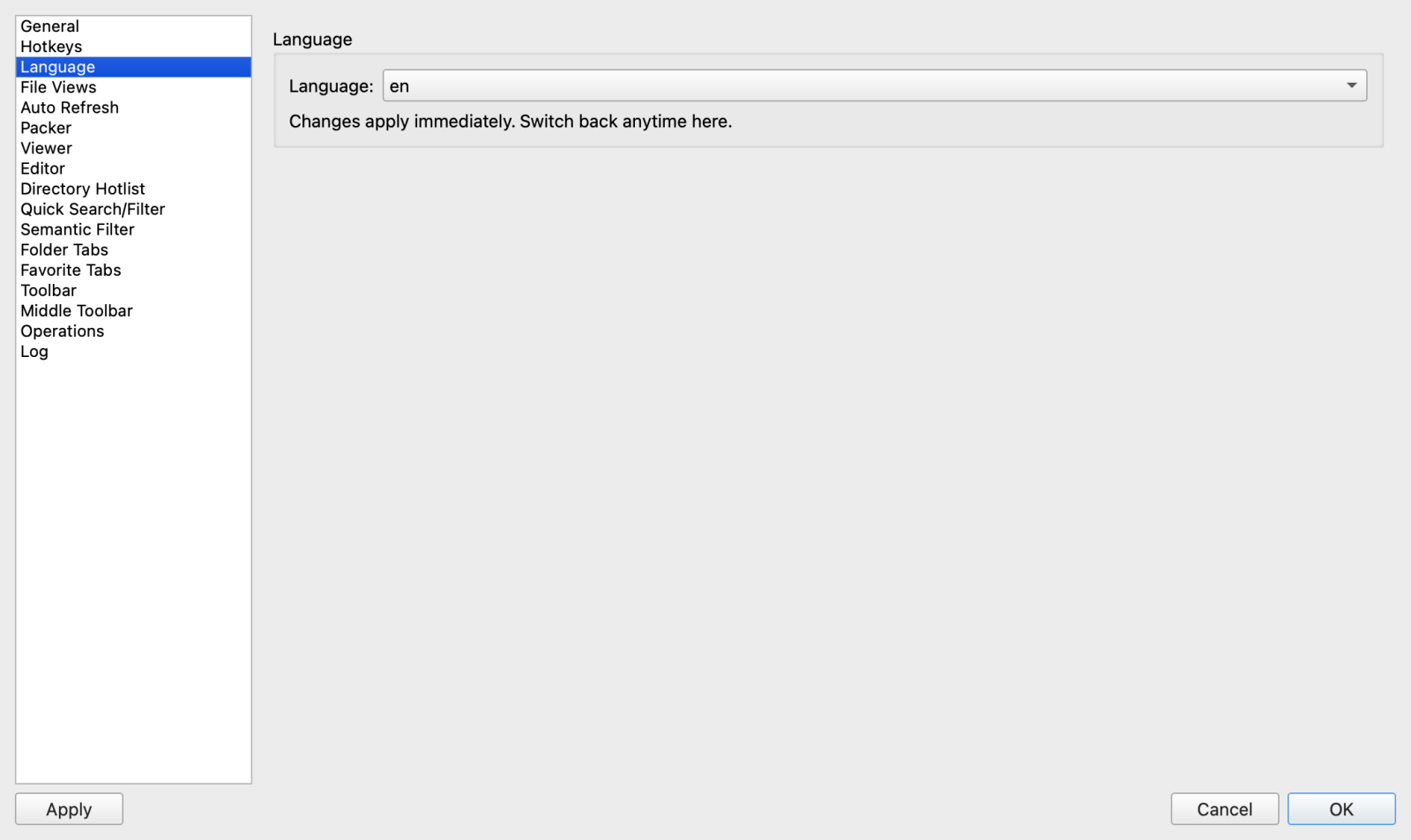
- System Language Auto-Follow: By default, ATBCmder detects your macOS system locale (
AppleLanguages) on startup and applies the matching translation automatically. - Manual Language Selection:
- Open Preferences by pressing
Cmd+,or executingcm_Options. - In the left navigation pane, select Language.
- Choose your preferred language from the drop-down list.
- Live Reload (No Restart Required): Unlike most traditional Mac utilities that require quitting and restarting the application, ATBCmder dynamically retranslates the entire interface (menus, toolbars, dialogs, button tooltips, and status messages) in real time the moment you select a new language.
Appearance & Themes
ATBCmder fully supports macOS Light and Dark appearance modes:
- System Appearance Sync: Automatically transitions between Light and Dark mode whenever your macOS system appearance changes (e.g. at sunset or via Control Center).
- Theme Options:
- Fusion / Native macOS: Classic clean desktop aesthetic that respects macOS accent colors and window vibrancy.
- Stylish Theme: Modern aesthetic featuring rounded segmented controls, subtle gradient separators, and pill-shaped tab bars.
- Dark Mode Palette: Uses dark charcoal surfaces (
#2C2C2E/#242426) with high-contrast text and custom folder icons, reducing eye strain in low-light environments. - Light Mode Palette: Crisp white background with soft gray dividers (
#FAFBFD/#EEF2F7) and clear contrast borders.
5. ⚡ Pro Tips & Advanced Layout Configurations
Take full advantage of ATBCmder's flexible layout engine to tailor your workspace for multi-monitor, ultra-wide, or specialized data management setups.
Tip 1: Saving Window Position & Layout Ratios (cm_ConfigSavePos)
When you arrange your workspace—customizing window dimensions, maximizing across an external display, or setting a specific middle splitter proportion—you can lock this configuration so it restores identically every time:
- Arrange the ATBCmder main window and adjust the middle splitter to your preferred ratio.
-
Select menu Configuration → Save Position & Layout, or run internal command:
-
Your window size, screen coordinates, maximized state, and panel ratios are written directly to
atbcmder.xml. - In Preferences → Layout, ensure "Save window position on exit" is checked for automatic continuous updates.
Tip 2: Toggling Horizontal Dual-Panel Layout (cm_HorizontalFilePanels)
While side-by-side vertical panels are standard for file operations, stacked horizontal panels (Top Panel & Bottom Panel) are exceptionally useful when:
- Working with ultra-long filenames that require full screen width.
- Comparing wide file metadata columns (permissions, owners, checksums, dimensions).
- Working on rotated vertical monitors or tablets.
To switch layouts:
-
Select menu Show → Horizontal Panels, or trigger internal command:
-
When horizontal mode is active:
- The panels stack vertically (Top Panel and Bottom Panel).
- The Middle Toolbar automatically rotates into a horizontal strip between the upper and lower panels.
- The dragging cursor adapts to a vertical split pointer (
SplitVCursor), allowing you to resize the height ratio between top and bottom panels effortlessly.
Tip 3: One-Click Middle Splitter Snapping
- Instant 50/50 Balance: Double-click anywhere on the middle splitter bar or separator line. The panels immediately snap back to an exact 50% / 50% split.
- Ratio Presets: In the "Stylish" theme, clicking the middle segmented buttons snaps the layout to
50:50,70:30(emphasizing the source panel), or30:70(emphasizing the destination panel).
Tip 4: Automatic Session Restore & Workspace Persistence
ATBCmder features an intelligent session management subsystem (SessionManager) that ensures your working environment is always preserved:
- Session XML Storage: Session state is persisted automatically to
atbcmder_session.xmlinside your configuration directory (~/Library/Application Support/ATBCmder/). - Window Geometry Memory: Restores exact window coordinates (
x,y), dimensions (width,height), maximized state, and the middle divider proportion (splitter_ratio). - Dual-Panel Tab Restoration:
- Restores all open tabs in both the Left and Right panels upon launch.
- Remembers the active tab index in each panel.
- Automatically loads the exact working directory for every tab, eliminating the friction of manually re-navigating to deep project folders.
- Default Position Locking: You can also permanently lock your current window geometry and splitter ratio as the default startup configuration using Configuration ➔ Save Position (
cm_ConfigSavePos).
6. Safety & System Alerts: macOS Function (Fn) Key Setup
If you have used Total Commander, Double Commander, or Norton Commander on a PC keyboard, your fingers are trained to use the top-row Function keys (F3 View, F4 Edit, F5 Copy, F6 Move, F7 MkDir, F8 Delete).
However, Apple keyboards handle the function row differently out of the box.
Warning
🍎 macOS Function Key Hardware Conflict
On Apple keyboards (MacBook built-in keyboards, Apple Magic Keyboard), the top row keys default to macOS Special Hardware Features (Display Brightness, Mission Control, Spotlight, Dictation, Do Not Disturb, Media Controls, and Audio Volume).
If you press F5 on a MacBook without configuration, macOS will attempt to adjust keyboard illumination or trigger Dictation rather than copying your files!
Option A: Hold the Fn (Globe 🌐) Key (Default macOS Setup)
If you prefer to keep Apple's default media keys intact:
- Hold down the
Fn(or Globe 🌐) key while pressing any function key: Fn+F3: Universal ListerFn+F4: Internal EditorFn+F5: Copy FilesFn+F6: Move FilesFn+F7: Create FolderFn+F8: Delete to Trash
Option B: Enable Standard Function Keys System-Wide (Recommended)
If you want authentic, high-speed single-key Commander reflexes without holding the Fn modifier:
- Open System Settings from the Apple menu ().
- Click Keyboard in the sidebar.
- Click the Keyboard Shortcuts… button.
- In the left navigation list, select Function Keys.
- Enable the toggle: "Use F1, F2, etc. keys as standard function keys".
┌─────────────────────────────────────────────────────────────┐
│  Keyboard Shortcuts                                         │
├──────────────────┬──────────────────────────────────────────┤
│  Launchpad & Dock│  Use F1, F2, etc. keys as standard       │
│  Display         │  function keys                           │
│  Mission Control │                                          │
│  Keyboard        │  [ ON ───● ]                             │
│  Input Sources   │                                          │
│  Screenshots     │  When this option is selected, press the │
│ ▸ Function Keys  │  Fn key to use the special features      │
│  App Shortcuts   │  printed on each key.                    │
└──────────────────┴──────────────────────────────────────────┘
Once enabled:
- Pressing
F1–F12directly triggers ATBCmder commands immediately. - To use brightness or volume controls, simply hold
Fnwhile pressing the key.
7. Dual-Matrix Essential Shortcuts Quick Reference
ATBCmder provides full dual-matrix keyboard support: use native macOS shortcuts (Cmd ⌘), classic Commander keys (Fn), or both interchangeably.
| Core Action | Command ID | macOS Native (Cmd ⌘) |
Classic Commander (Fn) |
Description |
|---|---|---|---|---|
| Directory Hotlist | cm_DirHotList |
Cmd+D / ⌘D |
Ctrl+D / ⌃D |
Opens directory bookmarks popup with instant fuzzy search. |
| Drive List (Left / Right) | cm_LeftOpenDrives / cm_RightOpenDrives |
⌥F1 / ⌥F2 (⌥D) |
Alt+F1 / Alt+F2 (Alt+D) |
Opens drive & volume menu for left or right panel (Alt+D for active panel). |
| Copy Files | cm_Copy |
Cmd+C ➔ Cmd+V |
F5 (or Fn+F5) |
Copies selected items from active panel to inactive panel. |
| Move Files | cm_Move |
Cmd+C ➔ Opt+Cmd+V |
F6 (or Fn+F6) |
Moves selected items from active panel to inactive panel. |
| View in Lister | cm_View |
Space / Cmd+Y |
F3 (or Fn+F3) |
Opens file in Universal Lister (code, hex, image, pdf, audio). |
| Quick View | cm_QuickView |
Cmd+Q / Ctrl+Q |
Ctrl+Q |
Displays instant live preview in the opposite panel. |
| Edit File | cm_Edit |
Cmd+E |
F4 (or Fn+F4) |
Opens file in the integrated code/text editor. |
| New Directory | cm_MkDir |
Shift+Cmd+N |
F7 (or Fn+F7) |
Creates a new folder in the active panel. |
| Delete to Trash | cm_Delete |
Cmd+Backspace |
F8 (or Fn+F8) |
Safely moves selected files to macOS Trash. |
| Inline Rename | cm_Rename |
Return |
F2 / Shift+F6 |
Renames highlighted file in-place. |
| Switch Panel | cm_FocusSwap |
Tab |
Tab |
Shifts keyboard focus to opposite panel (cm_SwitchPanel). |
| Swap Left/Right | cm_Exchange |
Ctrl+U |
Ctrl+U |
Exchanges directory paths between left and right panels. |
| New Tab | cm_NewTab |
Cmd+T |
Ctrl+T |
Opens a new folder tab in the current panel. |
| Close Tab | cm_CloseTab |
Cmd+W |
Ctrl+W |
Closes the active tab. |
| Horizontal Mode | cm_HorizontalFilePanels |
Menu: Show ➔ Horizontal | Menu: Show ➔ Horizontal | Toggles side-by-side vs top-and-bottom stacked layout. |
| Save Layout | cm_ConfigSavePos |
Menu: Config ➔ Save Pos | Menu: Config ➔ Save Pos | Saves current window dimensions and panel proportions. |
| Sandbox Access | cm_GrantFilesystemAccess |
Menu: File ➔ Permissions | Menu: File ➔ Permissions | Launches the macOS App Sandbox onboarding assistant. |
| Preferences | cm_Options |
Cmd+, |
Alt+O |
Opens ATBCmder configuration dialog. |
Next Steps
Now that you have mastered the dual-panel foundation and configured your macOS environment, proceed to Chapter 2: Navigation & Folder Tabs to learn how to navigate directory trees with speed, master multi-tab workspaces, save favorite directory sets, use instant hotlists, and leverage recursive flat branch views.