Chapter 8: Preferences & Customization
A truly efficient file manager must adapt to your workflow, not force you to adapt to its defaults. Every engineer, system administrator, digital archivist, and creative professional brings distinct muscle memory, display requirements, and operational habits: some rely strictly on orthodox Norton Commander / Total Commander function keys (F1–F10), while others expect native macOS shortcuts (Cmd+C, Cmd+V, Cmd+O); some demand dynamic column auto-fitting with sub-pixel typographic metrics, while others need rigid, fixed column boundaries; some require aggressive real-time filesystem event monitoring, while others run across high-latency network shares where passive polling is mandatory.
ATBCmder is engineered from the ground up for total configurability. Through its modular Preferences Dialog (Cmd+, / ⌘, / cm_Options), intuitive Hotkey Editor with real-time conflict detection, intelligent Column Auto-Fitting Engine, customizable File Associations with external token macros, and portable ZIP Configuration Bundles (cm_ExportConfiguration), ATBCmder lets you fine-tune every dimension of your dual-panel environment and carry your tailored setup seamlessly across all your Mac systems.
1. Visual Quickstart: The Preferences Center & Command Matrix
ATBCmder centralizes all user settings into a unified preferences architecture composed of 16 specialized configuration pages, an isolated hotkey mapping engine, and an atomic XML storage layer.
┌────────────────────────────────────────────────────────────────────────────────────────┐
│                          ATBCMDER PREFERENCES CENTER (Cmd+,)                           │
├──────────────────────┬─────────────────────────────────────────────────────────────────┤
│  CATEGORY NAVIGATION │  ACTIVE CONFIGURATION PAGE                                      │
├──────────────────────┼─────────────────────────────────────────────────────────────────┤
│  • General           │  Column Auto-Fit Mode:                                          │
│  • Hotkeys           │  [ Average Mode (Smart Padding)                       ▼ ]       │
│  • Language          │                                                                 │
│  • File Views        │  Average Mode Padding Factor: [ 1.25x ]                         │
│  • Auto Refresh      │                                                                 │
│  • Operations        │  Sorting Behavior:                                              │
│  • Packer            │  [X] Natural (numeric) sorting: photo1.jpg < photo10.jpg        │
│  • Plugins           │  [X] Case-sensitive sorting                                     │
│  • Directory Hotlist │  Folder Position: [ Folders First                     ▼ ]       │
│  • Favorite Tabs     │                                                                 │
│  • Editor            │  Thumbnail Generation:                                          │
│  • Viewer            │  Default Size: [ 128 px ]   Cache: [~/.cache/atbcmder]          │
│  • Toolbar           │                                                                 │
│  • Middle Toolbar    │  Date/Time Format:                                              │
│  • Log               │  Long Format: [ %Y-%m-%d %H:%M:%S                             ] │
│  • Quick Search      │                                                                 │
│  • Semantic Filter   │  [ Revert Changes ]                   [ Apply ] [ OK ] [Cancel] │
├──────────────────────┴─────────────────────────────────────────────────────────────────┤
│  CONFIG BACKEND:  atbcmder.xml  |  atbcmder_hotkeys.xml  |  favtabs.xml  |  hotlist.xml│
│  PORTABILITY:     cm_ExportConfiguration (ZIP)  ➔  cm_ImportConfiguration (ZIP)        │
└────────────────────────────────────────────────────────────────────────────────────────┘
Dual-Matrix Preferences & Customization Cheat Sheet
| Action | macOS Shortcut | Classic Commander Key | Command ID | Description |
|---|---|---|---|---|
| Open Preferences | Cmd+, / ⌘, |
Alt+O / ⌥O |
cm_Options |
Opens the main multi-page Preferences dialog. |
| Configure Hotkeys | Cmd+, ➔ Hotkeys |
— | cm_Options (Hotkeys) |
Direct access to the keyboard shortcut binding table. |
| Configure File Associations | Menu: Configuration | — | cm_FileAssoc |
Maps file extensions to internal or external viewers/editors. |
| Directory Hotlist Setup | Ctrl+Shift+D / ⌃⇧D |
Ctrl+Shift+D |
cm_ConfigDirHotList |
Edits saved folder bookmarks and active hotkeys (Ctrl+D to open hotlist). |
| Configure Favorite Tabs | Menu: Configuration | — | cm_ConfigFavoriteTabs |
Manages saved dual-panel folder tab sets. |
| Configure Archivers | Menu: Configuration | — | cm_ConfigArchivers |
Configures external archiver executables and compression rules. |
| Export Configuration | Menu: Configuration | — | cm_ExportConfiguration |
Exports all configuration XML files into a portable .zip bundle. |
| Import Configuration | Menu: Configuration | — | cm_ImportConfiguration |
Restores configuration XML files from a .zip bundle. |
| Open Config Directory | Menu: Configuration | — | cm_OpenConfigDirectory |
Navigates the active panel directly to ATBCmder's configuration folder. |
| Save Settings Immediately | Menu: Configuration | — | cm_ConfigSaveSettings |
Flushes all in-memory configuration changes to disk immediately. |
| Save Window Position | Menu: Configuration | — | cm_ConfigSavePos |
Persists current window geometry and splitter proportions. |
| Toggle File Tooltips | Preferences: File Views | — | (Preferences) | Enables or disables detailed floating metadata tooltips. |
| Grant System Permissions | Menu: Configuration | — | cm_GrantFilesystemAccess |
Launches the macOS App Sandbox Full Disk Access onboarding guide. |
2. The Preferences Dialog Anatomy & Navigation (Cmd+, / cm_Options)
The central control room for ATBCmder is the Preferences Dialog. You can summon it at any time by pressing Cmd+, (⌘,) on macOS, choosing ATBCmder ➔ Preferences... from the application menu, or executing cm_Options via the Semantic Command Bar (/).
2.1 Dialog Layout & Interaction Model
The Preferences dialog utilizes a master-detail split layout designed for clarity and keyboard accessibility:
- Category Navigation List (Left): A vertical selector featuring a readable 14pt interface font and fixed 195-pixel sidebar. Navigate between categories using
UpandDownarrow keys, or click with your mouse. - Stacked Page Scroll Area (Right): An expansive configuration panel enclosed in a frameless
QScrollArea. As you switch categories, the corresponding settings page smoothly appears without causing dialog resizing or window flickering. - Action Button Matrix (Bottom):
- OK: Validates all input fields across all pages, writes modified settings to disk (
atbcmder.xml), triggers retranslation and theme updates, and closes the dialog. - Apply: Commits all modified parameters immediately without dismissing the dialog. This is ideal for testing UI fonts, theme variations, column padding, and auto-refresh intervals in real time.
- Cancel: Discards any unsaved changes made in the current session. If you previewed a theme without applying, ATBCmder automatically rolls back the interface to your previous theme.
┌────────────────────────────────────────────────────────────────────────────┐
│ Preferences Dialog Sidebar Navigation                                      │
├────────────────────────────────────────────────────────────────────────────┤
│  [ General ]         Basic UI, file lists, confirmation prompts, theme     │
│  [ Hotkeys ]         Keyboard shortcuts, context scoping, conflict manager │
│  [ Language ]        30+ real-time GUI translations without restart        │
│  [ File Views ]      Sorting rules, column auto-fitting, datetime formats  │
│  [ Auto Refresh ]    File monitoring events, polling, background sleep     │
│  [ Operations ]      Collision defaults (overwrite/rename), permissions    │
│  [ Packer ]          Archive formats (ZIP, 7Z, TAR), external binaries     │
│  [ Directory Hotlist]Bookmarks management, target panels, drag-and-drop    │
│  [ Favorite Tabs ]   Dual-panel workspace sets, layout persistence         │
│  [ Editor ]          Internal code editor typography, external editor CLI  │
│  [ Viewer ]          Universal Lister fonts, image rendering, external CLI │
│  [ Toolbar ]         Main button bar layout, custom commands, icon picker  │
│  [ Middle Toolbar ]  Middle splitter button bar, quick actions             │
│  [ Log ]             Operation audit trails, file logging, rotation        │
│  [ Quick Search ]    In-panel letter search, matching algorithms           │
│  [ Semantic Filter ] Natural language command input, spotlight integration │
│  [ Tabs ]            Folder tab bar styling, close buttons, locking rules  │
└────────────────────────────────────────────────────────────────────────────┘
2.2 Comprehensive Configuration Page Directory
Every page in the Preferences dialog addresses a specific functional domain:
| Page | Implementation Module | Primary Configuration Controls |
|---|---|---|
| General | page_general.py |
Hidden file visibility, file icons, deletion/overwrite confirmation dialogs, system Trash integration, copy/move buffer size (4 KB–10 MB), theme selection, global font size, minimize-to-tray toggle, and global show/hide window hotkey (Cmd+Opt+H). |
| Hotkeys | page_hotkeys.py |
Multi-context command search, primary and secondary shortcut chord binding, automated shortcut collision warnings, and factory default reset. |
| Language | page_language.py |
Dynamic localization selector supporting 30+ languages (English, German, French, Simplified Chinese, Japanese, Russian, Spanish, etc.) with instant live UI translation. |
| File Views | page_fileview.py |
Case-sensitive and natural numeric sorting, folder sort positioning (folders first, files first, mixed), new/updated file placement, column auto-fit modes (Fixed, Average, Max), padding factor slider, and custom datetime formats. |
| Auto Refresh | page_auto_refresh.py |
Filesystem creation/deletion/rename monitoring, file attribute change monitoring, timer polling fallback interval, disable-when-backgrounded toggle, and directory exclusion filter list. |
| Operations | page_operations.py |
Default file collision policies (Ask, Overwrite, Skip, Overwrite Older, Auto-Rename Target), directory collision policies (Ask, Merge, Overwrite, Skip), free space pre-allocation, symlink handling, permission/timestamp preservation, and verification. |
| Packer | page_packer.py |
Default compression archive format (zip, 7z, tar.gz, tar.bz2, tar.xz, tar), external executable paths for 7-Zip, GNU Tar, Gzip, Bzip2, and XZ utilities. |
| Directory Hotlist | page_hotlist.py |
Interactive bookmark manager: add, remove, and reorder (Drag & Drop) favorite directories, specify dual-panel target paths, and assign quick access keys. |
| Favorite Tabs | page_favorite_tabs.py |
Workspace snapshot manager: save, rename, reorder, and restore multi-tab dual-panel directory layouts. |
| Editor | page_editor.py |
Internal code editor font family, font size, tab stop width, word wrap, and line number toggles; external editor executable path and command-line arguments. |
| Viewer | page_viewer.py |
Universal Lister text typography, tab stops, margins, line wrapping, caret visibility, image rendering options (EXIF auto-rotation, zoom modes, transparency grid), and external viewer CLI tool. |
| Toolbar | page_toolbar.py |
Top button bar customization: icon size slider (16–64 px), bar size slider, flat button style, captions toggle, command hierarchy tree, and custom icon picker dialog. |
| Middle Toolbar | page_toolbar.py |
Center vertical splitter toolbar configuration: icon sizes, action buttons, and layout reordering. |
| Log | page_log.py |
Operational audit logging: log file destination, token path substitution, maximum log file size, log rotation behavior, and specific operation event filters (copy, move, delete, unpack). |
| Quick Search | page_quicksearch.py |
Keyboard quick search mode (exact match, beginning, ending, wildcards), case sensitivity, and auto-close timeout. |
| Semantic Filter | page_semantic_filter.py |
Embedded natural language command bar (/) behavior, search provider backends, and suggestion debouncing. |
| Tabs | page_tabs.py |
Folder tab appearance: close button visibility, multi-row tab layout vs. scrolling tabs, locked tab navigation behavior, and tab close confirmations. |
2.3 Real-Time Theme & Dynamic Language Switching
Unlike legacy utilities that require closing and restarting the application after altering appearance settings, ATBCmder features Hot-Swappable Theming & Localization:
- Theme Previews: Open General, choose from
Classic,Light,Dark, ormacOS Native (Stylish), and observe the window styling change instantly via Qt stylesheet injection. If you press Cancel, the previous theme is seamlessly restored. - Instant Translation: Open Language, select your preferred dialect from the list of over 30 translated locales, and click Apply. The window title, category sidebar, menus, buttons, status bars, and dialog prompts re-render immediately into the target language through ATBCmder's dynamic
tr()translation pipeline.
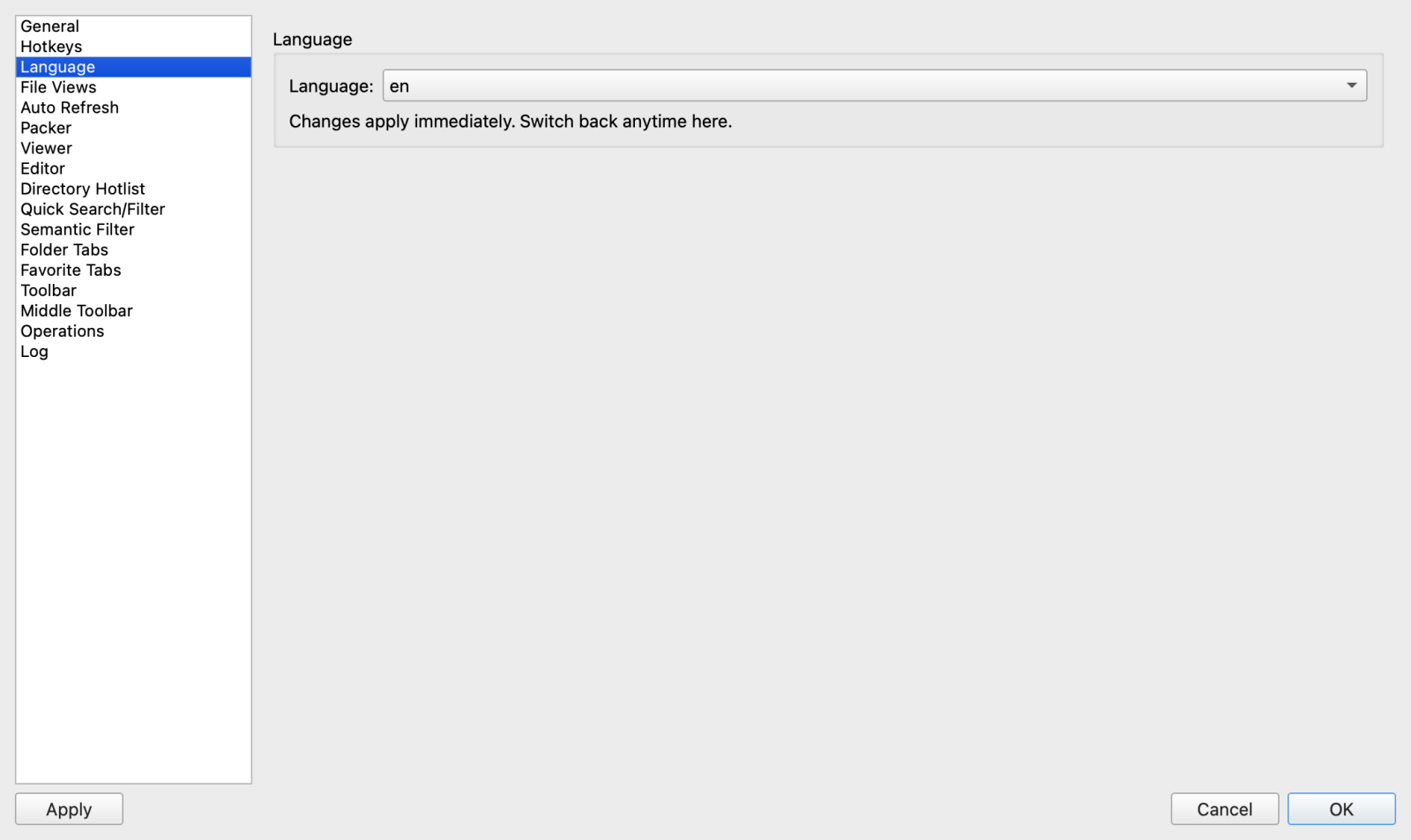
Figure 7.1: The Language Preferences page allowing instant, zero-restart localization across 30+ supported languages.
3. Keyboard Shortcut Customization & Conflict Management
Keyboard efficiency is the core philosophy of dual-panel file management. ATBCmder's Hotkey Editor (page_hotkeys.py) provides full control over shortcut chords while enforcing strict context isolation and collision prevention.
┌────────────────────────────────────────────────────────────────────────────────────────┐
│                              HOTKEY CONFIGURATION PAGE                                 │
├────────────────────────────────────────────────────────────────────────────────────────┤
│  Hotkey Context: [ FilePanel                                                 ▼ ]       │
│  Filter Commands: [ copy                                                     ] ⌧       │
├──────────────────────┬────────────────────────┬───────────────────┬────────────────────┤
│ Command ID           │ Description            │ Primary Shortcut  │ Secondary Shortcut │
├──────────────────────┼────────────────────────┼───────────────────┼────────────────────┤
│ cm_Copy              │ Copy Files or Folders  │ F5                │ Cmd+C              │
│ cm_CopySamePanel     │ Duplicate File in Pane │ Shift+F5          │ Cmd+D              │
│ cm_CopyRightPanel     │ Copy to Right Panel    │ Alt+F5            │                   │
│ cm_CopyFullNamesToClip│ Copy Full Path Names   │ Ctrl+Shift+C      │ Cmd+Opt+C         │
├──────────────────────┴────────────────────────┴───────────────────┴────────────────────┤
│  [ Edit Shortcut... ]           [ Clear Shortcuts ]            [ Reset to Defaults ]   │
└────────────────────────────────────────────────────────────────────────────────────────┘
3.1 Context Isolation & Scoping
To avoid shortcut exhaustion, ATBCmder separates key combinations into Context Scopes. A shortcut defined in one context does not interfere with identical keys in unrelated windows:
- Main: Global application shortcuts available across all windows (e.g.,
Cmd+,for Preferences,Cmd+Qfor Quit). - FilePanel: Active whenever the left or right file list has keyboard focus (e.g.,
F5copies,Spacecalculates directory size,Backspacenavigates to parent). - Viewer: Active inside Universal Lister (
F3): controls text encodings, hex view toggles (2/ Hex Mode), image zoom, and media playback. - Editor: Active inside the built-in text editor (
F4): controls syntax highlighting, indentation, find/replace (Cmd+F), and file saving (Cmd+S). - Differ: Active inside Side-by-Side File Diff: hunk navigation (
F7/F8), line synchronization, and merge operations. - FindFiles: Active in the Multi-Filter Search dialog: triggering new searches, navigating results, and feeding to listbox.
- MultiRename: Active in the Batch Multi-Rename tool: counter manipulation, token insertion, and execution.
3.2 Dual-Binding Architecture (Primary & Secondary Shortcuts)
ATBCmder allows you to assign two distinct shortcut combinations to every single command:
- Primary Shortcut: Your primary muscle memory chord (e.g.,
F5for classic Commander users). - Secondary Shortcut: An alternative chord (e.g.,
Cmd+Cfor macOS native ergonomics).
Both shortcuts remain active simultaneously in the specified context. When navigating menus, ATBCmder automatically displays the primary shortcut next to the menu item text for clear visual reference.
3.3 Step-by-Step Recipe: Customizing a Keyboard Shortcut
Follow this practical walkthrough to rebind an existing command or assign a secondary shortcut:
- Press
Cmd+,(⌘,) to open Preferences, and select Hotkeys in the left sidebar. - Select the appropriate Hotkey Context from the dropdown (for example,
FilePanel). - Type the command name or a keyword into the Filter Commands box (e.g.,
WipeorTerminal). The table filters matching entries in real time. - Double-click the command row, or select the row and click Edit....
- In the Edit Hotkey dialog:
- Click inside the Primary Shortcut box and press your desired key combination (e.g.,
Ctrl+Alt+T). ATBCmder captures the chord cleanly, restricting sequences to a single simultaneous chord. - (Optional) Click inside the Secondary Shortcut box and press an alternative combination (e.g.,
Cmd+Shift+T). - Click Save.
┌────────────────────────────────────────────────────┐
│ Edit Hotkey Dialog                                 │
├────────────────────────────────────────────────────┤
│ Command:             cm_RunTerm - Run Terminal     │
│ Primary Shortcut:    [ Ctrl+J                    ] │
│ Secondary Shortcut:  [ Cmd+Opt+T                 ] │
│                                                    │
│                           [ Cancel ]    [ Save ]   │
└────────────────────────────────────────────────────┘
3.4 Automated Collision Detection & Conflict Warnings
If you attempt to assign a key chord that is already claimed by another command within the same context, ATBCmder's collision detection engine immediately intervenes. An alert dialog displays the conflicting assignment:
Warning
Shortcut Conflict Detected
The shortcut Ctrl+M is already assigned to cm_MultiRename in the FilePanel context.
Do you want to overwrite it and reassign Ctrl+M to cm_MarkCurrentExtension?
- Clicking Yes automatically unbinds
Ctrl+Mfrom the old command and applies it to your newly selected command. - Clicking No cancels the edit, preserving existing bindings without modification.
3.5 Global Show/Hide Window Hotkey (Cmd+Opt+H / Ctrl+Alt+H)
For power users who prefer to keep ATBCmder running unobtrusively in the background:
- Open Preferences ➔ General.
- Check Minimize to system tray.
- Locate Show/Hide Window Hotkey (default:
Ctrl+Alt+H/⌘⌥H). - Click the sequence box to register any custom global hotkey chord.
- Click Apply.
You can now instantly summon ATBCmder to the front or dismiss it to the background from anywhere within macOS, even when working inside other full-screen applications.
4. File Views, Column Modes & Thumbnail Management
The File Views page (page_fileview.py) governs how directories are rendered, measured, sorted, and presented in the dual panels.
┌────────────────────────────────────────────────────────────────────────────────────────┐
│                              FILE VIEWS CONFIGURATION                                  │
├────────────────────────────────────────────────────────────────────────────────────────┤
│  Sorting Rules:                                                                        │
│  [X] Case-sensitive sorting             [X] Natural (numeric) sorting                  │
│  [ ] Special sorting rules                                                             │
│  Folder sort mode:        [ Folders first                                    ▼ ]       │
│  New files position:      [ Sorted                                           ▼ ]       │
│  Updated files position:  [ Top                                              ▼ ]       │
├────────────────────────────────────────────────────────────────────────────────────────┤
│  Column Widths & Auto-Fit Engine:                                                      │
│  Column auto-fit mode:    [ Average mode                                     ▼ ]       │
│  Average mode padding:    [ 1.20x ]  (Range: 1.00x - 5.00x)                            │
│  Hint: In Fixed mode, drag column dividers to save exact pixel widths per side.        │
├────────────────────────────────────────────────────────────────────────────────────────┤
│  Date/Time Formatting:                                                                 │
│  Long datetime format:    [ %Y-%m-%d %H:%M:%S                                ]         │
│  Sync dirs format:        [ %Y.%m.%d %H:%M:%S                                ]         │
└────────────────────────────────────────────────────────────────────────────────────────┘
4.1 Column Auto-Fitting Engine: The Three Modes
Dual-panel file managers often struggle with varying filename lengths: overly wide columns cause horizontal scrolling, while overly narrow columns truncate critical file extensions. ATBCmder solves this with three distinct auto-fitting behaviors:
- Fixed Mode (
fixed): - Disables automatic recalculation.
- Column widths remain exactly where you position them.
- Manual Dragging: When you drag the vertical border between column headers (e.g., between
NameandExt), ATBCmder captures the exact pixel width and persists it separately for each panel side (column_widths_leftandcolumn_widths_rightinatbcmder.xml). - Average Mode (
average— Recommended Default): - Evaluates the mean typographic width (
QFontMetrics) of all filenames visible in the directory. - Multiplies the average width by your configured Padding Factor (slider adjustable from
1.0xto5.0x, default1.0x–1.25x), adding 40 pixels for file type icons and visual breathing room. - Prevents extreme outlier filenames (such as a single 120-character log filename) from pushing all other columns off-screen.
- Maximum Width Mode (
max): - Scans directory entries and expands the column to match the widest single filename plus safety padding (+50 px).
- Guarantees that zero filenames are truncated with ellipsis (
...), ideal for media archives and scientific datasets.
Tip
Large Directory Optimization:
In directories containing tens of thousands of items, measuring every individual string would freeze the interface. ATBCmder automatically applies intelligent step sampling (_MAX_SAMPLE = 200), evaluating an evenly distributed subset of rows to calculate typography metrics in less than 2 milliseconds while ignoring parent directory markers (..).
4.2 File Sorting Options
Fine-tune how items order themselves inside the table views:
- Natural (numeric) sorting: When enabled, numbers within strings are compared mathematically:
file1.txt,file2.txt,file10.txt(instead of alphabeticalfile1.txt,file10.txt,file2.txt). - Case sensitive sorting: When checked, uppercase characters precede lowercase characters according to ASCII/Unicode ordinal values (
File.txtsorts beforeapple.txt). When unchecked, sorting is case-insensitive. - Folder sort mode:
Folders first: Directories are grouped together at the top of the panel above all files.Files first: Files are listed first, with directories placed at the bottom.Mixed: Files and folders are sorted together alphabetically in a unified sequence.- New & Updated Files Position: Control where newly created or recently modified files appear during live filesystem updates (
Sorted,Top, orBottom).
4.3 Thumbnail Grid View & Cache Mechanics
For photographers, designers, and video editors, ATBCmder provides an integrated Thumbnail Grid View (cm_ThumbnailsView), replacing tabular rows with visual image previews.
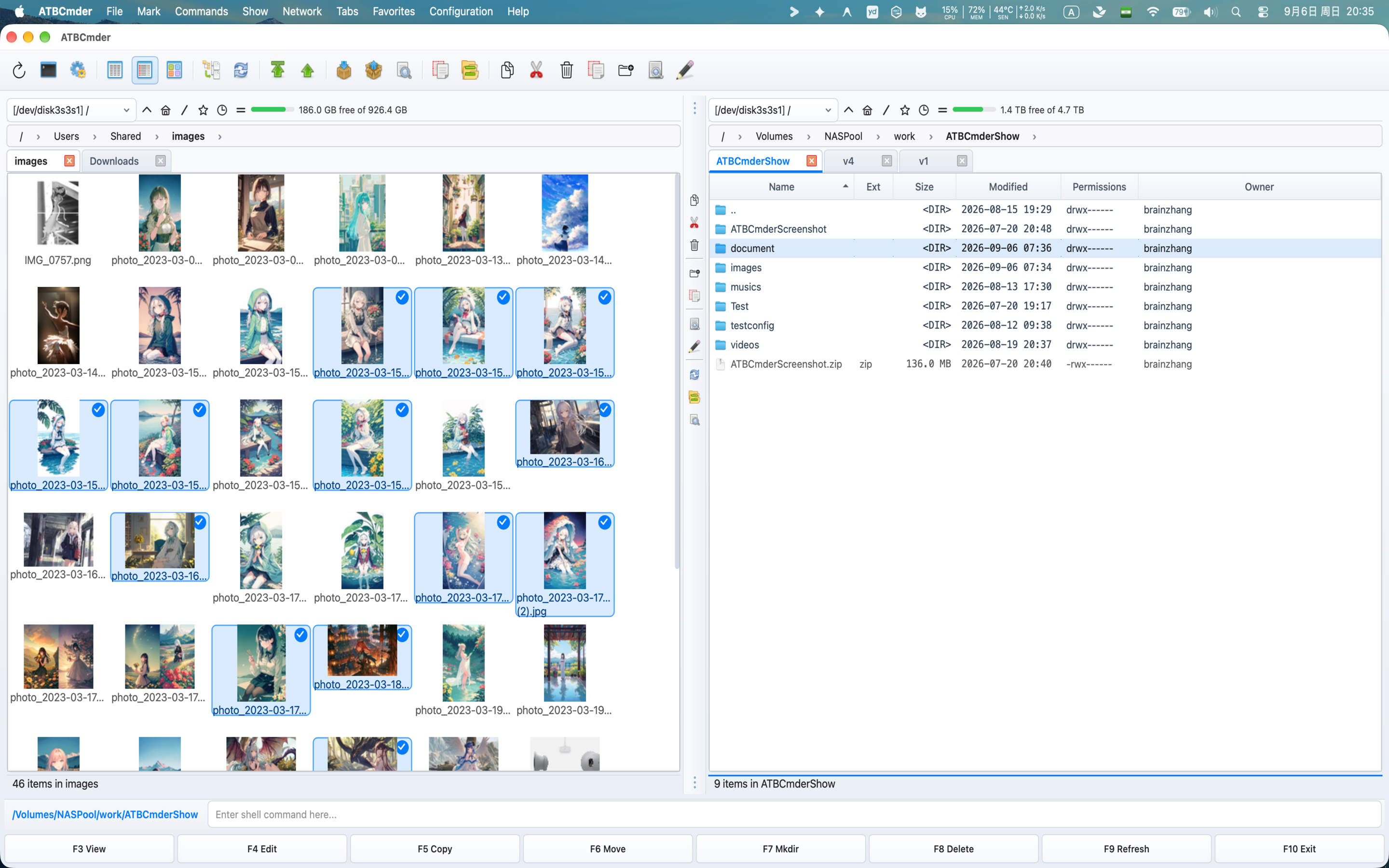
Figure 7.2: High-performance thumbnail view displaying image previews with custom grid spacing.
Sizing & Dynamic Zooming
- Default Thumbnail Size: Configurable from 48 px up to 512 px (default: 128 px).
- Interactive Pinch-to-Zoom: On Apple trackpads, use standard two-finger pinch gestures or hold
Ctrlwhile scrolling the mouse wheel to scale thumbnails dynamically in real time.
Multi-Tier Caching Architecture
Generating thumbnails for high-resolution 48-megapixel RAW photos or complex vector SVGs is CPU-intensive. ATBCmder employs a robust two-tier caching architecture:
- In-Memory LRU Cache: Retains 500 decompressed
QPixmapobjects in RAM for instant, silky-smooth 60fps scrolling. - Persistent Disk Cache: Stored locally in your user cache directory:
- macOS / Linux path:
~/.cache/atbcmder/thumbnails/ - Cache keys are generated via cryptographic SHA-256 hashes combining file path, file modification timestamp (
mtime), requested pixel size, and cache schema version: $\(\text{Cache Key} = \text{SHA256}(\text{filepath} + \text{mtime} + \text{size} + \text{version})\)$ - If an image file is edited or updated on disk, its timestamp changes, immediately invalidating stale cache entries and triggering automated background re-rendering.
- Background Worker Threads: Image processing is offloaded to a dedicated
QThreadworker pool utilizing Pillow (PIL) or hardware-acceleratedQImagepipelines, guaranteeing that the dual-panel interface never stutters during heavy batch imports.
4.4 Custom Date & Time Formatting
ATBCmder allows you to define custom timestamp formatting strings using standard Python strftime syntax:
- Long datetime format (default:
%Y-%m-%d %H:%M:%S): Controls the date display in full column view (2026-09-06 14:30:00). - Sync dirs format (default:
%Y.%m.%d %H:%M:%S): Controls timestamp presentation in the Directory Synchronizer dialog.
| Token | Description | Example Output |
|---|---|---|
%Y |
4-digit Year | 2026 |
%m |
2-digit Month (01–12) |
09 |
%d |
2-digit Day of Month (01–31) |
06 |
%H |
2-digit Hour in 24-hour format (00–23) |
14 |
%I |
2-digit Hour in 12-hour format (01–12) |
02 |
%p |
AM / PM designation | PM |
%M |
2-digit Minute (00–59) |
30 |
%S |
2-digit Second (00–59) |
15 |
5. Filesystem Auto-Refresh & Monitoring Sensitivity
When collaborating on shared codebases, downloading browser assets, or running background compilation tasks, directory contents change constantly. The Auto Refresh page (page_auto_refresh.py) balances real-time UI accuracy against CPU and battery consumption.
┌────────────────────────────────────────────────────────────────────────────────────────┐
│                              AUTO-REFRESH CONFIGURATION                                │
├────────────────────────────────────────────────────────────────────────────────────────┤
│  [X] Refresh file list:                                                                │
│      [X] When files are created, deleted or renamed                                    │
│      [X] When size, date or attributes change                                          │
│      Polling interval (seconds): [ 5 ]                                                 │
├────────────────────────────────────────────────────────────────────────────────────────┤
│  Disable auto-refresh:                                                                 │
│      [X] When application is in the background                                         │
│      [X] For the following paths and their subdirectories:                             │
│          ┌──────────────────────────────────────────────────────────────────────────┐  │
│          │ /Volumes/NetworkShare/LargeMediaArchive                                  │  │
│          │ /Users/username/Developer/linux-kernel/                                  │  │
│          │ /Users/username/work/heavy_project/node_modules/                         │  │
│          └──────────────────────────────────────────────────────────────────────────┘  │
└────────────────────────────────────────────────────────────────────────────────────────┘
5.1 Event Triggers vs. Polling Fallback
ATBCmder combines native operating system event monitoring with an intelligent polling fallback:
- Event Monitoring (
watch_file_name_change): Leverages native OS kernel notifications (macOSFSEvents/kqueue) to detect file creations, deletions, and renames with zero CPU overhead. - Attribute Monitoring (
watch_attributes_change): Tracks file size expansions, timestamp updates, and permission mode adjustments. - Polling Fallback Interval (
attr_poll_interval): Configurable from 1 to 60 seconds (default: 5 seconds).
Why is polling necessary? Remote network storage mounts (SMB, CIFS, NFS, SFTP VFS) frequently fail to emit native OS filesystem events when remote clients make changes. The background polling timer ensures your remote panel listings never fall out of date.
5.2 Battery & CPU Conservation: Disable When Backgrounded
On macOS laptops running on battery power, active filesystem watchers can consume unnecessary power.
- Checking When application is in the background (
watch_only_foreground) automatically suspends all active polling timers and event watchers the moment ATBCmder loses window focus. - When you switch back to ATBCmder, the panels immediately execute a single coordinated refresh, bringing all directory listings up to date instantaneously.
5.3 Path Exclusion Filters
High-churn directories—such as node_modules, Git metadata repositories (.git), compilation artifact caches (target/, build/), and local database files—generate thousands of disk events per minute.
- Check For the following paths and their subdirectories (
watch_exclude_dirs). -
Enter one absolute directory path per line in the exclusion text area:
-
Click Apply. ATBCmder ignores filesystem events occurring inside these path trees, eliminating unwanted UI refreshes and CPU spikes.
6. Custom File Associations & External Tool Integration
Double-clicking a file or pressing Enter normally opens it using the default system application. ATBCmder's File Associations System (cm_FileAssoc / file_associations.py) allows you to define custom actions for specific file patterns, mapping them to internal commands or external terminal/GUI applications.
6.1 Architecture & Pattern Specificity
File associations are evaluated in order of pattern specificity: the longest, most specific glob pattern is matched first:
Each association can contain multiple actions (e.g., "Open in VS Code", "View Hex", "Run in Python"), with one designated as the primary default action triggered on Enter.
6.2 Token Macro Substitutions for External Commands
When launching external tools or command-line scripts, ATBCmder automatically replaces token macros with the active file's metadata:
| Macro Token | Meaning | Example Value |
|---|---|---|
%f |
Full absolute path of the selected file | /Users/username/Documents/report.pdf |
%d |
Directory path containing the file | /Users/username/Documents |
%n |
Base filename without extension | report |
%e |
File extension without leading dot | pdf |
6.3 Practical Association Recipes
Recipe 1: Open Python Scripts in Visual Studio Code
- Pattern:
*.py - Label:
Edit in VS Code - Command:
code %f - Action Type: External Shell Command
Recipe 2: Run Python Script in Terminal
- Pattern:
*.py - Label:
Execute Script - Command:
python3 %f - Action Type: External Shell Command
Recipe 3: View Markdown in Dedicated Previewer
- Pattern:
*.md - Label:
Preview in Typora - Command:
open -a Typora %f - Action Type: External Shell Command
Recipe 4: Compare File with Opposite Panel in Beyond Compare
- Pattern:
* - Label:
Compare with Target - Command:
bcomp %f %d - Action Type: External Shell Command
7. Toolbar & Middle Toolbar Customization
ATBCmder provides two customizable toolbars: the Main Toolbar situated beneath the menu bar, and the Middle Toolbar embedded vertically within the splitter separating the two file panels.
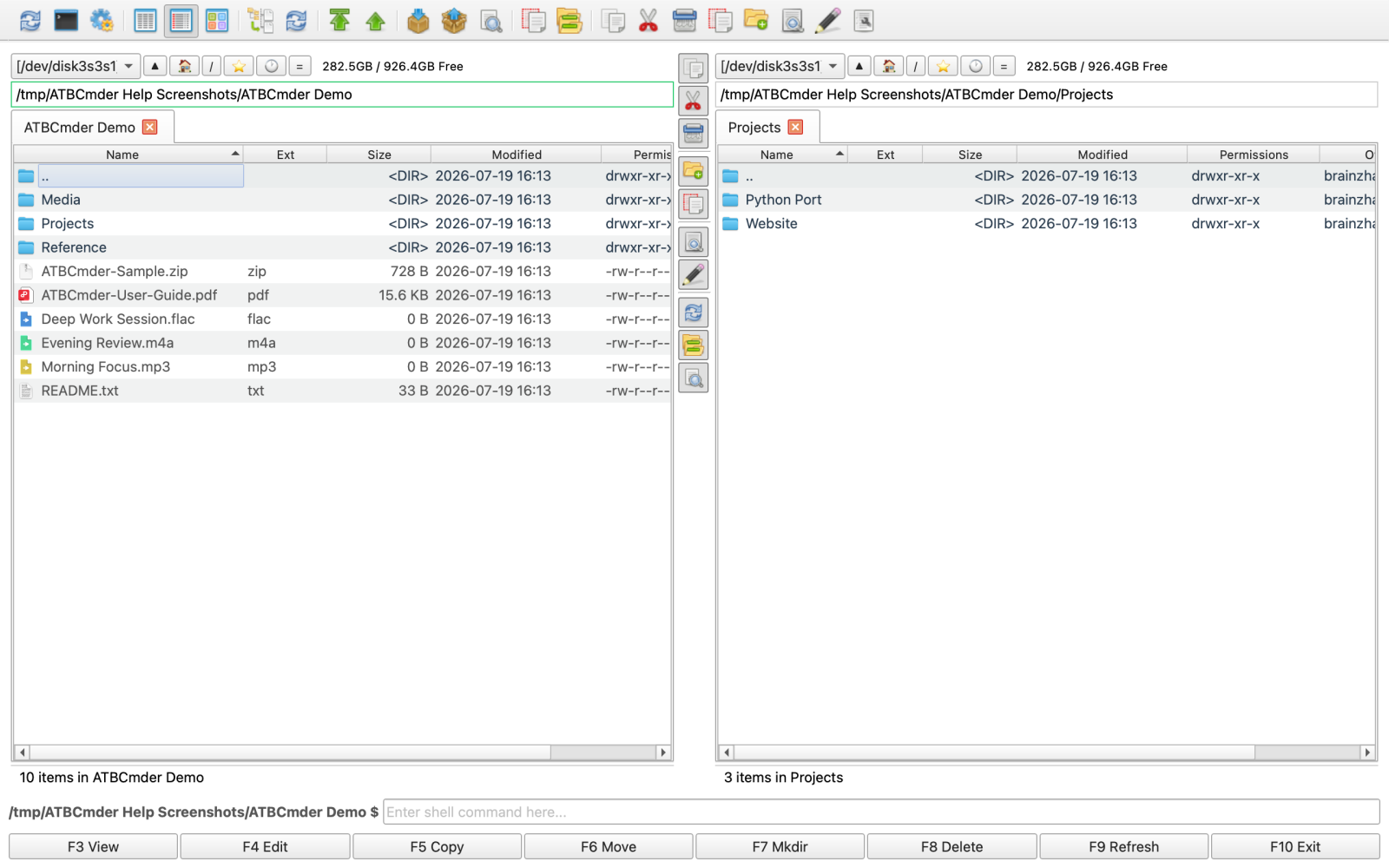
Figure 7.3: The Middle Toolbar options page configuring splitter buttons and quick action triggers.
7.1 Customizing Toolbar Appearance
Open Preferences ➔ Toolbar or Preferences ➔ Middle Toolbar:
- Bar Size Slider: Adjusts toolbar height/width from 16 px to 64 px.
- Icon Size Slider: Scales button icons from 16 px to 64 px (default: 24 px).
- Flat Buttons: Toggles modern flat borderless buttons vs. classic raised buttons.
- Show Captions: Displays text labels beneath or beside toolbar icons.
7.2 Adding Items & The Built-in Icon Picker
Toolbar items are organized in a hierarchical tree supporting three element types:
- Separator: Inserts a visual divider line or spacer between button groups.
- Internal Command: Select any of ATBCmder's 230+
cm_*commands using the auto-completing command field. - External Command: Specify an external shell command, working directory, and parameter tokens (
%f,%d).
The Built-in Icon Picker (IconPickerDialog)
When configuring custom buttons, click the icon preview button to open the integrated Icon Picker:
- Features an instant search filter across hundreds of bundled SVG and PNG icons.
- Displays icons in a uniform grid with high-resolution preview and asset stem names.
┌────────────────────────────────────────────────────────────────────────┐
│ Icon Picker Dialog                                                     │
├────────────────────────────────────────────────────────────────────────┤
│ Search: [ terminal                                                   ] │
├──────────────────────────────────────────────────────┬─────────────────┤
│  ┌────┐   ┌────┐   ┌────┐   ┌────┐   ┌────┐   ┌────┐ │ PREVIEW:        │
│  │ 💻 │   │ 🖥️ │   │ ⌨️ │   │ ⚙️ │   │ 📁 │   │ 🔍 │ │                  │
│  └────┘   └────┘   └────┘   └────┘   └────┘   └────┘ │      💻         │
│  cm_RunTerm  console  terminal  bash   sh      zsh   │                 │
│  ┌────┐   ┌────┐   ┌────┐   ┌────┐   ┌────┐   ┌────┐ │ Name: cm_RunTerm│
│  │ 📄 │   │ ✏️ │   │ ✂️ │   │ 📋 │   │ 🗑️ │   │ 🔒 │ │ Size: 48x48     │
│  └────┘   └────┘   └────┘   └────┘   └────┘   └────┘ │ Format: SVG/PNG │
├──────────────────────────────────────────────────────┴─────────────────┤
│                                                [ Cancel ]  [ Select ]  │
└────────────────────────────────────────────────────────────────────────┘
7.3 Directory Hotlist & Favorite Tabs Customization
- Directory Hotlist (
page_hotlist.py): Manage yourCtrl+Dbookmarks. Add current paths, reorder bookmarks using drag-and-drop, configure target panel synchronization, and assign access keys. - Favorite Tabs (
page_favorite_tabs.py): Save complete dual-panel multi-tab workspace layouts. Restore your exact development or photo editing directory sets in one click.
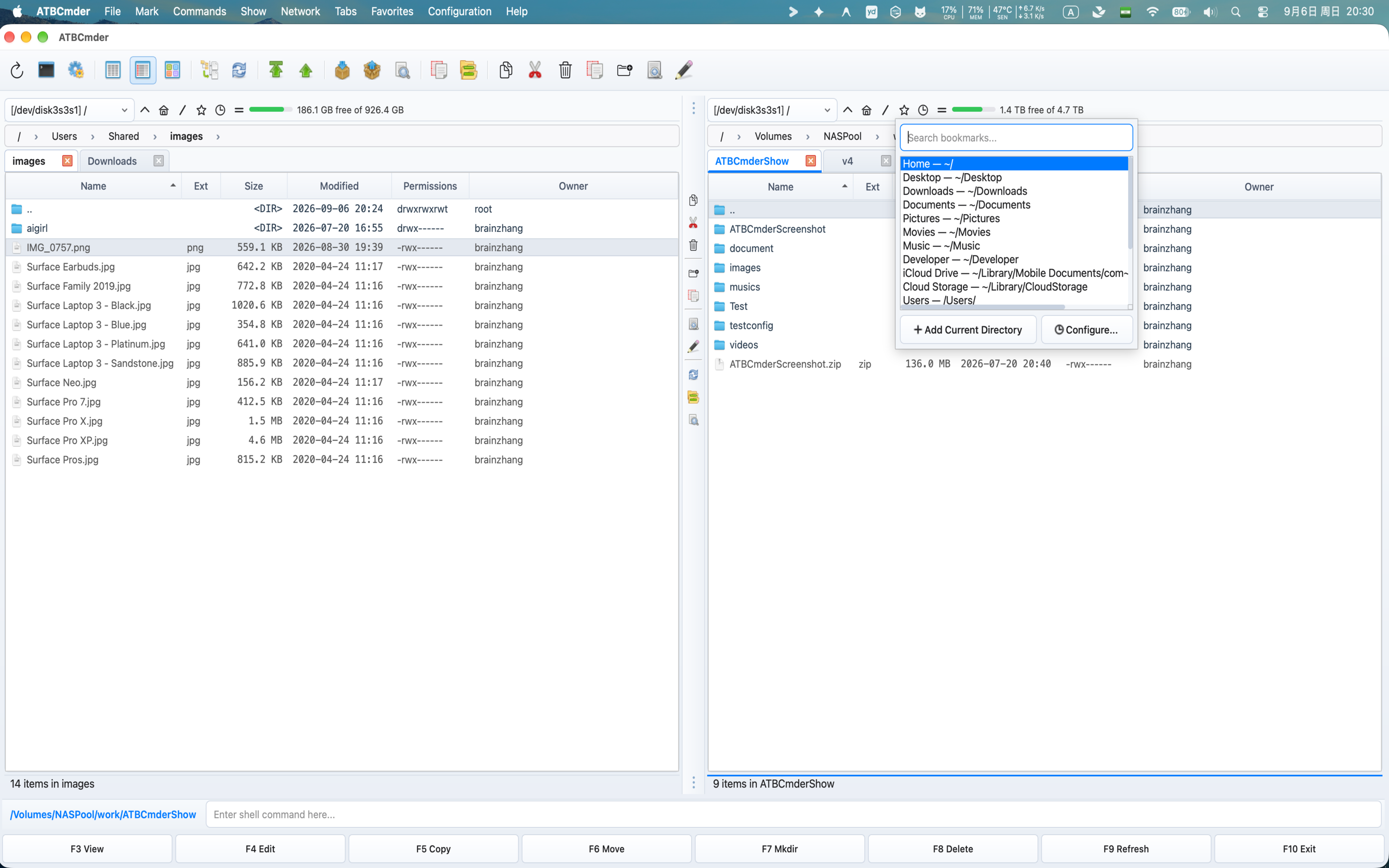
Figure 7.4: Managing directory hotlist bookmarks and paths.
8. Configuration Portability & Isolated Test Mode
Whether migrating to a new Mac, provisioning a fleet of development machines, or sharing customized keybindings with colleagues, ATBCmder makes configuration backup and deployment trivial.
8.1 Configuration Storage Architecture
ATBCmder stores all user settings in cleanly structured, human-readable XML files located in your standard operating system configuration directory:
- macOS Standard Path:
~/Library/Preferences/atbcmder/ - macOS App Sandbox Path:
~/Library/Containers/com.aitobox.atbcmder/Data/Library/Preferences/atbcmder/ - Linux / UNIX Path:
~/.config/atbcmder/ - Direct Access Command:
Executecm_OpenConfigDirectory(or choose Configuration ➔ Open Configuration Directory from the menu) to instantly navigate the active panel directly to this folder.
~/Library/Preferences/atbcmder/
├── atbcmder.xml          # Core application configuration, geometry, themes, view rules
├── atbcmder_hotkeys.xml  # User keyboard shortcut overrides and custom bindings
├── favtabs.xml           # Saved favorite folder tab layouts and paths
├── hotlist.xml           # Directory Hotlist (Ctrl+D) bookmarks hierarchy
└── history.xml           # Recent directory jumps, command line history, search history
8.2 Exporting Configuration Bundles (cm_ExportConfiguration)
To create an all-in-one portable backup of your ATBCmder environment:
- Choose Configuration ➔ Export Configuration... from the menu bar (or execute
cm_ExportConfiguration). - Select your destination directory and choose a filename (default:
atbcmder-config.zip). - Click Save.
ATBCmder flushes all pending memory changes to disk, gathers all configuration XML files (atbcmder.xml, atbcmder_hotkeys.xml, favtabs.xml, hotlist.xml), and packages them into an atomic, compressed ZIP archive.
8.3 Importing Configuration Bundles (cm_ImportConfiguration)
To restore a configuration backup onto a new machine or revert to a known good state:
- Choose Configuration ➔ Import Configuration... from the menu bar (or execute
cm_ImportConfiguration). - Select your previously exported
atbcmder-config.ziparchive. - Confirm the warning prompt:
Importing will replace all current settings with the contents of the selected file. Continue?
- Click Yes.
ATBCmder securely unpacks the archive, verifies that all extracted files are valid XML configurations, replaces active disk files, reloads the internal Config() singleton, and refreshes both file panels and column layouts immediately—all without requiring an application restart.
Important
Enterprise Security: Anti-Traversal Protection
ATBCmder enforces strict path traversal validation during configuration import (zipfile sanitization). Any archive member containing path separators (/, \), directory traversals (..), or non-XML file extensions is rejected immediately, protecting your operating system from malicious archive tampering.
8.4 Isolated Test Mode (ATBCmder_test.sh)
When developing custom plugins, experimenting with aggressive hotkey rebindings, or testing beta configurations, you should avoid modifying your daily driver configuration.
ATBCmder supports full configuration redirection via the ATBCMDER_CONFIG_PATH environment variable. A dedicated testing script is included in the project repository:
How Isolated Test Mode Operates:
- Provisions a clean, temporary test directory at
tests/.test_config/. - Copies factory baseline settings from
src/atbcmder/resources/test_config.xmltotests/.test_config/atbcmder.xml. - Sets
export ATBCMDER_CONFIG_PATH="$(pwd)/tests/.test_config". - Spawns ATBCmder in Python. Any setting modified or deleted during the session affects only the temporary test directory, leaving your personal
~/Library/Preferences/atbcmder/files 100% untouched.
9. ⚡ Pro Tips & Deep Dive: Advanced Customization
Pro Tip 1: Automated Dotfile Provisioning via Chezmoi / Ansible
Because ATBCmder serializes all state into standard UTF-8 XML files, you can check your configuration into a Git dotfiles repository and manage it via tools like Chezmoi, GNU Stow, or Ansible:
# Example: Adding ATBCmder configuration to Chezmoi dotfiles manager
chezmoi add ~/Library/Preferences/atbcmder/atbcmder.xml
chezmoi add ~/Library/Preferences/atbcmder/atbcmder_hotkeys.xml
Pro Tip 2: High-Performance Network Watcher Tuning
When working across enterprise SMB/NFS file servers containing millions of files, active recursive event monitoring can cause network congestion.
- Open Preferences ➔ Auto Refresh.
- Uncheck When size, date or attributes change.
- Set Polling interval to
15or30seconds. - Add the network mount root (
/Volumes/EnterpriseShare) to the Path Exclusion List. - Use manual panel refresh (
Ctrl+R/⌘R) when immediate synchronization is required.
Pro Tip 3: External Command Environment Variables
When configuring custom external toolbar buttons or file associations, ATBCmder automatically inherits your user shell environment (PATH, HOME, USER). You can invoke command-line utilities installed via Homebrew (/opt/homebrew/bin/) directly without providing full absolute executable paths.
Pro Tip 4: Floating File Tooltips Configuration
ATBCmder includes rich floating metadata tooltips that display file dimensions, EXIF data, audio bitrate, and archive member counts when hovering over items. You can toggle tooltips on or off in Preferences ➔ File Views.
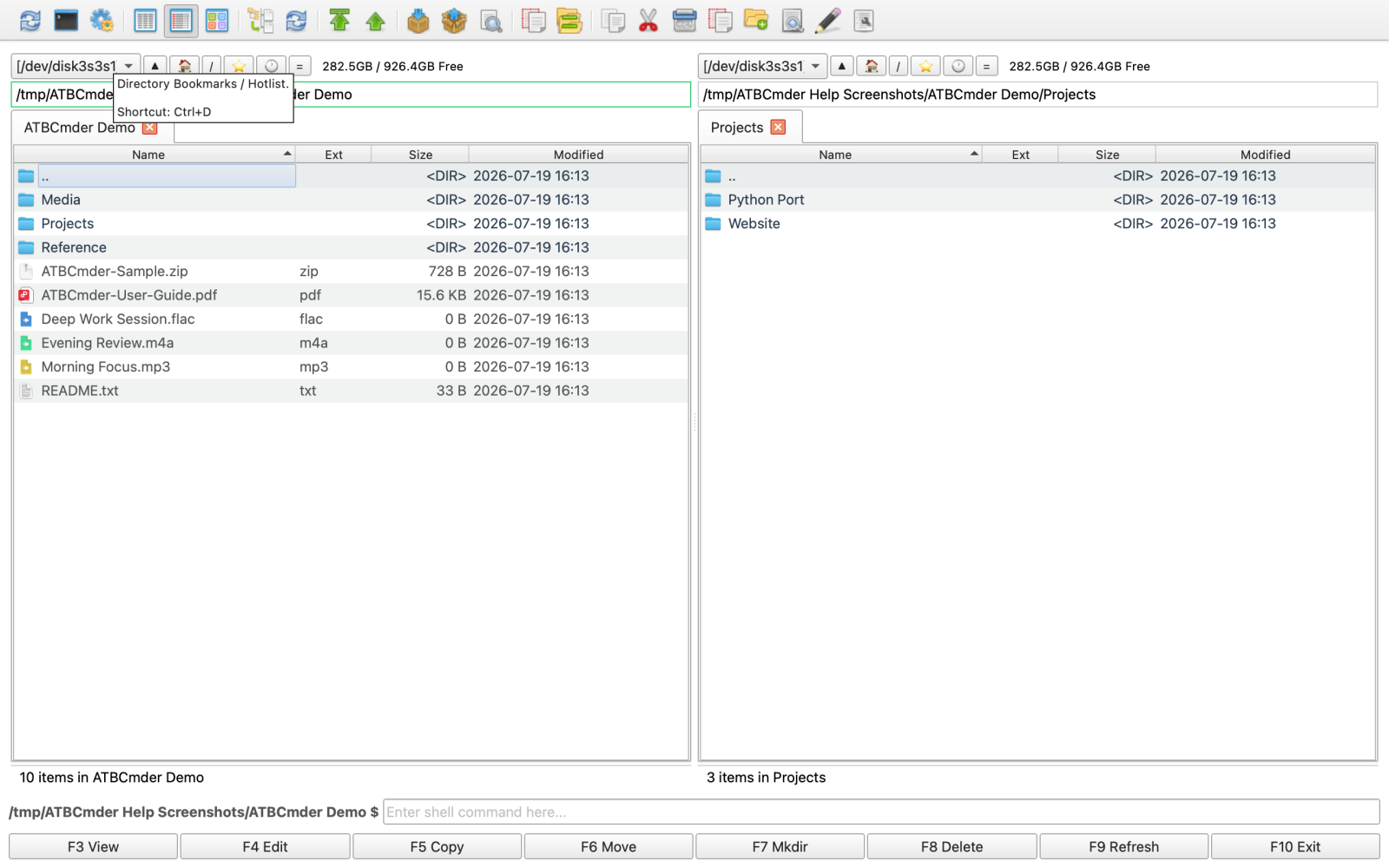
Figure 7.5: Rich metadata tooltips displaying detailed file properties on mouse hover.
10. Safety & System Alerts
Caution
Shortcut Overwrite Verification
Overwriting a primary shortcut in the Main or FilePanel context unbinds it from the original command immediately. If you accidentally unbind essential commands like F5 (Copy) or Enter (Open), use the Reset to Defaults button in the Hotkey Editor to restore factory keybindings.
Warning
Configuration Import Replaces All Settings
Restoring a configuration bundle via cm_ImportConfiguration completely overwrites your current atbcmder.xml, favtabs.xml, and hotlist.xml files. Always export a backup of your existing configuration before importing an external archive.
Important
macOS App Sandbox & Full Disk Access
If ATBCmder is running under the macOS App Sandbox, it cannot read configuration files or directories outside its container without explicit user permission. If you encounter permission errors accessing external drives, run cm_GrantFilesystemAccess to complete the macOS Full Disk Access onboarding flow.
11. Master Dual-Matrix Customization & Preferences Command Reference
| Category | Action Description | macOS Shortcut | Classic Commander Key | Command ID |
|---|---|---|---|---|
| Preferences | Open Main Preferences Dialog | Cmd+, / ⌘, |
Alt+O / ⌥O |
cm_Options |
| Preferences | Save Settings to XML Now | Menu: Configuration | — | cm_ConfigSaveSettings |
| Preferences | Save Window Position & Size | Menu: Configuration | — | cm_ConfigSavePos |
| Preferences | Toggle File Tooltips | Preferences ➔ File Views | — | (Preferences) |
| Preferences | Grant Full Disk Permissions | Menu: Configuration | — | cm_GrantFilesystemAccess |
| Hotkeys | Open Hotkey Editor Page | Cmd+, ➔ Hotkeys |
— | cm_Options |
| Hotkeys | Global Show/Hide Window Hotkey | Ctrl+Alt+H / ⌘⌥H |
Ctrl+Alt+H |
(Global System Hotkey) |
| Associations | Open File Associations Manager | Menu: Configuration | — | cm_FileAssoc |
| Bookmarks | Directory Hotlist Manager | Ctrl+Shift+D / ⌃⇧D |
Ctrl+Shift+D |
cm_ConfigDirHotList |
| Bookmarks | Add Current Directory to Hotlist | Menu: Bookmarks | — | cm_AddDirToHotlist |
| Folder Tabs | Favorite Folder Tabs Manager | Menu: Configuration | — | cm_ConfigFavoriteTabs |
| Folder Tabs | Save Current Tabs as Favorite Set | Menu: Tabs | — | cm_SaveFavoriteTabs |
| Archivers | Configure Archiver Binaries | Menu: Configuration | — | cm_ConfigArchivers |
| Portability | Export Configuration to ZIP | Menu: Configuration | — | cm_ExportConfiguration |
| Portability | Import Configuration from ZIP | Menu: Configuration | — | cm_ImportConfiguration |
| Portability | Open Configuration Folder | Menu: Configuration | — | cm_OpenConfigDirectory |
| View Modes | Toggle Thumbnail Grid View | Ctrl+Shift+F1 / ⌃⇧F1 |
Ctrl+Shift+F1 |
cm_ThumbnailsView |
| View Modes | Refresh Active Panel Listing | Ctrl+R / ⌃R |
Ctrl+R |
cm_Refresh |
Ready to master all keyboard shortcuts and command matrixes across the entire application?