Chapter 3: Daily File Operations & Background Queue
Every day, file managers are judged by one metric: how quickly, accurately, and safely you can manipulate data. In ATBCmder, you never have to juggle multiple overlapping windows, endure accidental drop errors, or wait idly while large file transfers freeze your screen.
This chapter covers the complete spectrum of file operations: directional copy and move workflows, in-place inline renaming, power-marking with wildcards, system drag-and-drop interoperability, granular collision handling, UNIX permissions and symlinks, and the multi-threaded Background Operations Queue.
1. Visual Quickstart: The Directional Operation Model
Orthodox file managers use a Source ➔ Target directional model. When you initiate a file transfer or link creation, ATBCmder takes items selected in the Active Panel (Source) and executes the operation directly into the directory open in the Inactive Panel (Target).
┌────────────────────────────────────────────────────────────────────────────────────────┐
│  ACTIVE PANEL (Source)                              INACTIVE PANEL (Target)            │
│  /Users/brain/Downloads                             /Volumes/ExternalSSD/Projects      │
├──────────────────────────────────────────────┬───┬─────────────────────────────────────┤
│  Name                         Size   Date    │   │  Name                        Size   │
│  ▸ [..]                              --:--   │   │  ▸ [..]                             │
│  ✔ database_dump.sql        1.8 GB   14:10   │ C │  ▸ client_portal            <DIR>   │
│  ✔ schema_migration.sql      42 KB   14:12   │ O │  ▸ microservices            <DIR>   │
│  ● notes.txt                  4 KB   09:30   │ P │  ● .env.production          2.1 KB  │
│                                              │ Y │                                     │
│  [2 files selected: 1.8 GB]                  │ ➔ │  [Destination ready for ingest]     │
├──────────────────────────────────────────────┴───┴─────────────────────────────────────┤
│                         ▼ Press F5 (Copy) or F6 (Move) ▼                               │
│  ┌──────────────────────────────────────────────────────────────────────────────────┐  │
│  │ Copy file(s)                                                                     │  │
│  │ Copy selected 2 files?                                                           │  │
│  │ To: [/Volumes/ExternalSSD/Projects                                          ] […]│  │
│  │ [Options ▼]        [Add To Queue #1 ▾]       [Cancel]               [Start (⏎)]  │  │
│  └──────────────────────────────────────────────────────────────────────────────────┘  │
└────────────────────────────────────────────────────────────────────────────────────────┘
Dual-Matrix Core Operations Cheat Sheet
| Action | macOS Shortcut | Classic Commander Key | Command ID | Description |
|---|---|---|---|---|
| Copy to Target | F5 / Fn+F5 |
F5 |
cm_Copy |
Copies selected items to the opposite panel. |
| Copy in Same Panel | Shift+F5 / ⇧F5 |
Shift+F5 |
cm_CopySamePanel |
Duplicates items in the active panel with rename prompt. |
| Move to Target | F6 / Fn+F6 |
F6 |
cm_Move |
Moves selected items to the opposite panel. |
| New Folder (MkDir) | F7 / Fn+F7 |
F7 |
cm_MkDir |
Creates a new directory in the active panel. |
| Delete to Trash | F8 / ⌘⌫ |
F8 / Delete |
cm_Delete |
Moves selected items to macOS Trash. |
| Permanent Delete | Shift+Delete / ⇧⌦ |
Shift+F8 |
cm_Delete |
Bypasses Trash and permanently unlinks files. |
| Inline Quick Rename | F2 / Shift+F6 |
Shift+F6 |
cm_RenameOnly |
Renames active item directly inside the table row. |
| File Properties | Alt+Enter / ⌥⏎ |
Alt+Enter |
cm_SetFileProperties |
Opens UNIX permissions, timestamps, and metadata dialog. |
| Calculate Folder Space | Alt+Shift+Enter / ⌥⇧⏎ |
Alt+Shift+Enter |
cm_CountDirContent |
Calculates recursive bytes for directories (Ctrl+L / cm_CalculateSpace for selected total). |
| Background Queue | Toolbar ⚡ |
— | cm_OperationsPanel |
Opens the 3-queue background transfer monitor. |
Visual Landmark: The Middle Toolbar
ATBCmder features a dedicated vertical quick-action toolbar embedded directly on the central divider separating the two panels:
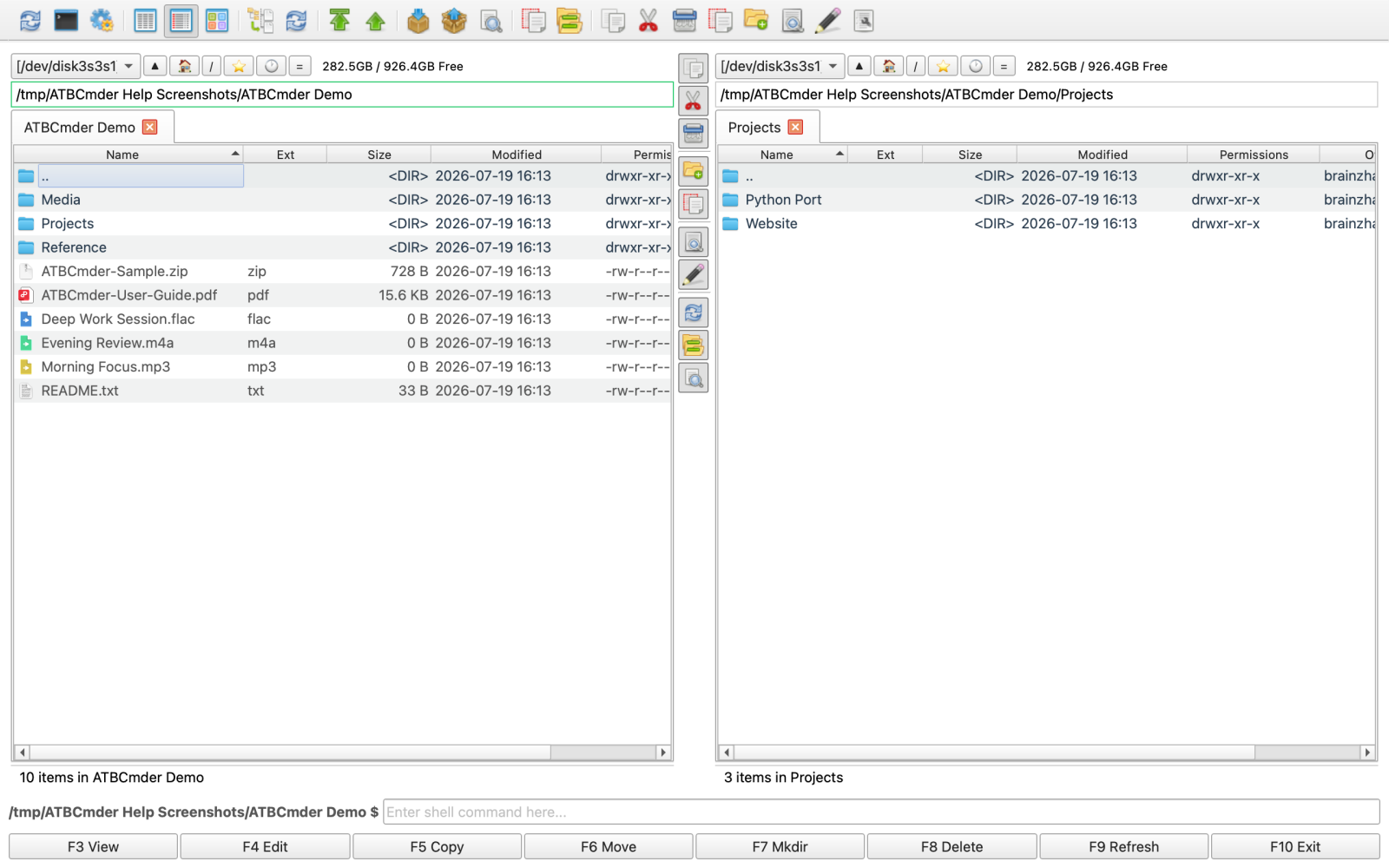
The central Middle Toolbar provides instant mouse access to View (F3), Edit (F4), Copy (F5), Move (F6), New Folder (F7), Delete (F8), and Panel Swap.
2. Core Operations: Copy, Move, MkDir, and Delete
Daily file management revolves around four primary actions: copying, moving, creating directories, and deleting unwanted files.
2.1 Copying Files (F5 / cm_Copy)
To copy files or directories:
- Select one or more items in the active panel using the keyboard or mouse.
- Press
F5(orFn+F5on Apple keyboards, or click Copy on the Middle Toolbar). - The Copy Dialog appears:
- Destination Line: Automatically populated with the opposite panel's current directory path. You can edit this path manually, append a new subfolder name to copy and create simultaneously, or click
...to browse. - Start (
Enter): Begins immediate foreground copying with a real-time progress dialog. - Add To Queue (
F2): Queues the transfer to run in the background (see Section 7.4). - Options: Expands advanced conflict rules, attribute preservation, and checksum verifications.
┌────────────────────────────────────────────────────────┐
│ Copy file(s)                                           │
│ Copy selected 3 files?                                 │
│ To: [/Volumes/Backup/Assets                          ] │
│ [Options ▼]   [Add To Queue #1 ▾]   [Cancel]   [Start] │
└────────────────────────────────────────────────────────┘
In-Panel Duplication (Shift+F5 / cm_CopySamePanel)
To quickly clone a file within the current directory (for example, creating a backup before editing nginx.conf):
- Highlight the item and press
Shift+F5(or⇧F5). - ATBCmder prompts with a destination path in the same directory, allowing you to enter a new name (e.g.,
nginx.conf.bak).
Standard macOS Clipboard (Cmd+C ➔ Cmd+V)
ATBCmder fully integrates with macOS system clipboard shortcuts:
Cmd+C(⌘C): Copies selected file paths to the clipboard (cm_CopyToClipboard).Cmd+V(⌘V): Pastes files from clipboard into the active panel (cm_PasteFromClipboard).Cmd+Option+V(⌥⌘V): Moves clipboard files into the active panel (cm_PasteAsMove).
2.2 Moving Files (F6 / cm_Move)
Moving transfers files out of the source directory and into the target directory:
- Select items and press
F6(orFn+F6/ click Move on the Middle Toolbar). - The Move Dialog opens, displaying the target panel path.
- Press
Enterto execute: - Same-Filesystem Move: Instantaneous and atomic on APFS/HFS+ volumes by updating filesystem catalog references without moving raw disk blocks.
- Cross-Filesystem Move: Streams data across volumes to the destination, verifies byte completion, and safely removes the source upon verified arrival.
- If an existing file with the same name resides at the destination, ATBCmder pauses and summons the Overwrite Dialog (see Section 6).
2.3 Creating New Directories (F7 / cm_MkDir)
Need to create a folder structure on the fly?
- Press
F7(orFn+F7/Shift+Cmd+N/cm_MkDir). - A lightweight prompt appears:
Enter folder name:. - Type the folder name and press
Enter.
┌──────────────────────────────────────────────┐
│ Create Directory                             │
│ Enter folder name:                           │
│ [2026-09-Q3_Reports                        ] │
│                      [Cancel]      [OK (⏎)]  │
└──────────────────────────────────────────────┘
Subdirectory Chaining
You can create nested folder hierarchies in a single step. Typing deep/nested/project/assets creates all four hierarchy levels instantly (equivalent to mkdir -p).
Auto-Focus Placement
Upon creation, ATBCmder automatically places the panel cursor directly onto the new folder, ready for immediate entry (Enter) or file transfer.
2.4 Deleting Files: macOS Trash vs. Permanent Purge
Safety and recoverability are paramount. ATBCmder supports dual deletion workflows:
                  ┌────────────────────────────────────────┐
                  │          File Deletion Trigger         │
                  └───────────────────┬────────────────────┘
                                      │
                 ┌────────────────────┴───────────────────┐
                 ▼                                        ▼
    [ F8 / Delete / Cmd+Backspace ]             [ Shift+Delete / Shift+F8 ]
                 │                                        │
                 ▼                                        ▼
    macOS System Trash (.Trash)                  Permanent Unlink
      • Fully recoverable                         • Bypasses Trash
      • Put Back support in Finder                • Zero disk footprint
      • Volume .Trashes directory                 • Unrecoverable without deep carve
Deletion to macOS Trash (F8 / Delete / Cmd+Backspace)
- Selected files are routed through macOS
send2trashAPIs into your system Trash. - Files can be inspected or restored at any time via macOS Finder ("Put Back").
- Confirmation dialogs can be enabled or suppressed in Preferences (
operations.confirm_delete).
Permanent Immediate Deletion (Shift+Delete / Shift+F8)
- Bypasses the Trash entirely, immediately unlinking files and freeing storage space.
- Ideal for clearing multi-gigabyte virtual machines or disk images where Trash buffer limits or disk exhaustion would prevent staging.
Volumes Without Trash Support (trash_unavailable Detection)
When deleting from certain network shares (SMB, NFS), virtual filesystems (vfs://), or external drives formatted with legacy FAT/exFAT filesystems lacking a .Trashes directory, macOS cannot send items to Trash.
In such cases, ATBCmder triggers an intelligent safety alert:
┌────────────────────────────────────────────────────────┐
│ Trash Unavailable                                      │
│ The volume containing '/Volumes/NAS/backup.iso' does   │
│ not support Trash.                                     │
│ Would you like to permanently delete this file?        │
│                                                        │
│ [✔] Apply to all remaining items                       │
│              [Skip]               [Delete Permanently] │
└────────────────────────────────────────────────────────┘
Secure Multi-Pass Shredding (Alt+Delete / cm_Wipe)
For sensitive documents, credentials, or private keys that must not remain recoverable via raw flash recovery tools:
- Highlight the item and select Menu File → Wipe (
Alt+Delete/cm_Wipe). - ATBCmder performs a multi-pass overwrite with random bit patterns and zeros before unlinking the inode.
3. Inline Quick Rename & Name Editing
Renaming a single file shouldn't require complex menus or dialog popups. ATBCmder provides rapid, in-place table row editing.
┌─────────────────────────────────────────────────────────────────────────────────┐
│  Name                                  Ext      Size      Date Modified         │
│  ▸ [..]                                         --:--     drwxr-xr-x            │
│  ● Annual_Financial_Report_2025        .pdf     4.2 MB    Today, 11:20          │
│    ▲                                                                            │
│    └── [Editable Text Box: Stem highlighted, .pdf extension preserved]          │
└─────────────────────────────────────────────────────────────────────────────────┘
Triggering Inline Rename
- Highlight any file or directory in the panel.
- Press
F2orShift+F6(cm_RenameOnly), or click once on the already-highlighted filename. - The table cell transforms into an inline editor (
QLineEdit).
Intelligent Extension Preservation
When renaming a file such as invoice_september.pdf:
- ATBCmder automatically pre-selects only the base filename (
invoice_september). - The file extension (
.pdf) remains unselected and intact, preventing accidental extension stripping that would break macOS file associations. - If you wish to modify the extension, simply use the arrow keys or press
Cmd+Ainside the edit box.
Keyboard Shortcuts Inside Inline Rename
Enter(Return): Commits the new name and re-indexes the panel.Esc: Cancels editing and restores the original name without changes.Tab: Commits the current name and immediately starts renaming the next file down in the list, enabling fast sequential file renaming without leaving the keyboard.
4. Selection Techniques: Power-Marking Files
In traditional file managers, your cursor position and your selection are tightly coupled: moving the cursor deselects previous files unless you hold down Cmd. In ATBCmder, cursor focus and marked selections are decoupled, allowing precision batch staging.
  Status Column:
  [ ]  Unselected (cursor may or may not be on row)
  [✔]  Marked / Selected (accumulated into operation payload)
4.1 Global Selection Actions
| Action | macOS Shortcut | Classic Key | Command ID | Description |
|---|---|---|---|---|
| Select All | Cmd+A / ⌘A |
Ctrl+A / Ctrl+Num+ |
cm_MarkMarkAll |
Marks every file and folder in the active panel. |
| Deselect All | Cmd+Shift+A / ⇧⌘A |
Ctrl+Shift+A / Ctrl+L |
cm_MarkUnmarkAll |
Clears all marks in the active panel. |
| Invert Selection | Num* / ⌥⌘I |
Num* |
cm_MarkInvert |
Flips selection state: marked become unmarked and vice versa. |
4.2 Pattern & Wildcard Selection
Wildcard selection lets you target hundreds of specific files in a directory of thousands with a few keystrokes.
┌────────────────────────────────────────────────────────┐
│ Mark Files by Pattern                                  │
│ Pattern: [*.jpg;*.png;*.webp                        ]  │
│                                                        │
│ [✔] Case sensitive       [ ] Regular expression        │
│                      [Cancel]                 [OK (⏎)] │
└────────────────────────────────────────────────────────┘
Mark Group (Num+ / cm_MarkPlus)
- Press
Num+(Keypad Plus, or trigger from Menu Mark → Select Group). - Enter standard shell wildcards:
*.log: Marks all files ending in.log.*.jpg;*.png;*.webp: Semicolon-separated list to match multiple extensions at once.data_2026_??.csv: Matches two-digit monthly files (01through12).*draft*: Matches any file containing the word "draft".- Press
Enterto select all matching entries instantly.
Unmark Group (Num- / cm_MarkMinus)
- Press
Num-(Keypad Minus). - Enter a pattern to remove matching items from an existing selection (e.g.,
*test*).
Mark All with Same Extension (Shift+Num+ / cm_MarkCurrentExtension)
- Position the cursor on any file (e.g.,
app.tsx). - Press
Shift+Num+. - Every single
.tsxfile in the current directory is instantly selected.
4.3 Range and Point Selection
- Continuous Block Selection (
Shift+Up/Shift+Down): HoldingShiftwhile navigating with arrow keys expands a contiguous selection block upward or downward. - Single Item Toggle (
Space/Insert/cm_SelectOrDeselectFile): - Pressing
Spacemarks or unmarks the item under the cursor and immediately calculates the directory size if on a folder. - Pressing
Insert(orFn+Returnon certain Mac keyboards) marks the item and automatically steps the cursor down to the next row, enabling rapid one-finger selection passes. - Mouse & Trackpad:
Cmd+Click: Toggles selection on individual rows without altering other selections.Shift+Click: Extends selection from the current anchor row to the clicked row.
Live Selection Telemetry in the Status Bar
Whenever files are marked, the bottom status bar immediately updates:
You get real-time situational awareness of exact byte payloads before committing to large copies or deletions.5. Drag-and-Drop Interoperability
ATBCmder treats drag-and-drop as a first-class citizen while maintaining complete compatibility with orthodox workflows and the macOS desktop ecosystem.
       Dual-Panel Transfer                       External macOS Desktop
 ┌──────────────┐   ┌──────────────┐       ┌──────────────┐   ┌──────────────┐
 │ Left Panel   │══►│ Right Panel  │       │ ATBCmder     │══►│ Finder / App │
 │ (Source)     │   │ (Target)     │       │ Panel        │   │ (Desktop)    │
 └──────────────┘   └──────────────┘       └──────────────┘   └──────────────┘
Dragging Between Panels
- Click and drag marked items from the active panel across the central splitter into the inactive panel.
- Drop anywhere in the file table to initiate the transfer into the destination folder.
- Dropping onto a Subfolder: If you drop directly onto a specific subdirectory row, ATBCmder routes the payload into that subfolder rather than the panel root.
Interacting with macOS Finder, Desktop, and External Apps
- Dragging into ATBCmder: Drag files from Finder, your Desktop, or AirDrop downloads directly into either ATBCmder panel to copy or move them.
- Dragging out of ATBCmder: Drag files out of ATBCmder directly into VS Code, Terminal (which pastes the file path), Slack, Apple Mail, or web browser upload boxes.
Modifier Keys During Drag
| Modifier Key | Drag Action | Mouse Cursor Icon | Description |
|---|---|---|---|
| No Modifier | Default Action | Standard Arrow | Copies across volumes; moves within the same volume. |
Option (⌥) |
Force Copy | Green + badge |
Always copies items, leaving source files intact. |
Command (⌘) |
Force Move | Curved arrow badge | Always moves items, unlinking source files upon arrival. |
Spring-Loaded Folders
When dragging files over a nested directory in ATBCmder:
- Hover your mouse cursor over the target folder for 750 milliseconds.
- The folder automatically flashes and springs open, navigating inside.
- You can navigate multiple levels deep into nested subdirectories without releasing the mouse button, then drop your payload exactly where desired.
6. Collision Handling & Conflict Resolution
Name collisions are the most dangerous moment in file management. Overwriting the wrong file can destroy hours of work. ATBCmder implements an enterprise-grade conflict resolution engine that inspects files before overwriting and provides granular safety controls.
┌────────────────────────────────────────────────────────────────────────────────────────┐
│ Confirm File Overwrite                                                                 │
│                                                                                        │
│ File already exists at the destination.                                                │
│                                                                                        │
│ Source:      /Users/brain/Downloads/build_artifacts.zip                                │
│ Source info: 124,518,400 bytes, 2026-09-06 14:15                                       │
│                                                                                        │
│ Destination: /Volumes/Backup/build_artifacts.zip                                       │
│ Dest info:   118,204,112 bytes, 2026-09-01 09:30                                       │
│                                                                                        │
│ Would you like to overwrite it?                                                        │
│                                                                                        │
│ [Skip All]   [Overwrite All]   [Rename]   [Auto-rename]                                │
│                                                                                        │
│ [Cancel]                                        [Skip]               [Overwrite (⏎)]   │
└────────────────────────────────────────────────────────────────────────────────────────┘
The Overwrite Dialog Breakdown
When a target collision occurs, ATBCmder displays the Confirm File Overwrite dialog:
- Side-by-Side Metadata Inspection:
- Compares exact file sizes down to the single byte.
- Compares modification dates and timestamps. Noticeably highlights whether the source file is newer, older, or identical in size.
- Current Item Decision Buttons:
- Overwrite (
Enter): Replaces the conflicting destination file with the source file. - Skip: Leaves the existing destination file intact and continues to the next item in the transfer batch.
- Cancel (
Esc): Aborts the remaining operation immediately, preserving whatever files have already been transferred. - Batch & Safety Actions:
- Overwrite All: Silently overwrites all subsequent conflicting files in this transfer job.
- Skip All: Silently skips all remaining conflicting files without prompting again.
- Rename: Prompts you to enter a custom new name for the copied file before writing.
- Auto-rename: Automatically appends an incremental counter (e.g.,
build_artifacts_1.zip,build_artifacts_2.zip), ensuring both versions are preserved side-by-side without manual intervention.
Pre-Configured Collision Policies in Copy Dialog
For large automated batch jobs or unattended backups, you can pre-configure conflict behavior in advance within the expandable Options panel of the Copy/Move dialog:
┌──────────────────────────────────────────────────────────────────────────────┐
│ Copy Options Panel                                                           │
│ ┌─ Conflict Resolution ─────────────────┐ ┌─ Attributes & Behaviors ──────┐  │
│ │ When file exists:      [Ask          ▾]│ │ [✔] Check free space          │ │
│ │ When directory exists: [Merge        ▾]│ │ [✔] Copy date/time            │ │
│ │ When cannot set attr:  [Skip         ▾]│ │ [✔] Copy attributes           │ │
│ └───────────────────────────────────────┘ │ [ ] Drop readonly flag        │  │
│ ┌─ Filters ─────────────────────────────┐ │ [✔] Copy ownership (POSIX)     │ │
│ │ [ ] Exclude empty directories         │ │ [✔] Verify after copy: [SHA256]│ │
│ └───────────────────────────────────────┘ └───────────────────────────────┘  │
│ [Save these options as default]                                              │
└──────────────────────────────────────────────────────────────────────────────┘
- When file exists:
Ask: Prompts the Overwrite Dialog on each collision (default).Overwrite: Overwrites existing files automatically.Skip: Skips conflicting files automatically.Overwrite older: Overwrites destination only if source modification time is newer.Rename copied: Appends counter suffix (_1,_2) to copied files.Auto-rename target: Renames the existing target file and writes the new file under the original name.- When directory exists:
Merge: Unites folder contents recursively. Non-conflicting subfiles are copied into existing folders.Ask/Overwrite/Skip.- Advanced Verification & Attributes:
- Check free space / Reserve space: Pre-calculates source bytes and ensures the destination volume has adequate capacity before starting.
- Verify after copy: Computes cryptographic checksums (
SHA-256,MD5,SHA-1,CRC32) on both source and written destination files to guarantee 100% data integrity against silent storage corruption. - Follow links: Controls whether symlinks are copied as pointer references or dereferenced into full physical copies.
- Copy date/time & ownership: Preserves POSIX creation dates, modification timestamps, and user/group ownership IDs.
7. ⚡ Pro Tips & Deep Dive: Advanced File System Power
Mastering dual-panel management means understanding the underlying UNIX substrate of macOS. Here are power features designed for developers, system administrators, and storage professionals.
7.1 Symbolic Links & Hard Links (cm_SymLink, cm_HardLink)
macOS is built on Darwin UNIX, providing two distinct link types:
  Symbolic Link (Symlink):
  [ Symlink File ] ──(Path Pointer)──► [ Target File / Directory ]
  • Can cross volume boundaries
  • Can point to directories
  • Breaks if target is moved

  Hard Link:
  [ Hard Link Entry ] ──┐
                        ├──(Direct Inode Reference)──► [ Raw Disk Blocks ]
  [ Original Entry  ] ──┘
  • Cannot cross filesystem boundaries (same APFS container)
  • Files only (no directory hard links on macOS)
  • Data persists until all hard links are deleted
Creating Symbolic Links (cm_SymLink)
- Highlight one or more files/folders in the active panel.
- Select Menu File → Create Symbolic Link... (
cm_SymLink). - ATBCmder automatically generates a symlink in the opposite panel pointing to the absolute path of the source item.
- Symlinks display a distinct
lattribute flag (e.g.,lrwxr-xr-x) in the panel.
Creating Hard Links (cm_HardLink)
- Highlight files on a local APFS/HFS+ volume.
- Select Menu File → Create Hard Link... (
cm_HardLink). - ATBCmder creates an additional directory entry in the target panel sharing the exact same inode.
- Changes written to either file reflect instantly in both. Deleting one file does not delete data until the link count reaches zero.
Note
Link Boundary Restrictions: Hard links cannot cross volume boundaries or be created on network shares (vfs://). Symlinks should be used whenever linking across different drives or remote mount points.
7.2 File Permissions & Attributes (Alt+Enter / cm_SetFileProperties)
Inspect and modify POSIX file attributes using the comprehensive Properties Dialog:
┌────────────────────────────────────────────────────────┐
│ Properties - production_api.py                         │
│ ┌─ Metadata ─────────────────────────────────────────┐ │
│ │ Full Path:     /Users/brain/work/production_api.py │ │
│ │ Size:          84,210 bytes                        │ │
│ │ Created:       2026-03-12 10:14:22                 │ │
│ │ Last Modified: 2026-09-06 13:45:01                 │ │
│ │ Last Accessed: 2026-09-06 15:30:10                 │ │
│ └────────────────────────────────────────────────────┘ │
│ ┌─ Permissions (UNIX) ───────────────────────────────┐ │
│ │ Octal Mode: [ 755 ]                                │ │
│ │ ┌─ Owner ──┐   ┌─ Group ──┐   ┌─ Others ─┐         │ │
│ │ │ [✔] Read │   │ [✔] Read │   │ [✔] Read │         │ │
│ │ │ [✔] Write│   │ [ ] Write│   │ [ ] Write│         │ │
│ │ │ [✔] Exec │   │ [✔] Exec │   │ [✔] Exec │         │ │
│ │ └──────────┘   └──────────┘   └──────────┘         │ │
│ └────────────────────────────────────────────────────┘ │
│                             [Cancel]         [OK (⏎)]  │
└────────────────────────────────────────────────────────┘
- Trigger: Highlight any file or directory and press
Alt+Enter(⌥⏎/cm_SetFileProperties). - Metadata Review: View full file path, exact bytes, creation time (
btime), modification time (mtime), and last access time (atime). - UNIX Permissions Matrix:
- Interactive Checkboxes: Toggle Read (
r), Write (w), and Execute (x) permissions independently for Owner, Group, and Others. - Two-Way Octal Input: Type octal numbers directly into the Octal Mode field (e.g.,
755for executables,644for standard documents,600for private SSH keys). The checkboxes update in real time, and vice versa. - Press
OK(Enter) to apply changes via POSIXchmod.
7.3 Occupied Space Calculation (cm_CountDirContent / cm_CalculateSpace / Space)
By default, file managers show directory sizes as <DIR> or -- because calculating recursive folder sizes across millions of files would degrade filesystem performance. ATBCmder gives you instant, on-demand calculation:
- Single Folder Size (
Space/Insert/cm_SelectOrDeselectFile): PressSpacewhile resting on any folder. ATBCmder calculates the folder's total recursive bytes in the background and replaces<DIR>with the exact size (e.g.,14.2 GB). - All Folders in Active Panel (
Alt+Shift+Enter/⌥⇧⏎/cm_CountDirContent): - Scans every directory visible in the current panel.
- Updates table rows with precise byte totals.
- Cumulative Selected Directory Size (
Ctrl+L/⌃L/cm_CalculateSpace): - Accumulates total recursive bytes for selected folders and summarizes file count, folder count, and storage size in the status bar.
7.4 Background Operations Queue (cm_OperationsPanel)
Copying large 50 GB video shoots or transferring hundreds of thousands of small source code files should never freeze your file manager. ATBCmder incorporates a 3-Queue Asynchronous Transfer Engine.
┌────────────────────────────────────────────────────────────────────────────────────────┐
│ Background Operations                                                                  │
│ ┌─ [Queue #1 (Active)] ───────────┬─ [Queue #2 (Idle)] ───┬─ [Queue #3 (Idle)] ──────┐ │
│ │                                                                                    │ │
│ │ [RUNNING] Copy: 14 items -> /Volumes/BackupDrive/Media                             │ │
│ │   Current: RED_4K_Clip_0042.r3d (2.4 GB / 8.6 GB)                                  │ │
│ │   Speed: 428.5 MB/s | ETA: 00:01:14                                                │ │
│ │   [████████████████████████████████░░░░░░░░░░░░░░░░░░] 64%                         │ │
│ │                                                                                    │ │
│ │ [QUEUED] Move: 4 items -> /Volumes/BackupDrive/RAW_Audio                           │ │
│ │ [COMPLETED] Copy: 28 items -> /Users/brain/Projects/Website                        │ │
│ │                                                                                    │ │
│ └────────────────────────────────────────────────────────────────────────────────────┘ │
│                                         [Cancel Task]   [Clear Completed]   [Close]    │
└────────────────────────────────────────────────────────────────────────────────────────┘
Why Three Independent Queues?
- Serialized Within Each Queue: Tasks inside Queue #1 execute one after another in strict FIFO order. This prevents disk head thrashing on mechanical hard drives and avoids contention bottlenecks.
- Parallel Across Queues: Queue #1, Queue #2, and Queue #3 operate concurrently on separate background threads (
QThread). You can assign transfers targeting NVMe SSD A to Queue #1, transfers targeting External USB Drive B to Queue #2, and network NAS uploads to Queue #3—achieving maximum aggregate bus throughput.
Sending Jobs to the Queue
- In the active panel, select your files and press
F5(Copy) orF6(Move). - Instead of clicking Start, click Add To Queue #1 (or click the dropdown chevron to select Queue #2 or Queue #3).
- The dialog immediately dismisses, freeing the main window for continued browsing and navigation.
Managing the Queue Window (cm_OperationsPanel)
- Click the ⚡ Queue button on the main toolbar, or select Menu Commands → Background Operations (
cm_OperationsPanel). - Real-Time Telemetry: Inspect active tasks, current transferring files, streaming transfer speeds (e.g.,
428.5 MB/s), and calculated ETA countdowns. - Color-Coded Statuses:
[QUEUED]: Waiting in line.[RUNNING]: Actively transferring data.[COMPLETED]: Successfully finished with verified byte counts.[FAILED]: Encountered an I/O error (error message displayed inline).[CANCELLED]: Aborted by user.- Control Actions:
- Cancel Task: Safely terminates the selected queued or running transfer.
- Clear Completed: Prunes finished, failed, and cancelled jobs from the list.
- Background Conflict Resolution: If a background task encounters an overwrite conflict, ATBCmder raises a notification allowing you to resolve it without aborting other concurrent tasks.
8. Step-by-Step Practical Recipes
Recipe 1: Safe Multi-Volume Backup with Checksum Verification
Goal: Back up a high-value photo archive from your Mac to an external APFS drive, ensuring zero silent corruption and resolving potential duplicates safely.
Step 1: Open source in Left Panel (~/Pictures/2026_Photos).
Step 2: Open backup destination in Right Panel (/Volumes/SanDiskPro/Photo_Backup).
Step 3: Press Cmd+A (Select All) in Left Panel.
Step 4: Press F5 (Copy).
Step 5: Click [Options ▼] to expand advanced parameters:
        • Set 'When file exists' to: [Auto-rename target]
        • Check [✔] Verify after copy: [SHA-256]
        • Check [✔] Copy date/time
        • Check [✔] Check free space
Step 6: Click [Start].
Recipe 2: Precision Staging: Wildcard Selection, Inversion, and Symlink Deployment
Goal: In a mixed repository containing code and compiled artifacts, select all JavaScript, TypeScript, and JSON files while ignoring compiled .map and .log outputs, then symlink them into a testbed folder.
Step 1: Navigate Left Panel to /Users/brain/dev/app/src.
Step 2: Navigate Right Panel to /Users/brain/dev/testbed/lib.
Step 3: Press Num+ (Select Group).
Step 4: Enter pattern: *.ts;*.tsx;*.js;*.json and press Enter.
Step 5: Notice you also matched *.test.ts files. Press Num- (Unmark Group).
Step 6: Enter pattern: *.test.ts and press Enter.
Step 7: Check your status bar: 84 files selected.
Step 8: Select Menu File → Create Symbolic Link... (cm_SymLink).
Recipe 3: High-Throughput Parallel Ingest using Background Queues
Goal: Offload two large media camera cards simultaneously onto your workstation RAID without locking up the UI or slowing down either card reader.
Step 1: Mount Card A (/Volumes/CFexpress_A) in Left Panel.
Step 2: Select all raw footage (Cmd+A), press F5 (Copy).
Step 3: Click [Add To Queue #1]. Transfer begins streaming in background.
Step 4: Open Card B (/Volumes/SD_Card_B) in Left Panel (Cmd+T for a new tab).
Step 5: Select all audio tracks (Cmd+A), press F5 (Copy).
Step 6: Click the queue dropdown chevron and choose [Queue #2].
Step 7: Press Toolbar ⚡ (cm_OperationsPanel) to watch both queues stream concurrently.
9. Safety & System Alerts
Warning
Permanent Deletion on External & Network Drives:
External drives formatted with FAT32, exFAT, or NTFS (via third-party drivers) and remote network shares (SMB/SFTP) often lack a macOS system .Trashes directory. When deleting items from these volumes, ATBCmder will alert you that Trash is unavailable. Confirming this action permanently deletes the files. Always double-check path headers before confirming.
Caution
Overwriting Files in Batch Operations: When using Overwrite All in the collision dialog, ATBCmder suppresses further collision alerts for that entire job. If your source directory contains accidental duplicate filenames, existing target files will be replaced irreversibly. Consider using Auto-rename or Overwrite older for unattended batch copies.
Important
APFS Hard Link Limitations:
Hard links cannot span across different APFS volumes, disk partitions, or disk images. If you attempt to create a hard link between two different mount points (such as /Users/... to /Volumes/ExternalDrive/...), the operation will fail. Use Symbolic Links (cm_SymLink) whenever linking across different storage volumes.
Tip
Optimizing NVMe Transfer Speeds:
ATBCmder is optimized for modern Apple Silicon unified memory and PCIe 4.0/5.0 NVMe SSDs. By default, file operations utilize a high-performance 1 MB copy buffer (operations.copy_buffer_size). You can fine-tune this buffer under Preferences → File Operations to match high-end 10GbE network interfaces or specialized storage arrays.
10. Dual-Matrix Keyboard Reference Table
| Category | Action | macOS Shortcut | Classic Key | Command ID | Description |
|---|---|---|---|---|---|
| Core File Ops | Copy to Target | F5 / Fn+F5 |
F5 |
cm_Copy |
Copies selected items to inactive panel. |
| Copy in Same Panel | Shift+F5 / ⇧F5 |
Shift+F5 |
cm_CopySamePanel |
Clones file in active panel with rename prompt. | |
| Move to Target | F6 / Fn+F6 |
F6 |
cm_Move |
Moves selected items to inactive panel. | |
| New Directory | F7 / Fn+F7 |
F7 |
cm_MkDir |
Creates a new directory or nested tree. | |
| Delete to Trash | F8 / ⌘⌫ |
F8 / Delete |
cm_Delete |
Sends selected items to macOS Trash. | |
| Permanent Delete | Shift+Delete / ⇧⌦ |
Shift+F8 |
cm_Delete |
Unlinks files immediately without Trash. | |
| Secure Wipe | Alt+Delete / ⌥⌦ |
Alt+Delete |
cm_Wipe |
Overwrites files with random data before unlinking. | |
| Renaming | Inline Quick Rename | F2 / Shift+F6 |
Shift+F6 |
cm_RenameOnly |
Renames active item directly in table row. |
| Rename Dialog | Menu File | — | cm_Rename |
Opens modal text dialog for renaming. | |
| Selection | Select All | Cmd+A / ⌘A |
Ctrl+A / Ctrl+Num+ |
cm_MarkMarkAll |
Selects all files and folders. |
| Deselect All | Cmd+Shift+A / ⇧⌘A |
Ctrl+Shift+A / Ctrl+L |
cm_MarkUnmarkAll |
Clears all selections. | |
| Invert Selection | Num* / ⌥⌘I |
Num* |
cm_MarkInvert |
Inverts selection state of all items. | |
| Mark Group | Num+ |
Num+ |
cm_MarkPlus |
Selects items by wildcard or RegEx pattern. | |
| Unmark Group | Num- |
Num- |
cm_MarkMinus |
Deselects items by wildcard pattern. | |
| Same Extension | Shift+Num+ |
Shift+Num+ |
cm_MarkCurrentExtension |
Selects all items with the same file extension. | |
| Toggle Selection | Space / Insert |
Insert / Space |
cm_SelectOrDeselectFile |
Toggles item selection and steps down. | |
| Clipboard | Copy to Clipboard | Cmd+C / ⌘C |
Ctrl+C |
cm_CopyToClipboard |
Copies file paths to system clipboard. |
| Cut to Clipboard | Cmd+X / ⌘X |
Ctrl+X |
cm_CutToClipboard |
Cuts file paths to system clipboard. | |
| Paste Clipboard | Cmd+V / ⌘V |
Ctrl+V |
cm_PasteFromClipboard |
Pastes clipboard files into active panel. | |
| Paste as Move | Cmd+Option+V / ⌥⌘V |
Ctrl+Alt+V |
cm_PasteAsMove |
Moves clipboard files into active panel. | |
| Copy Full Path | Menu Edit | — | cm_CopyFullPath |
Copies absolute UNIX path to clipboard. | |
| Copy Filename | Menu Edit | — | cm_CopyFileNameToClip |
Copies filename to clipboard. | |
| Links & Space | Create Symlink | Menu File | — | cm_SymLink |
Creates symbolic link in target panel. |
| Create Hard Link | Menu File | — | cm_HardLink |
Creates hard link in target panel. | |
| Properties / Chmod | Alt+Enter / ⌥⏎ |
Alt+Enter |
cm_SetFileProperties |
Opens permissions, octal chmod, and timestamps. | |
| Calculate Space | Alt+Shift+Enter / ⌥⇧⏎ |
Alt+Shift+Enter |
cm_CountDirContent |
Calculates recursive directory sizes (Ctrl+L / cm_CalculateSpace for selected total). |
|
| Transfer Queue | Background Queue | Toolbar ⚡ |
— | cm_OperationsPanel |
Opens 3-queue background transfer monitor. |
Now that you have mastered daily file operations, selection techniques, and background transfers: