Chapter 6: Virtual File Systems & Network
Modern file management rarely stops at the boundary of a single physical hard drive. Software developers maintain remote staging environments over SFTP; system administrators manage enterprise file shares over SMB/CIFS; content creators access cloud storage and media servers over WebDAV; and power users routinely inspect, edit, and package gigabyte-scale compressed archives.
Traditional desktop environments force users to juggle disjointed applications: a standalone archive utility to unpack and re-compress zip archives, an external FTP/SFTP client to manage server assets, and operating system mount dialogs that scatter remote volumes across disconnected Finder windows.
ATBCmder eliminates this fragmentation through its Virtual File System (VFS) engine. Built upon a unified vfs:// URI abstraction layer, ATBCmder treats remote servers and compressed archives exactly like standard local folders. You can navigate into a .tar.gz archive, preview code files with F3, edit a nested configuration file with F4 (with automatic live repacking upon save), and copy assets directly across a secure SFTP session to an on-premise SMB NAS using the standard F5 key—all without extracting intermediate files to disk or switching between separate tools.
1. Visual Quickstart: The VFS Architecture & Command Matrix
ATBCmder routes all filesystem access through a unified abstraction layer. Whether a path points to an Apple APFS SSD partition, a member inside a nested .zip archive, or a remote directory hosted on a Linux SFTP server halfway around the world, the dual-panel interface provides an identical operational model.
┌────────────────────────────────────────────────────────────────────────────────────────┐
│                              ATBCMDER DUAL-PANEL GUI                                   │
│            Left Panel (Active)                  Right Panel (Inactive / Target)        │
├────────────────────────────────────────────────────────────────────────────────────────┤
│                                          │                                             │
│  [1] Local File System                   │  [2] Archive Virtual File System (VFS)      │
│      file:///Users/brain/projects/       │      vfs:///Users/brain/backup.tar.gz/src/  │
│      Direct POSIX / APFS access          │      In-place browse, F3 view, F4 live edit │
│                                          │                                             │
│  [3] Remote Network VFS (SFTP/SSH)       │  [4] Remote Storage VFS (SMB / WebDAV)      │
│      vfs://sftp://deploy@aws.prod/app/   │      vfs://smb://admin@truenas/Pool/Media/  │
│      Paramiko / SSH Keys / Keychain      │      Kernel mount_smbfs / WebDAVClient3     │
│                                          │                                             │
├────────────────────────────────────────────────────────────────────────────────────────┤
│                          UNIFIED VFS DISPATCH ENGINE (vfs://)                          │
│     FileSystemModel ➔ VFSManager ➔ SessionCache ➔ StreamCopyWorker / RepackWorker      │
└────────────────────────────────────────────────────────────────────────────────────────┘
Dual-Matrix VFS & Network Cheat Sheet
| Action | macOS Shortcut | Classic Commander Key | Command ID | Description |
|---|---|---|---|---|
| Pack Files into Archive | Alt+F5 / ⌥F5 |
Alt+F5 |
cm_PackFiles |
Opens Archive Pack dialog with format, compression, and password options. |
| Extract Files from Archive | Alt+F9 / ⌥F9 |
Alt+F9 |
cm_ExtractFiles |
Unpacks selected archive(s) with collision resolution. |
| Quick Network Connect | Menu: Network | cm_NetworkConnect |
cm_NetworkConnect |
Opens the fast ad-hoc connection dialog. |
| Connection Manager | Menu: Network | cm_ManageConnections |
cm_ManageConnections |
Opens full CRUD network manager with saved connection profiles. |
| FTP Connect | Ctrl+S / ⌃S |
Ctrl+S |
cm_FTPConnect |
Quick shortcut to trigger FTP connection session. |
| Enter Archive / Folder | Enter / ⏎ |
Enter |
cm_Open |
Navigates directly inside a .zip, .tar, .7z, or remote directory. |
| Ascend to Parent Folder | Backspace / ⌫ |
Backspace |
cm_GoToParent |
Climbs out of archive or remote directory back to parent level. |
| View Virtual / Remote File | F3 / Fn+F3 |
F3 |
cm_View |
Streams remote or archive file into Universal Lister. |
| Edit Virtual / Remote File | F4 / Fn+F4 |
F4 |
cm_Edit |
Opens file in editor; auto-repacks or uploads back upon saving. |
| Copy Across Panels / VFS | F5 / Fn+F5 |
F5 |
cm_Copy |
Copies selected items across local, archive, or network endpoints. |
| Background Operations Panel | Menu: Show | cm_OperationsPanel |
cm_OperationsPanel |
Monitors background transfer queues, speeds, and active threads. |
2. The Unified vfs:// URI Abstraction
Traditional file managers treat remote servers and archives as second-class citizens, requiring external mounting utilities, temporary extraction folders, or third-party transfer clients. ATBCmder unifies every file source under a single, well-defined URI specification:
2.1 Anatomy of Virtual Paths
Depending on the operational domain, vfs:// URIs take one of two standard forms:
-
Archive Virtual Paths:
-
Outer Prefix:
vfs://instructsFileSystemModelto intercept path traversal. - Container Path:
/Users/brain/Documents/release_v1.7.zipidentifies the physical container archive on local storage. -
Internal Member:
src/main.pypinpoints the virtual resource nested inside the archive. -
Network Server Paths:
-
Scheme Specifier: Identifies the transport driver (
sftp,ftp,ftps,smb,webdav,webdavs,gdrive). - Authentication: Encodes user credentials and target port.
- Remote Target: Resolves absolute directory and file paths on the remote host.
┌────────────────────────────────────────────────────────────────────────────────────────┐
│                              VFS URI ROUTING IN ACTION                                 │
├────────────────────────────────────────────────────────────────────────────────────────┤
│                                                                                        │
│   Input URI: vfs://sftp://deploy@aws.infra:22/var/log/nginx/access.log                 │
│                 │      │        │        │   └────────────────────► Remote Path        │
│                 │      │        │        └────────────────────────► Port (Default 22)  │
│                 │      │        └─────────────────────────────────► Host / Server      │
│                 │      └──────────────────────────────────────────► Username           │
│                 └─────────────────────────────────────────────────► Protocol Scheme    │
│                                                                                        │
│   Input URI: vfs:///Volumes/Data/Archive.zip/docs/manual.pdf                           │
│                 │                      │        └─────────────────► Archive Member     │
│                 │                      └──────────────────────────► Physical Archive   │
│                 └─────────────────────────────────────────────────► Virtual Scheme     │
└────────────────────────────────────────────────────────────────────────────────────────┘
2.2 Seamless Dual-Panel Integration
Because virtual paths conform to standard directory structures inside ATBCmder, you enjoy full dual-panel parity:
- Tabbed Virtual Workspaces: Open a remote SFTP folder in Tab 1, an encrypted local ZIP archive in Tab 2, and your local
~/Downloadsfolder in Tab 3. - Directional Copying (
F5): Select files in your local active panel and pressF5to upload them directly into the remote server or compressed archive displayed in the inactive panel. - Drag-and-Drop Interoperability: Drag items across panels between local disks, network shares, and archive hierarchies without intermediate staging.
- Interactive Breadcrumb Bar: The breadcrumb path bar parses virtual URIs into clickable segments. Click any parent folder or the root server badge to jump up the tree instantly.
3. Archive VFS: In-Place Navigation & Inspection
Opening an archive in ATBCmder requires no manual extraction or third-party decompression tool. Simply highlight any supported archive and press Enter (or double-click). ATBCmder mounts the archive in-place, transforming the panel into a high-speed virtual directory browser.
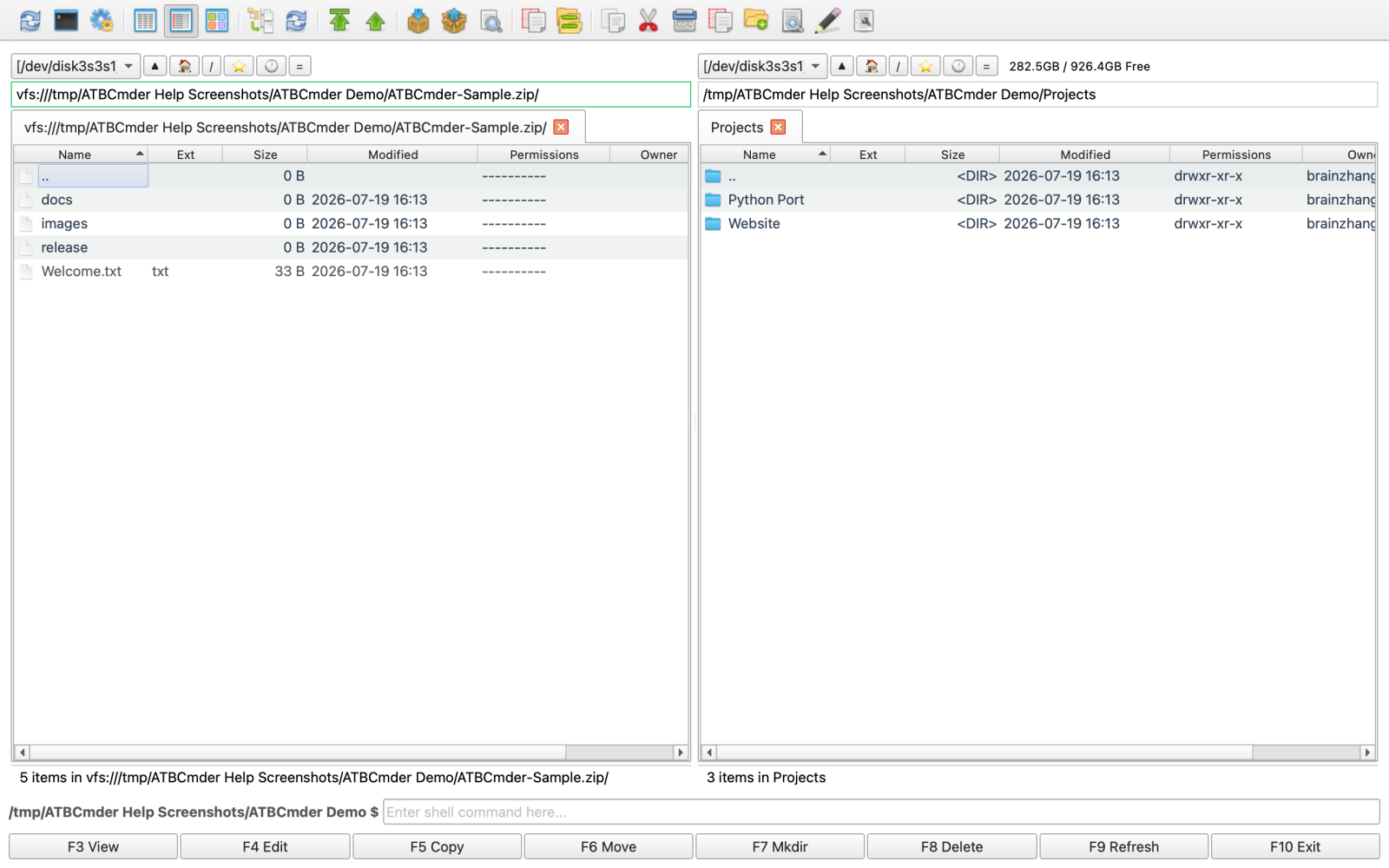
Figure 6.1: Navigating inside a multi-nested compressed archive as a virtual folder, showing uncompressed sizes, timestamps, and subdirectories.
3.1 Supported Archive Formats
ATBCmder features built-in drivers for all industry-standard archive and compression formats:
| Format | File Extensions | Read Support | Write / Pack | Encryption Support |
|---|---|---|---|---|
| ZIP | .zip |
Yes | Yes | Standard & AES-256 (pyzipper) |
| GZip Tarball | .tar.gz, .tgz |
Yes | Yes | POSIX standard tar streaming |
| BZip2 Tarball | .tar.bz2, .tbz2 |
Yes | Yes | High-ratio bzip2 block compression |
| XZ Tarball | .tar.xz, .txz |
Yes | Yes | High-efficiency LZMA2 compression |
| Plain TAR | .tar |
Yes | Yes | Uncompressed UNIX tape archive |
| 7-Zip | .7z |
Yes | Yes (via py7zr) |
LZMA / LZMA2 solid compression |
3.2 In-Place Navigation Workflows
When browsing inside an archive:
- Enter Subdirectories: Press
Enteron any folder inside the archive to explore nested trees. - Ascend to Parent (
..): PressBackspace(⌫) or double-click the.. [Parent Directory]entry to ascend. Once you reach the root of the archive, pressingBackspacereturns you cleanly to the physical directory containing the archive file. - Instant Preview (
F3/Fn+F3): Highlight any document, image, or source file inside the archive and pressF3. ATBCmder automatically extracts the target file to a secure temporary sandbox and renders it inside the Universal Lister. - Selective Copying (
F5/Fn+F5): Instead of unpacking an entire multi-gigabyte archive just to retrieve one or two files, select the specific members you need and pressF5. ATBCmder unpacks only those chosen items directly into the inactive panel.
Note
When previewing or copying individual files from an archive, ATBCmder streams only the requested file bytes directly from the container stream. It does not waste disk space or time unpacking unselected sibling files.
4. Live Repacking: In-Place Editing Inside Archives
One of the most powerful workflows in ATBCmder is Live Repacking. Historically, modifying a single file nested inside a compressed archive required a tedious six-step sequence: extract the entire archive, locate the target file, edit and save it, re-compress the directory into a new archive, delete the original archive, and clean up temporary folders.
ATBCmder makes editing files inside archives as effortless as editing standard local files.
┌────────────────────────────────────────────────────────────────────────────────────────┐
│                              LIVE REPACKING LIFECYCLE                                  │
├────────────────────────────────────────────────────────────────────────────────────────┤
│                                                                                        │
│  1. User presses F4 on "config.json" inside "package.zip"                              │
│     │                                                                                  │
│     ├──► ATBCmder extracts "config.json" to sandbox: /tmp/dc_repack_xyz/config.json    │
│     └──► Opens internal EditorDialog with window title: "config.json — Editor"         │
│                                                                                        │
│  2. User modifies file and presses Cmd+S (Save)                                        │
│     │                                                                                  │
│     ├──► Editor emits file_saved signal                                                │
│     └──► RepackWorker checks original archive size vs ArchiveRepackWarningMB threshold │
│                                                                                        │
│  3. Atomic Repack Execution                                                            │
│     │                                                                                  │
│     ├──► Writes modified stream to staging archive: /tmp/package.zip.tmp               │
│     ├──► Validates container integrity via archive driver                              │
│     ├──► Atomic swap: os.replace("/tmp/package.zip.tmp", "/original/package.zip")      │
│     └──► Refreshes active file panel and cleans up sandbox /tmp/dc_repack_xyz/         │
│                                                                                        │
└────────────────────────────────────────────────────────────────────────────────────────┘
4.1 Step-by-Step: Editing an Archived Configuration File
- Navigate into the archive (e.g.,
application_bundle.zip) by pressingEnter. - Locate the file you wish to modify (e.g.,
settings.yaml). - Press
F4(Fn+F4). ATBCmder extracts the file into a temporary cache and launches the built-in Editor. - Make your modifications in the editor.
- Press
Cmd+S(⌘S) to save. - Close the editor with
Cmd+W(⌘W) orEsc. - ATBCmder's
RepackWorkerautomatically updates the internal member, compresses the updated structure to a temporary file, atomically replaces the original archive, and refreshes the panel view.
Caution
Large Archive Safety Guard (ArchiveRepackWarningMB)
Repacking a compressed archive requires decompressing and re-encoding container streams. Modifying a 10 KB file inside a 20 GB .tar.gz video archive would force the computer to rewrite all 20 GB of data.
To prevent accidental disk freezes, ATBCmder includes a protective safety threshold (ArchiveRepackWarningMB, default: 100 MB in atbcmder.xml). If you attempt to edit or delete a file inside an archive larger than this limit, ATBCmder displays a confirmation prompt:
"Modifying this archive requires re-packing the entire file, which may take a long time. Do you wish to continue?"
5. Creating & Extracting Archives (Alt+F5 / Alt+F9)
ATBCmder provides dedicated background workers for creating and extracting archives, ensuring your file panels remain responsive even during long-running compression jobs.
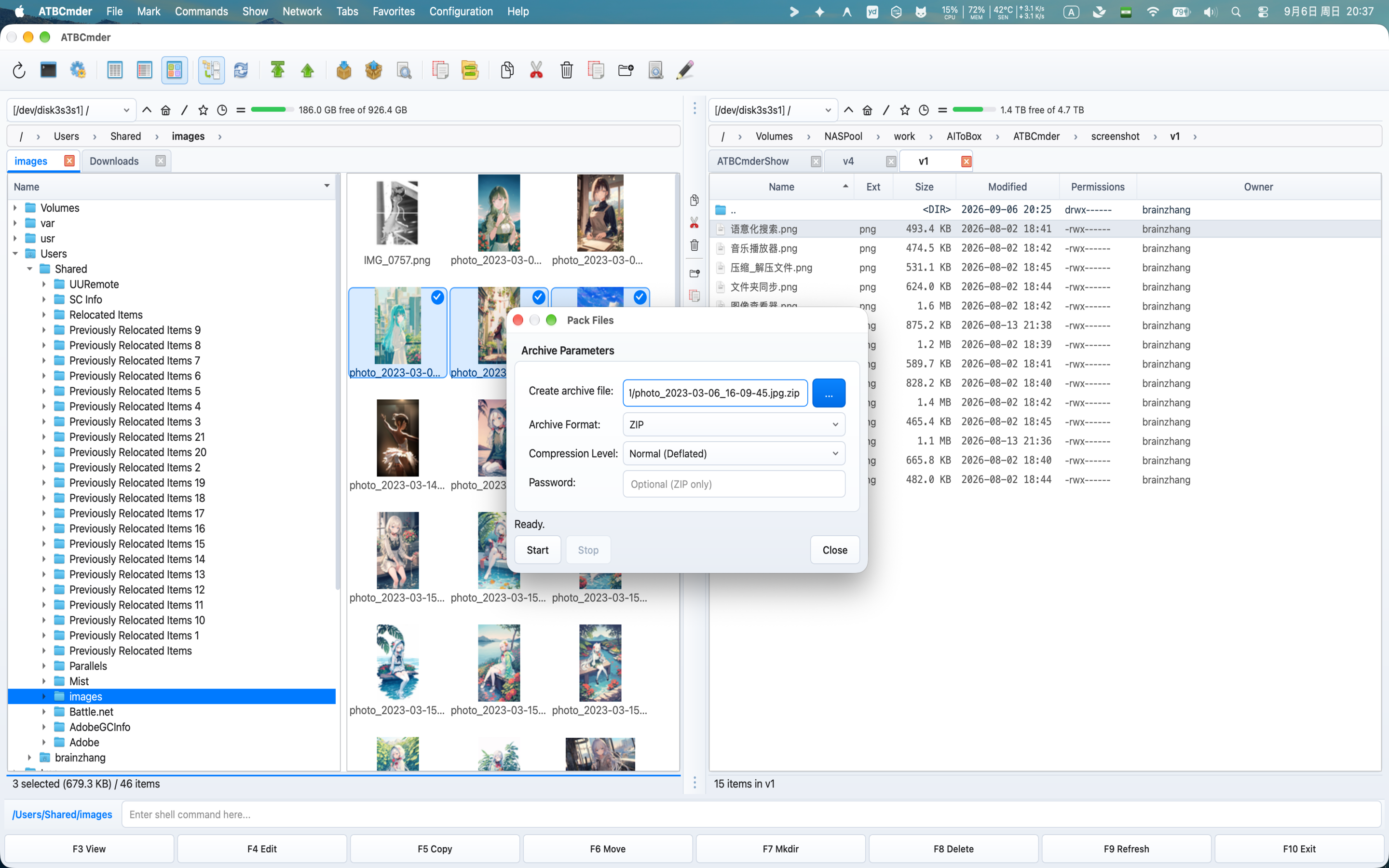
Figure 6.2: The Archive Parameters dialog (Alt+F5 / cm_PackFiles) showing destination path, format selection, compression levels, and password encryption.
5.1 Compressing Files (Alt+F5 / ⌥F5 / cm_PackFiles)
To create a new archive:
- In the active panel, select the files or directories you wish to bundle.
- Press
Alt+F5(⌥F5) or choose Files ➔ Pack... from the menu bar. - The Pack Files dialog appears:
- Create archive file: Destination filepath. By default, ATBCmder suggests placing the archive in the inactive panel's directory, named after the focused item.
- Archive Format: Choose between
ZIP,TAR,TAR.GZ,TAR.BZ2,TAR.XZ, or7Z. - Compression Level:
Store: Zero compression; instant packaging for pre-compressed media (MP4, JPEG).Fast: Low CPU overhead; ideal for quick transfers.Normal (Deflated): Balanced speed and compression ratio (recommended for general use).Maximum: Highest density compression (utilizes LZMA/Bzip2 where applicable).
- Password (ZIP only): Enter a secret passphrase to encrypt the archive.
- Click Start (or press
Enter). The operation runs in a non-blocking background thread with a progress bar and file-by-file status indicator.
Military-Grade AES-256 Password Encryption
Standard ZIP encryption (legacy ZipCrypto) is cryptographically broken and vulnerable to plaintext dictionary attacks. When you specify a password for a ZIP archive, ATBCmder utilizes AES-256 encryption powered by pyzipper (pyzipper.AESZipFile with WZ_AES standard). This ensures compatibility with macOS, WinZip, and 7-Zip while protecting sensitive data against brute-force decryption.
Splitting Huge Archives across Multi-Volume Sets
If you need to distribute an archive across email attachments, FAT32 drives, or cloud upload boundaries with file size caps:
- Bundle your files using
Alt+F5(cm_PackFiles). - Highlight the resulting
.zipor.tararchive and trigger the File Splitter viaAlt+F6(cm_FileSpliter). - Select a preset split size (e.g.,
100 MB,4.7 GB DVD,CD 700 MB, or custom byte size). - ATBCmder generates numbered split pieces (
archive.zip.001,archive.zip.002, etc.) along with a CRC32 verification manifest. Recipients can reassemble the original container at any time usingcm_FileLinker(cm_Combine).
5.2 Extracting Archives (Alt+F9 / ⌥F9 / cm_ExtractFiles)
To extract archives to disk:
- Highlight one or more archives in the active panel.
- Press
Alt+F9(⌥F9) or choose Files ➔ Extract... from the menu bar. - The Extract Files dialog displays:
- Archive to extract: Selected container source path.
- Extract to directory: Destination directory (defaults to the inactive panel).
- Preview Contents: An interactive list box loading archive members in real time.
- Password: Input field for password-protected archives.
- Click Start. If any target file already exists in the destination folder, ATBCmder pauses the worker and presents an interactive collision dialog:
- Overwrite: Replaces the conflicting destination file.
- Skip: Leaves the existing file untouched and proceeds to the next item.
- Overwrite All: Silently overwrites all subsequent conflicts.
- Skip All: Automatically bypasses all existing destination files.
- Cancel: Safely halts the extraction process.
6. Remote Network VFS: Protocols & Remote Storage
ATBCmder includes a multi-protocol network client engine capable of mounting, browsing, and manipulating remote servers directly inside the dual-panel workspace.
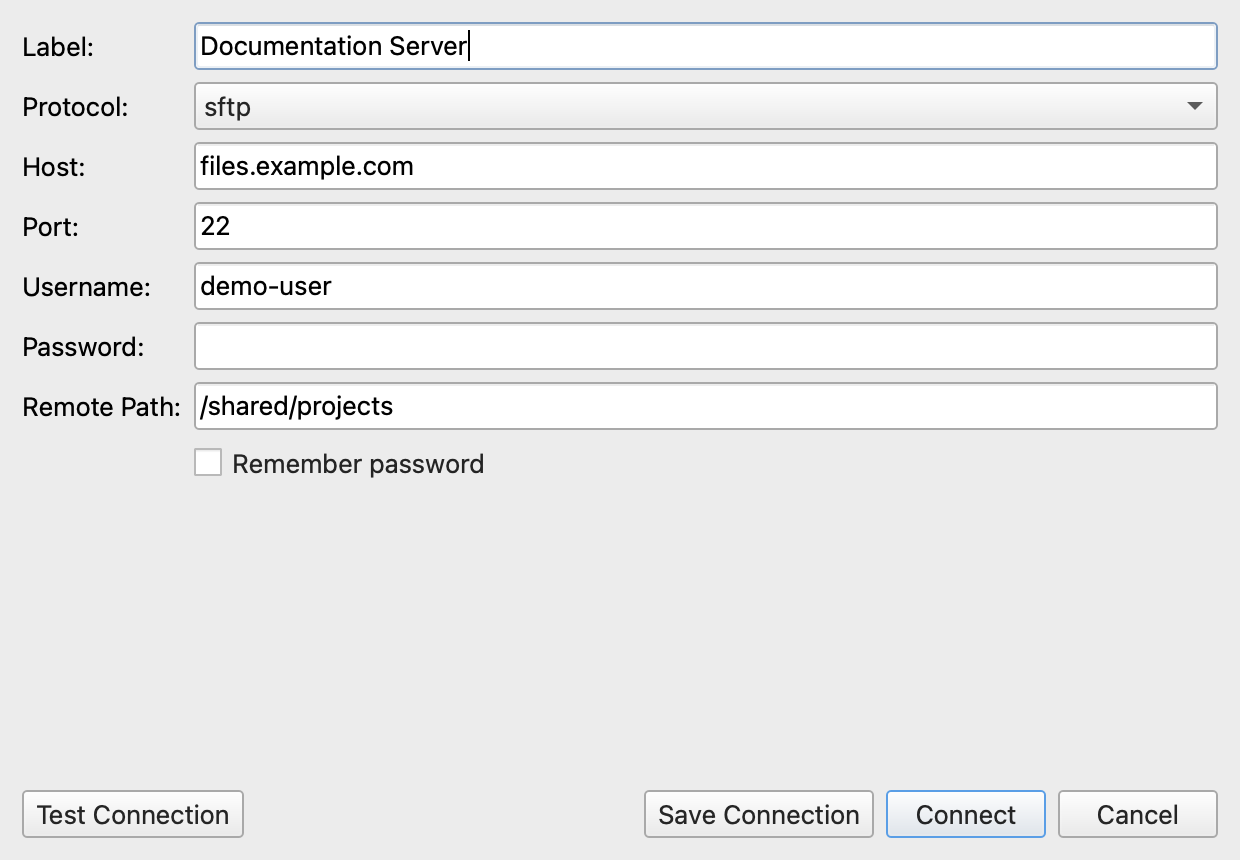
Figure 6.3: Browsing remote Linux server directories over secure SFTP with live file attributes, ownership permissions, and dual-panel transfer.
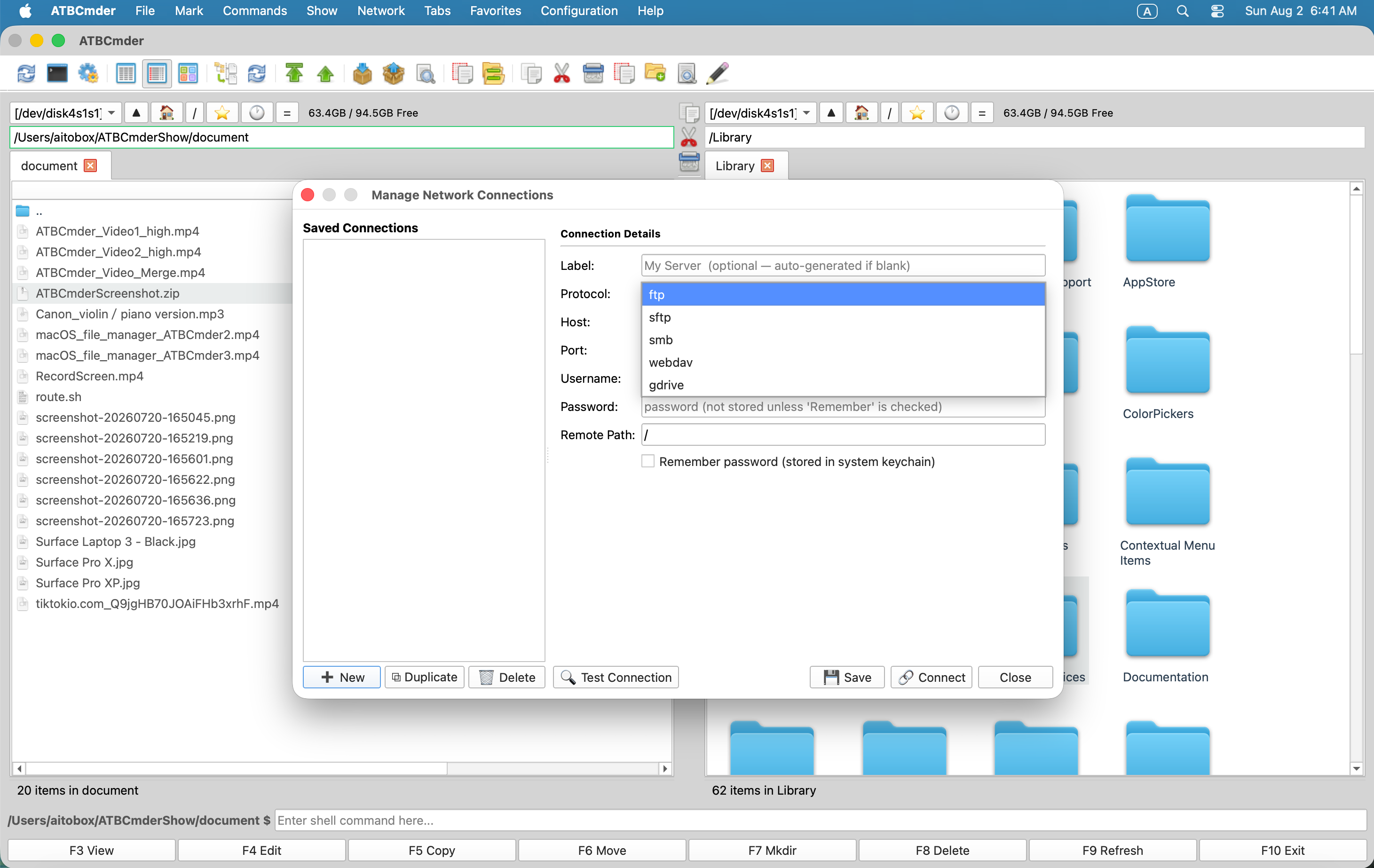
Figure 6.4: Supported network connection types: FTP/FTPS, secure SFTP, WebDAV cloud storage, and SMB network shares.
6.1 Supported Network Protocols
| Protocol Scheme | Default Port | Transport Layer | Authentication Modes | Best Used For |
|---|---|---|---|---|
sftp:// |
22 |
SSH-2 (Paramiko) | Password, SSH Key (id_rsa, id_ed25519) |
Linux servers, cloud instances, staging hosts |
ftp:// |
21 |
Plain RFC 959 | Anonymous, Cleartext Username & Password | Legacy web hosting, local lab devices |
ftps:// |
990 |
TLS-Encrypted FTP | Username & Password with SSL/TLS | Secure commercial FTP servers |
smb:// |
445 |
CIFS / SMB3 | Windows NT / Kerberos / Local Account | Windows shares, NAS appliances, Samba servers |
webdav:// |
80 |
HTTP WebDAV | Basic, Digest Authentication | Web servers, local network storage |
webdavs:// |
443 |
HTTPS WebDAV | SSL-Encrypted Basic / Digest Auth | Nextcloud, ownCloud, commercial cloud storage |
gdrive:// |
443 |
Google Drive API | OAuth2 Token Authorization | Google Drive cloud drives and shared folders |
6.2 Protocol Capabilities & Deep Dive
SFTP (SSH File Transfer Protocol)
Backed by the industry-standard paramiko SSH engine, ATBCmder's SFTP driver establishes encrypted tunnels over port 22:
- Host Key Safety (
WarningPolicy): In compliance with strict security requirements, ATBCmder automatically consults your local~/.ssh/known_hostsfile. When connecting to a known host, host keys are cryptographically verified. If an unknown server is encountered, ATBCmder emits a safety warning rather than silently trusting unexpected public keys. - SSH Key Authentication: In addition to standard password authentication, ATBCmder supports SSH private key files (
~/.ssh/id_rsa,~/.ssh/id_ed25519). - UNIX Attribute Mapping: Preserves remote octal file modes (
chmod), user/group ownership strings, and exact POSIX modification timestamps.
FTP & FTPS (Explicit / Implicit SSL)
Driven by Python's ftplib, the FTP driver supports:
- Passive Mode (PASV): Enabled by default to ensure reliable connections through restrictive NAT routers and consumer firewalls.
- Configurable Encodings: Resolves non-ASCII filename display issues by allowing you to switch between
UTF-8,ISO-8859-1,GB18030, andWindows-1252character sets.
SMB / Samba (Windows Shares & NAS Appliances)
Unlike naive userspace Python SMB libraries that suffer from slow transfer speeds, ATBCmder employs a hybrid architecture:
- macOS Native Kernel Acceleration (
mount_smbfs): On macOS, ATBCmder'sSambaMounterleverages Apple's native/sbin/mount_smbfssubsystem. It mounts the remote share directly into the macOS VFS tree (/Volumes/or an isolated mount directory), unlocking full hardware-accelerated SMB3 read/write throughput. - Existing Mount Detection: If macOS Finder or a system script has already mounted the target SMB share, ATBCmder automatically detects the active mountpoint from the OS
mounttable and navigates to it instantly, avoiding redundant network connections.
Important
SMB Share Name Requirement
An SMB server cannot be browsed at the bare hostname level. An SMB URI must include the target share or export name in the path:
- ❌ Invalid:
vfs://smb://nas.local/ - ✅ Valid:
vfs://smb://nas.local/StoragePoolorvfs://smb://192.168.1.100/Media
WebDAV & WebDAVS (Nextcloud / Cloud Storage)
Built on webdavclient3, this driver provides bidirectional file synchronization with modern cloud storage solutions:
- SSL Certificate Verification: Supports strict SSL certificate validation for public WebDAVS hosts, with an override toggle for self-signed certificates in private homelab setups.
- Recursive Directory Creation (
makedirs): Automatically creates missing nested remote directory paths during bulk upload operations.
7. Quick Connect vs. Connection Manager
ATBCmder provides two flexible mechanisms for connecting to remote hosts: Quick Connect for fast, temporary sessions, and Connection Manager for persistent, categorized server bookmarks.
7.1 Quick Connect (cm_NetworkConnect)
When you need to quickly access a server without cluttering your permanent configuration:
- Choose Network ➔ Quick Connect... (or execute command
cm_NetworkConnect). - The lightweight connection prompt appears:
- Protocol: Select
sftp,ftp,ftps,smb,webdav,webdavs, orgdrive. - Host & Port: Enter the server address (port auto-populates default values).
- Username & Password: Input connection credentials.
- Remote Path: Starting remote directory (default:
/). - Remember password: Leave unchecked for a single-session ephemeral connection.
- Click Test Connection to verify network handshake and credentials before connecting.
- Click Connect. ATBCmder immediately opens a new tab in the active panel pointing to the remote server.
7.2 Connection Manager (cm_ManageConnections)
For servers you access regularly, the Connection Manager provides a complete configuration dashboard:
┌────────────────────────────────────────────────────────────────────────────────────────┐
│                              CONNECTION MANAGER DIALOG                                 │
├──────────────────────────────┬─────────────────────────────────────────────────────────┤
│  Saved Connections           │  Connection Details                                     │
│  ┌────────────────────────┐  │  Label:        [ Staging Web Server (AWS)             ] │
│  │ 🔐 AWS Staging Server  │  │  Protocol:     [ SFTP (port 22)                     ▼ ] │
│  │ 🖧 Synology Office NAS │  │  Host:         [ ec2-54-210-10-2.compute.amazonaws.com] │
│  │ 🌐 Nextcloud Personal  │  │  Port:         [ 22                                   ] │
│  │ 📂 Legacy Archive FTP  │  │  Username:     [ ubuntu                               ] │
│  │                        │  │  Password:     [ ••••••••••••••••••                   ] │
│  │                        │  │  Remote Path:  [ /var/www/production                  ] │
│  │                        │  │  [✓] Remember password in macOS Keychain                │
│  └────────────────────────┘  │                                                         │
│  [➕ New] [⧉ Dup] [🗑 Del]    │  [🔍 Test Connection]          [💾 Save]  [🔗 Connect] │
└──────────────────────────────┴─────────────────────────────────────────────────────────┘
Managing Server Profiles
- Create New (
➕ New): Clears the right-hand form to define a new server configuration. - Duplicate (
⧉ Duplicate): Clones the selected connection profile. Ideal when managing multiple environments (development, staging, production) on identical host configurations. - Delete (
🗑 Delete): Removes the connection profile and deletes associated credentials from the system keychain. - Test Connection (
🔍 Test Connection): Dispatches a background worker (ConnectionTestWorker) to connect, authenticate, and gracefully disconnect, verifying server responsiveness without navigating away. - Connect (
🔗 Connect): Saves any pending field edits, establishes the remote session, and loads the remote directory into a new active panel tab.
Dynamic Saved Connections Menu
Saved connections are automatically integrated into the top menu bar under Network ➔ Saved Connections. You can mount any bookmarked server with a single click:
Network ➔ Saved Connections ➔ 🔐 AWS Staging ServerNetwork ➔ Saved Connections ➔ 🖧 Synology Office NAS
8. Credential Safety & Keychain Integration
File manager configuration files are a prime target for credential harvesting malware. Many legacy file managers store FTP/SFTP passwords in plaintext XML or INI configuration files located in the user's home directory.
ATBCmder guarantees zero cleartext credential storage.
8.1 The Security Architecture
┌────────────────────────────────────────────────────────────────────────────────────────┐
│                           CREDENTIAL STORAGE ARCHITECTURE                              │
├────────────────────────────────────────────────────────────────────────────────────────┤
│                                                                                        │
│   Connection Configuration XML                    Apple System Keychain                │
│   (~/.config/atbcmder/atbcmder.xml)               (service: "ATBCmder_VFS")            │
│   ┌─────────────────────────────────────┐         ┌──────────────────────────────────┐ │
│   │ <connection>                        │         │ Label: "AWS Staging Server"      │ │
│   │   <label>AWS Staging</label>        │         │ Key:   Encrypted Secret          │ │
│   │   <scheme>sftp</scheme>             │         │ Access: Controlled by macOS      │ │
│   │   <host>aws.infra.net</host>        │         │         Hardware Security Enclave│ │
│   │   <user>deploy</user>               │         └──────────────────────────────────┘ │
│   │   <password></password>             │                           ▲                  │
│   │ </connection>                       │                           │                  │
│   └─────────────────────────────────────┘                           │                  │
│         ▲                                                           │                  │
│         │ Password stripped on save                                 │ Stored via       │
│         └─────────────────── ConnectionManager ─────────────────────┘ Python keyring   │
│                                                                                        │
└────────────────────────────────────────────────────────────────────────────────────────┘
- Cleartext XML Scrubbing: Whenever connection profiles are serialized to disk (
atbcmder.xml), theConnectionManager.save()routine explicitly forcesd["password"] = ""before writing. Even if an unauthorized party inspects your configuration XML, no server passwords will ever be revealed. - macOS System Keychain Encryption: When the Remember password checkbox is selected, passwords are saved directly into the macOS Keychain via the system
keyringAPI under the secure service identifierATBCmder_VFS. Key derivation and storage are safeguarded by Apple's hardware Secure Enclave. - Ephemeral In-Memory Sessions: If "Remember password" is unchecked, credentials are held strictly in dynamic memory (
VFSSessionCache) during the current application lifecycle and are erased the moment ATBCmder terminates.
9. ⚡ Pro Tips: High-Performance Remote Operations
Tip 1: Non-Blocking Background Transfer Queue (cm_OperationsPanel)
When copying large directories across remote servers or downloading multi-gigabyte ISOs over SFTP, never freeze your workspace. All network file operations in ATBCmder automatically integrate with the Background Operations Queue:
- Press
F5to initiate a transfer, then click Background (or let it queue automatically). - Open the operations panel via Show ➔ Operations Panel (
cm_OperationsPanel) to monitor live bandwidth charts, per-file byte counts, and remaining transfer estimates. - You can pause, resume, or reorder queued network transfers while continuing to browse local files in both panels.
Tip 2: Stream Copying Across Heterogeneous Protocols
ATBCmder's stream_copy_file engine enables direct server-to-server streaming. If you drag a folder from an SFTP server in the Left Panel to an SMB network share in the Right Panel:
- ATBCmder does not download the entire directory to your local Mac hard drive before re-uploading.
- Data is chunked through an in-memory buffer ring, streaming bytes from the source socket directly into the target socket. This eliminates local disk wear and accommodates transfers larger than your available local SSD capacity.
Tip 3: Network Keep-Alive & Preventing Connection Drops
Stateful network firewalls and NAT gateways frequently sever idle TCP connections after 60 to 300 seconds of inactivity. To prevent disconnected sessions when browsing large remote trees:
- ATBCmder's
BaseNetworkVFSlayer automatically maintains session heartbeats across idle connections. - If a momentary network drop occurs, the internal
_retry()mechanism executes up to 3 retry attempts using exponential backoff (2^attemptsecond intervals) before reporting a connection failure.
Tip 4: Editing Remote Files with Auto-Upload Lifecycle
Need to edit an nginx.conf or a Python script directly on a remote server?
- Highlight the remote file in your SFTP or WebDAV panel view.
- Press
F4(Fn+F4). - ATBCmder downloads the file to an isolated temporary sandbox (
/tmp/) and opens it in the built-in Editor. - Each time you press
Cmd+S(⌘S), ATBCmder triggers_upload_vfs_temp(), streaming the updated file back to the remote server asynchronously and flashing a confirmation in the status bar. - When you close the editor, the temporary file is securely unlinked from
/tmp/.
10. System & Security Alerts
Warning
SSH Host Key Verification Mismatch
If an SFTP server regenerates its host keys (e.g., after an OS re-installation) or if a man-in-the-middle network interception is attempted, ATBCmder detects that the server key does not match the fingerprint registered in ~/.ssh/known_hosts.
Never bypass host key warnings on untrusted public Wi-Fi networks without independently verifying the server's public key fingerprint with your system administrator.
Important
Temporary Cache Space for Large Remote Files
When viewing (F3) or editing (F4) multi-gigabyte files stored on remote VFS servers, ATBCmder streams the target item to your local /tmp volume. Ensure your Mac's primary APFS container has sufficient free storage space before opening massive remote video or database files.
Caution
Unmounting Remote Network Shares
For SMB shares mounted via macOS mount_smbfs, terminating network connectivity without disconnecting can leave stale mount handles in /Volumes/. Always use the panel drive menu or disconnect action before closing your laptop or changing Wi-Fi networks.
11. Master Dual-Matrix Keyboard Reference Table
| Category | Action Description | macOS Shortcut | Classic Commander Key | Command ID |
|---|---|---|---|---|
| Archive Operations | Pack Selected Files / Folders | Alt+F5 / ⌥F5 |
Alt+F5 |
cm_PackFiles |
| Archive Operations | Extract Selected Archive(s) | Alt+F9 / ⌥F9 |
Alt+F9 |
cm_ExtractFiles |
| Archive Operations | Browse Inside Archive Container | Enter / ⏎ |
Enter |
cm_Open |
| Archive Operations | Exit Archive to Parent Directory | Backspace / ⌫ |
Backspace |
cm_ChangeDirToParent |
| Archive Operations | Preview File inside Archive | F3 / Fn+F3 |
F3 |
cm_View |
| Archive Operations | Edit File inside Archive (Live) | F4 / Fn+F4 |
F4 |
cm_Edit |
| Archive Operations | Extract Selected Items Only | F5 / Fn+F5 |
F5 |
cm_Copy |
| Archive Operations | Split Large Archive into Volumes | Alt+F6 / ⌥F6 |
Alt+F6 |
cm_FileSpliter / cm_Split |
| Archive Operations | Reassemble Split Volume Pieces | Menu: Files ➔ Combine Files | — | cm_FileLinker / cm_Combine |
| Network Connections | Quick Network Connect Dialog | Menu: Network | — | cm_NetworkConnect |
| Network Connections | Manage Network Connections | Menu: Network | — | cm_ManageConnections |
| Network Connections | Quick Connect to FTP Server | Ctrl+S / ⌃S |
Ctrl+S |
cm_FTPConnect |
| Network Connections | Disconnect Remote Network Share | Menu: Network | — | cm_NetworkDisconnect |
| Transfer Management | Open Operations Transfer Queue | Menu: Show | — | cm_OperationsPanel |
| Transfer Management | Pause / Resume Active Queue | Space (in Queue) |
Space |
— |
Ready to monitor system resources, analyze disk usage, and safely clean caches?