Navigation Guide
Welcome to the ATBCmder Navigation Guide. This guide covers the primary ways to navigate the file system and manage your view.
Tree View
The Tree View provides a hierarchical look at your file system, including virtual file systems (VFS) like archives. It supports three layout modes, accessible from the Show menu:
-
Tree View (Replace): Replaces the file list with the tree view.
-
Tree View (Split): Shows both the tree view and the file list side-by-side in the current panel.
-
Tree View (Both Panels): Enables the split view in both the left and right panels.
Right-click the tree view to toggle the Show Files option if you want to see files alongside directories in the tree.
Quick View Panel
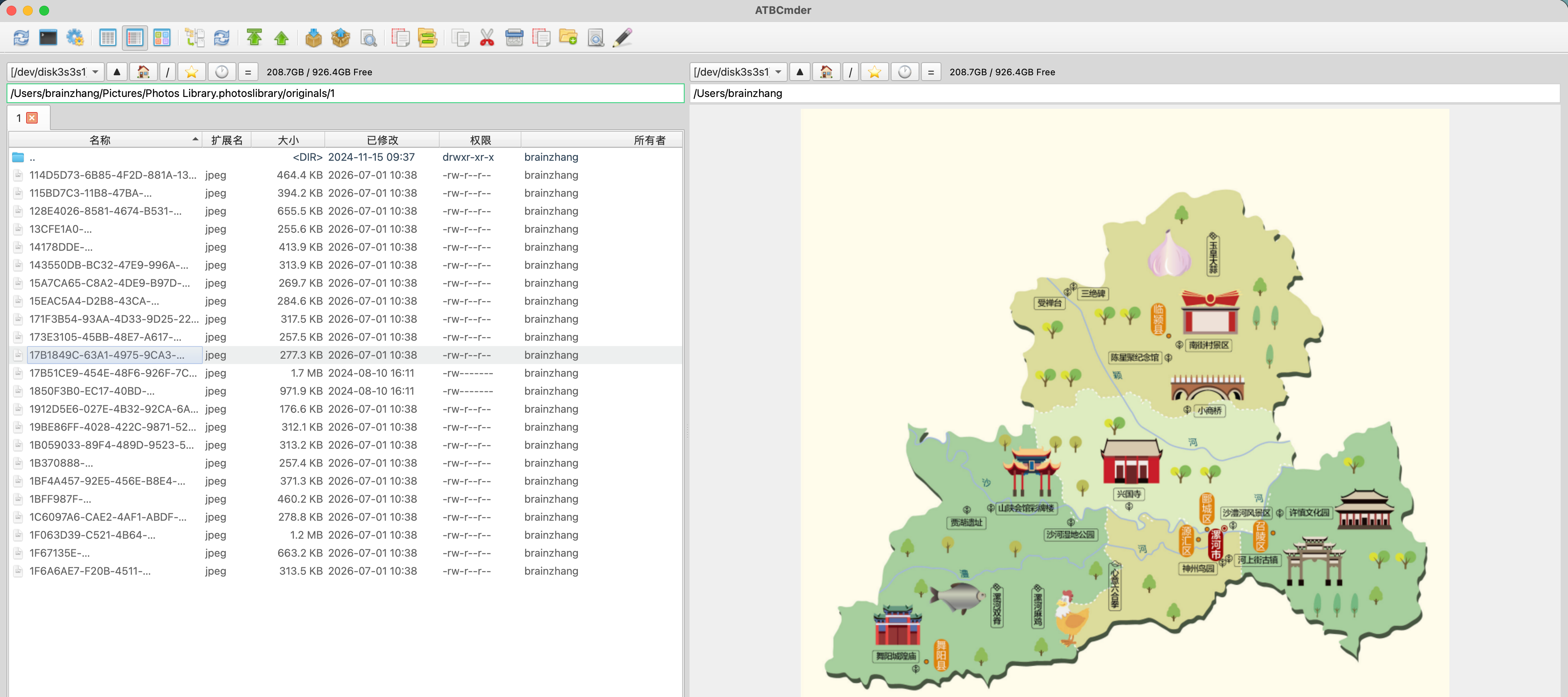
Quick View Panel: Browse on one side, preview in real-time on the other
The Quick View feature allows you to use the opposite panel as a real-time preview window for your files.
- Hotkeys and Commands (
cm_QuickView): Trigger the Quick View mode on and off using the defaultCtrl+QorCmd+Qshortcuts. - Multi-format Inline Preview & Property Fallback:
- Previewable formats: Seamlessly integrates text/source code, images, PDFs, audio/video, CSV/JSON, etc., embedding the preview directly in the opposite panel.
- Non-previewable formats or Directories: Automatically displays a metadata panel listing file properties, UNIX octal permissions and read/write/execute matrices, background-calculated MD5/SHA256 hashes, and directory statistics (number of files and subfolders).
- Smooth Navigation & Debouncing: When navigating the file list using arrow keys, the opposite Quick View panel updates with a 100ms debouncing timer. This ensures the UI remains smooth and stutter-free even when scrolling rapidly.
- Symmetric Flip:
If Quick View is active and you press
Tabor click to switch focus to the opposite panel, the Quick View automatically flips to the new opposite side, seamlessly following your currently selected file.
Folder Tabs & Favorites (Directory Hotlist)
Folder Tabs
You can open multiple folders in tabs within both the left and right panels. Right-click the tab bar to access options like New Tab, Close Tab, and tab navigation.
Favorite Tabs
You can save your entire dual-panel tab layout (left and right tabs) as a named "Favorite Tab" set.
-
Save/Load: Right-click the tab bar and select Save current tabs to a New Favorite Tabs or load an existing set.
-
Management: Go to Preferences → Favorite Tabs to rename, delete, or reorder your saved sets.
Directory Hotlist (Bookmarks)
The Directory Hotlist acts as your bookmarks for frequently used folders.
-
Access: Use the hotlist popup menu to quickly jump to a bookmarked folder. The popup includes a search box for real-time filtering by name or path.
-
Management: Manage your bookmarks in Preferences → Directory Hotlist, where you can add, delete, edit, and reorder your hotlist entries.
Quick Search
Quick Search allows you to jump directly to a file by typing its name.
-
Trigger: Depending on your settings (Preferences → Quick Search), typing a letter or using a shortcut (like
Option+LetterorCmd+Option+Letter) will open the Quick Search overlay. -
Navigation: Use the
UpandDownarrows to jump between matching files. PressEnterto open the file or folder. -
Matching Rules: You can configure it to match the beginning of the filename, or anywhere in the name. Type a trailing dot (
.) to specifically match the end of a filename (excluding the extension).
Essential Keyboard Shortcuts (Hotkeys)
For a complete list of default shortcuts and configuration instructions, please refer to the dedicated Keyboard Shortcuts section.
Auto-Fitting Columns
By default, the file panel automatically adjusts column widths so you can see the full file names.
-
Max text width (Default): Columns automatically fit the widest file name currently visible.
-
Average text width: Sizes columns based on average text width plus a padding factor.
-
Fixed widths: Retains a fixed width, which is automatically activated if you manually resize a column.
You can change the auto-fit mode in Preferences → File Views.